
The short answer
Most Aiper Scuba X1 Pro problems trace back to three things: a filter sealed with fine debris, a battery that is not fully charged, or air trapped in the body. Rinse the filter until the water runs clear, charge until the light shows full, and let the air out before the next run.
This is the troubleshooting home for the Aiper Scuba X1 Pro. It is a cordless, battery-powered robot that cleans the floor, walls and waterline. Below are the 12 problems owners run into most, each with the checks we would make first and the point where it stops being a do-it-yourself fix.
Safety first: take the Scuba X1 Pro out of the water and switch it off before you open the filter, touch the brushes, or reach near the impeller. Never charge it while it is wet at the charging contacts, and never open the sealed battery or motor housing.
Scuba X1 Pro Quick Checks First
Run through these before you chase a specific symptom. Between them they clear up most of what goes wrong with a Aiper Scuba X1 Pro.
- Charge it all the way. Leave the Scuba X1 Pro on charge until the light shows full, not just until it turns on. A partial charge causes short runs, weak climbing, and robots that stop in the middle of the pool.
- Rinse the filter until the water runs clear. A filter that looks clean can still be sealed with fine dust. Most pickup, climbing, and early-shutoff complaints end here.
- Let the air out. Hold the robot under the surface and rock it until the bubbles stop before you let go. Trapped air makes it float, tip, and lose grip.
- Rinse it and seat it squarely on the charger. Rinse the Scuba X1 Pro with fresh water after every run, dry the charging area, and make sure it sits fully in place on the charger. A robot that is a little off will look docked and never fill.
- Check the water. Algae, very cold water, and chemistry far out of range all make a robot slip. Fix the water before you blame the machine.
Aiper Scuba X1 Pro at a glance
- Type
- Cordless, battery powered
- Cleans
- Floor, walls and waterline
- Filter
- Top-loading filter box with a replaceable MicroMesh ultra-fine liner
- Battery
- Up to 180 minutes rated, 4-6 hour charge per the manual, 10,400 mAh
- App
- Aiper app, added by Bluetooth or QR code on a 2.4 GHz or mixed 2.4/5 GHz Wi-Fi network
- Built for
- In-ground pools up to 2,150 sq ft, up to 10 ft deep
- Weight
- 26.4 lb dry
- Warranty
- Not confirmed. The copy of the X1 Pro manual we found defers to local law; the base X1…
Scuba X1 Pro Won’t Turn On
- No lights when you hold the Power button
- Dead after hours on the dock
- Will not start in cold or very hot weather
- Battery too low
- Battery outside its temperature range
- Power button tapped instead of held
- Controller locked up
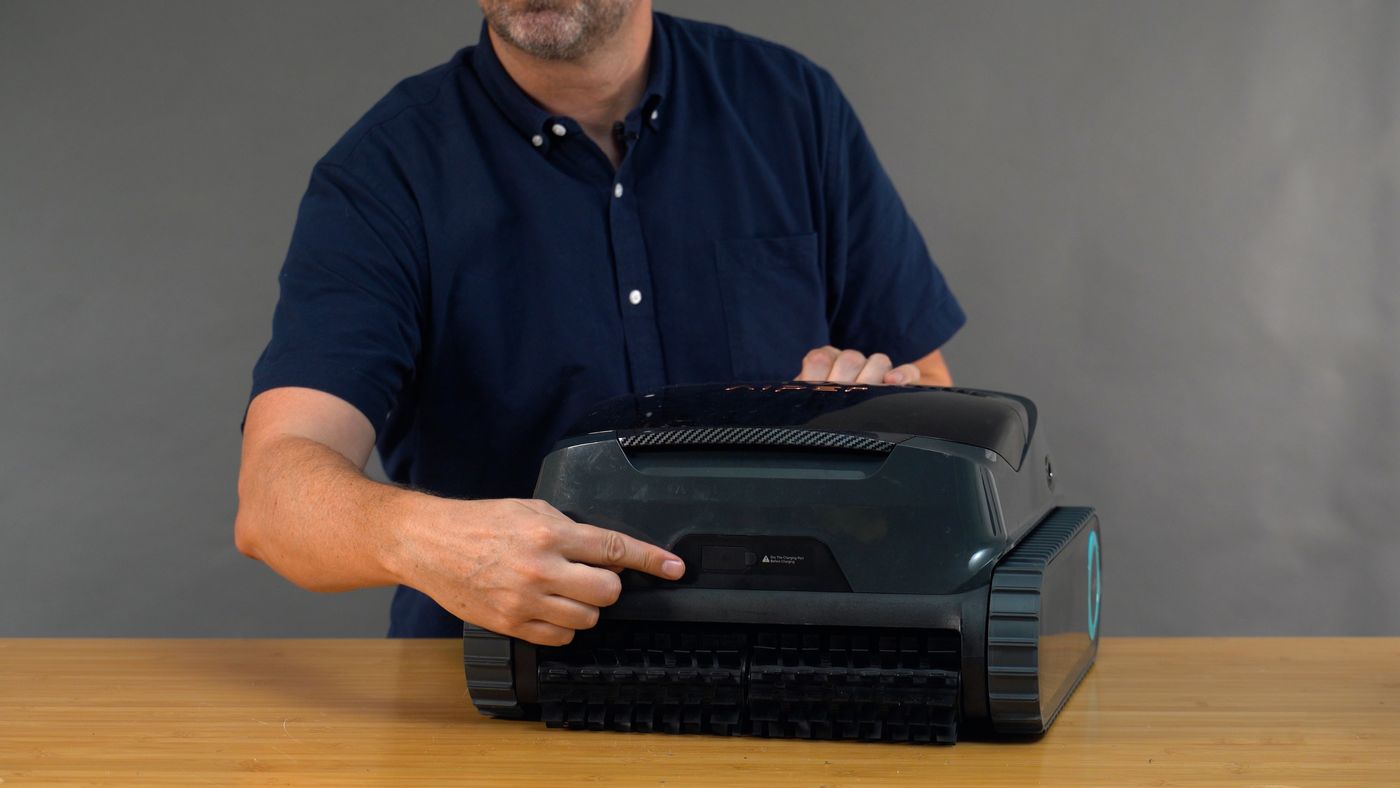
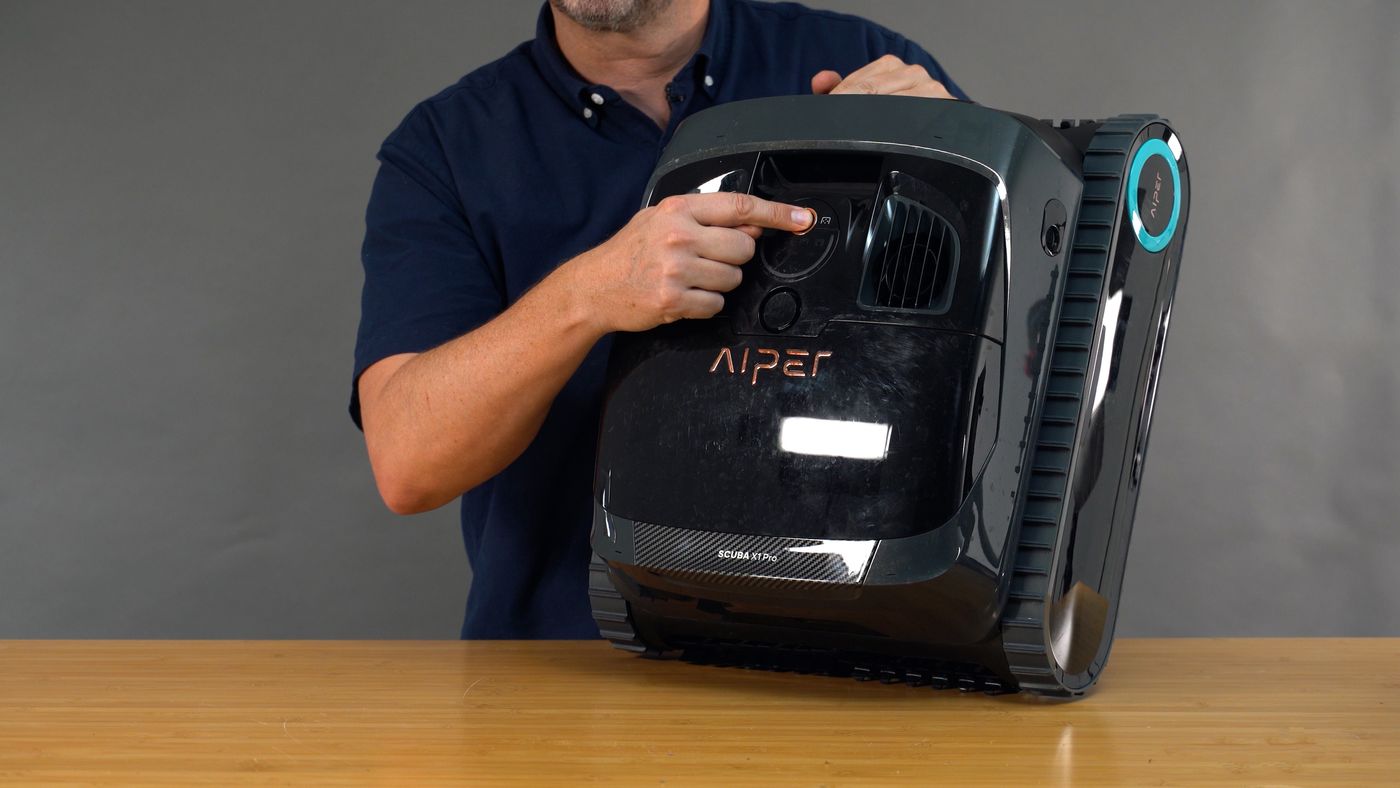
- Hold Power for 2 seconds. The X1 Pro has three buttons. Only the Power button turns it on, and it needs a two-second hold.
- Charge until solid green. Seat it on the dock or plug the charger into the charging port. The manual allows 4 to 6 hours for the X1 Pro's larger battery.
- Bring it into range. Aiper's manual says to operate it only between 50 and 104 F. Move a cold or sun-baked robot into the shade or indoors for a while, then try again.
- Reconnect the charger and try again. Aiper's charging guide for the X1 line suggests unplugging the charger, waiting a minute, reconnecting and trying to power on while it charges. Check that the Power button clicks and is not stuck.
Stop and call support if: it will not power on after a full charge inside the temperature range.
Scuba X1 Pro Won’t Charge
- Status LED does not pulse on the dock
- No light on the charger
- LED unchanged after half an hour
- Wet or dirty contacts under the robot or on the dock
- Robot not sitting squarely on the dock
- Charger faulty, unplugged or on a dead outlet
- Battery too hot or too cold
- Battery deeply discharged after long storage
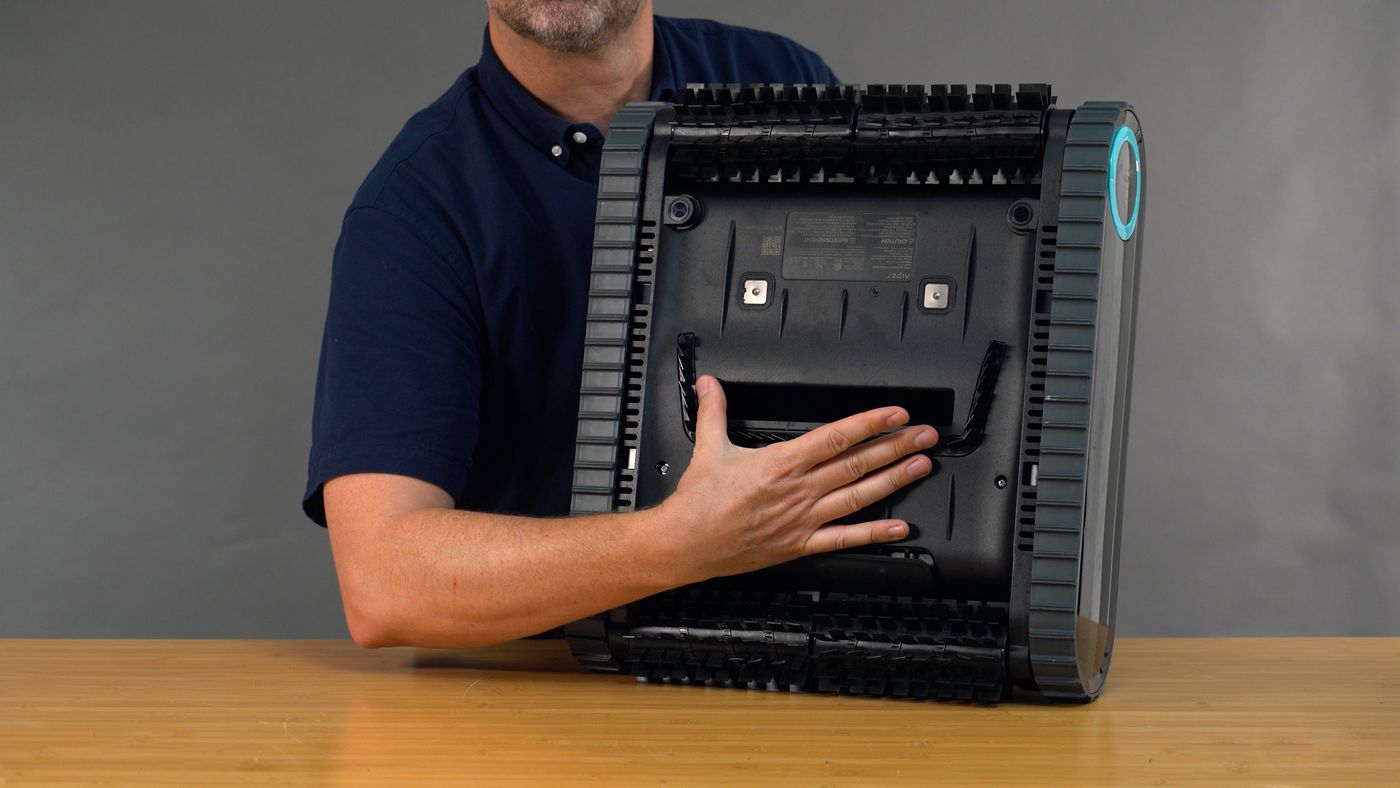
- Dry the robot and the dock. Aiper says not to put a wet robot on the dock. Let it drain, then dry the metal contacts on the underside with a cloth or tissue. If you charge through the port instead, take off its cover and dry inside.
- Check the charger light. The manual's first check is the indicator on the charger. If the plug is secure in a live outlet and the light is off, the charger is probably faulty.
- Reseat it on the dock. The charger cable goes into the dock and the adapter into the wall. Set the robot down squarely on the dock and watch for the status LED to pulse.
- Try the charging port. Plug the charger straight into the robot's charging port. If that works and the dock does not, the dock or the contacts are at fault.
- Charge between 50 and 104 F, out of the sun. The battery will not charge outside that range. Use a wall outlet rather than an extension cord and keep the dock at least 11.5 ft from the pool.
Stop and call support if: the charger light is off on a good outlet, the LED never pulses with clean dry contacts, or the robot will not charge after months in storage.
Scuba X1 Pro Stops Before the Pool Is Clean
- Stops with a solid red LED
- Stops with the LED flashing red
- Sinks, sits still and powers off
- Battery ran down, sooner in Max or on walls
- Jammed propeller
- Debris around a tread or roller
- Battery that sags under load
- Read the LED. The manual splits a stopped robot into two cases. Solid red means the battery is low and the task ended early. Flashing red means the propeller may be jammed.
- Clear the propeller. Pry the drain cover open with a flathead screwdriver, lift off the propeller cover and remove anything tangled in the propeller. Refit the propeller cover, then the drain cover.
- Clear the treads and rollers. Switch it off and pull hair, string and leaves out of both treads and the roller brushes. Turn the treads by hand to check they are free.
- Drop the cleaning power. Max ran the battery down fastest for us. Use the Cleaning Power button to pick Auto or Eco when the pool is not heavily soiled.
- Recharge to solid green. Do not start from a pulsing LED. Aiper's guide for an X1 that sinks and shuts off says to recharge fully and then test again in open water.
Stop and call support if: it still shuts down mid-cycle after clearing debris and a full recharge. Aiper asks for the serial number and a short video.
Scuba X1 Pro Turns On but Won’t Run
- LED green, motors blip, stop and try again
- Sits on the floor without driving
- Circles slowly near where you dropped it
- Not yet submerged, or still mapping
- Tread or roller blocked
- Battery voltage dropping under load
- Drive motor fault
- Put it in right after choosing a mode. The X1 Pro starts its task only after it has been underwater for a short time. Pick the mode on the deck and lower it in, top up, never upside down.
- Let it finish mapping. The first time it runs a floor mode in a pool it follows the edge of the floor to build a map without climbing. On later runs it still moves around briefly to work out where it is. Give it a few minutes before you decide it is confused.
- Check for a blockage. Take it out, switch it off and clear the treads and rollers. Everything should turn by hand.
- Recharge fully and retest in open water. Aiper's guide for this start-stop pattern says to charge to solid green and test in a clear part of the pool for two or three minutes.
Stop and call support if: the start-stop pattern continues on a full charge with clean treads. Aiper wants a short video showing the LED.
Scuba X1 Pro Won’t Climb Walls or Reach the Waterline
- Stays on the floor all cycle
- Climbs to mid-wall and stops
- Did not climb at all on its first run
- Floor mode selected
- First run was the mapping pass, which does not climb
- Battery low
- Full filter box cutting suction
- Debris on the treads or a rough or slick wall
- Choose a mode that climbs. Smart mode cleans the floor, then the walls and waterline. Wall mode does the walls and waterline only. Waterline mode travels along the waterline. Floor mode never climbs.
- Allow for the mapping run. On its first floor run in a new pool it maps the floor outline and does not climb. That is normal and only happens once per pool.
- Start on a full charge. Wait for solid green. Aiper's guide notes that wall climbing uses far more power than floor cleaning, and we saw runtime drop on walls and waterline.
- Empty the filter box and clean the treads. Suction holds the robot on the wall and the treads drive it up. Rinse the filter box and liner and clear the treads and rollers.
- Run a second wall cycle in deep pools. In pools deeper than about 8 ft, Aiper says the robot may not reach full wall height on one charge.
Stop and call support if: it will not climb in Wall mode on a full charge with a clean filter box and clean treads.
Scuba X1 Pro Not Picking Up Debris
- Leaves swirl around the intake and stay in the pool
- Robot tilts in the water
- Fine dirt still there after several cycles
- Filter box full
- MicroMesh liner clogged, or fitted when there is heavy debris
- Cleaning power set to Eco
- Propeller jammed (flashing red)
- Modest suction and a 7.75-inch intake

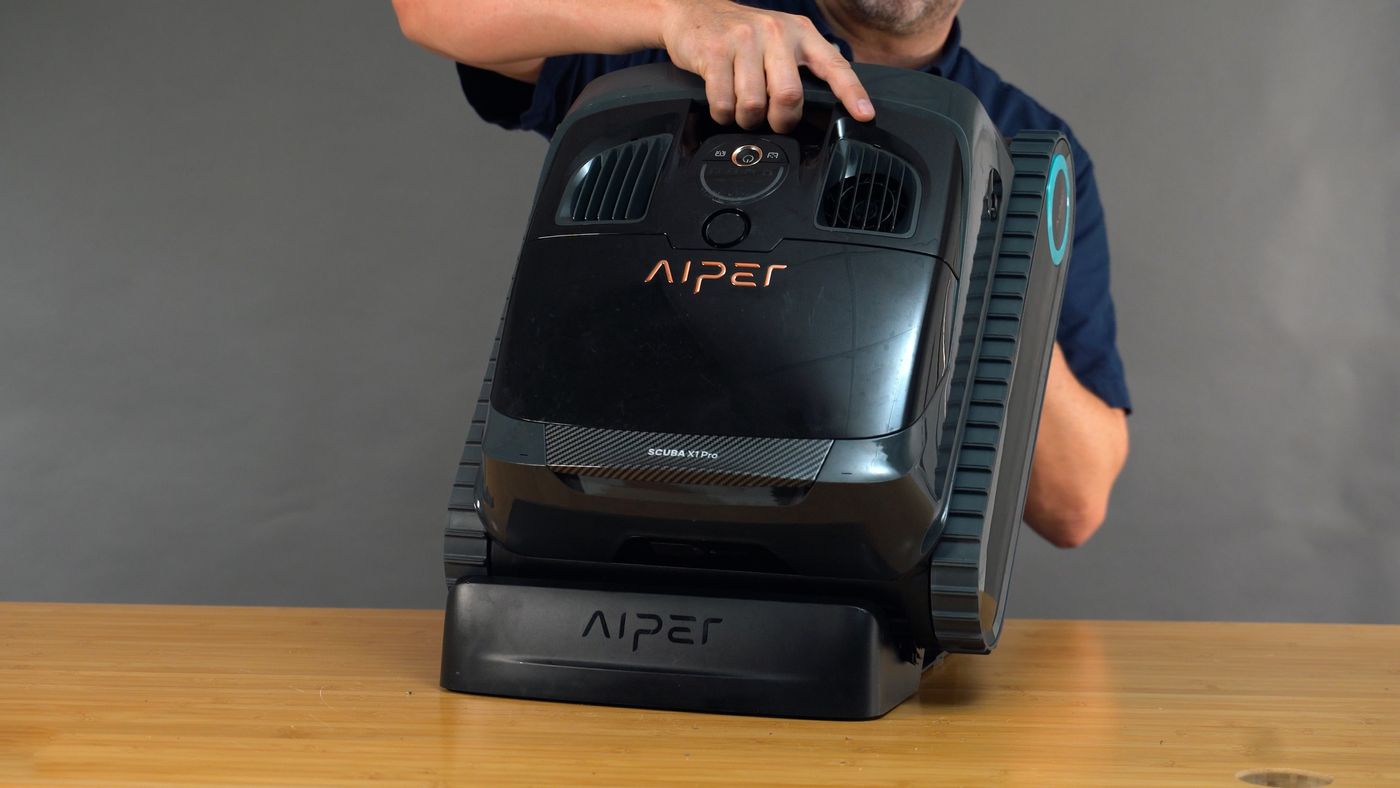
- Empty the filter box. Lift the top shell, pull the filter box out by its handle, press the latch and open it. The manual ties a tilting robot and weak cleaning to a full box or a clogged filter.
- Rinse the liner inside and out. Release the liner's rubber strip from the slots at A, B, C and D and wash the liner and the box separately. Aiper recommends a high-pressure nozzle. Debris sat in the folds for us, so work along each one.
- Refit it properly. Match the A marks on the liner and the box, pull each corner of the strip into its slot and check it is seated all the way round.
- Raise the cleaning power. Press the Cleaning Power button to move from Eco to Auto or Max. Aiper recommends Max when the water is visibly dirty, at the cost of battery life.
- Choose the filter for the mess. Use the box with the MicroMesh liner for cloudy water and light debris, and the box alone for lots of leaves or sand. Replace the liner about every 30 uses.
Stop and call support if: flow from the top outlet stays weak with a clean box and a clear propeller.
Scuba X1 Pro Gets Stuck
- Sits on the main drain
- Hangs at the waterline
- Runs into things it should avoid
- Pool pump running, so the drain holds it
- A small ledge or fitting at the waterline the sensor missed
- Dirty sensor lens
- Loose items in the pool
- Wait a minute first. The manual says a robot caught on the pool drain will free itself, and one stuck at the waterline in Waterline mode will sink within about a minute and carry on. Step in only if it does not.
- Turn the pool pump off. Aiper says not to open the pool drain while the robot is cleaning and not to run it alongside other pool equipment.
- Wipe the sensor lens. If it has stopped avoiding obstacles, clean the sensor lens with a soft, dry cloth. That is the manual's fix for that symptom.
- Clear the pool. Remove toys, floats and hoses before the run. Without the HydroComm add-on you cannot steer it out of trouble from the app.
Stop and call support if: it stalls in open water with the LED flashing red and a clear propeller, or one tread will not turn.
Scuba X1 Pro Misses Spots
- Thin strips of debris along the edges of its path
- Odd route on the first run in a pool
- Larger debris left behind
- 7.75-inch intake, so passes need to overlap
- Mapping not completed
- Battery ran out before it returned to missed areas
- Dirty sensor lens
- Let it complete the map. After mapping, the X1 Pro runs a back-and-forth route on the floor and then returns to areas it missed. If you pull it out during the first run, it has to start that work again.
- Use Floor mode for a dirty floor. Floor mode does not spend battery on the walls, which leaves more charge for going back over missed areas.
- Run a second pass. We saw debris left at the edges of each strip. A second floor cycle after a recharge clears most of it.
- Clean the sensor lens. Wipe the lens with a soft, dry cloth so it reads walls and obstacles correctly.
Stop and call support if: it leaves the same large area untouched on a full charge after a completed mapping run.
Scuba X1 Pro App Won’t Connect
- Setup fails or times out
- Wi-Fi light flashing green or off
- App goes offline as soon as the robot is in the pool
- Robot is underwater and you have no HydroComm
- Phone or router on 5 GHz only
- The 300-second setup window ran out
- HydroComm and robot not paired in the right order
- Expect it to drop in the water. On our X1 Pro the Wi-Fi connection went completely once the robot was under. Set the mode and power level on the deck. Underwater control needs Aiper's HydroComm Pro, sold separately.
- Use a 2.4 GHz network. The manual asks for a 2.4 GHz or mixed 2.4/5 GHz network. Aiper's Wi-Fi guide says a wrong-password error usually means the robot is being pointed at a 5 GHz band.
- Restart network setup. The robot enters setup mode the first time it is switched on. To start it again, hold the two-button combination shown in the manual's Button Descriptions for 5 seconds. Setup mode lasts 300 seconds, so have the app open first.
- Add it by Bluetooth or QR code. In the Aiper app tap the plus sign, then choose Add via Bluetooth or Add via QR Code and scan the code on the robot. Aiper says the QR route often gets past stubborn errors.
- Pairing a HydroComm. Aiper's guide says to put both devices on the same account and the same 2.4 GHz network and link them in the robot's settings. If they will not see each other, switch both off, turn the HydroComm on first, wait about 30 seconds, then turn the robot on and pair.
Stop and call support if: it will not pair on the deck on a 2.4 GHz network, or a second-hand robot is still tied to another account. Give Aiper the serial number.
Scuba X1 Pro Hard to Get Out of the Pool
- Hook and pole flex under the weight
- Water gushes out as it comes up
- It was at the waterline, then went back down
- 26.4 lb dry, more full of water
- The 5-minute wait at the waterline ran out
- Lifted on the hook alone
- Catch it at the waterline. When a task ends the X1 Pro returns to the pool edge, climbs to the waterline and holds there for 5 minutes. Be at the pool when the cycle finishes and lift it by the handle while it is up.
- Use the hook if you miss it. After 5 minutes it goes back down to the floor near the wall. Fit the hook to a standard pool pole, get it fully under the handle and raise the robot slowly.
- Take the weight by hand. The plastic hook felt flimsy to us under 26 lb of wet robot. Bring it to the surface on the hook, then grab the handle and lift with your legs.
- Drain before you carry it. Hold it at the pool edge until the water has run out. Aiper says to drain it before storing or charging, and the underside contacts must be dry before it goes on the dock.
Stop and call support if: the hook is cracked or bent, or the robot never climbs to the waterline at the end of a completed task.
Scuba X1 Pro Short Battery Life
- Finishes well under 180 minutes
- LED blue rather than green at the start
- Battery drops quickly on walls or in Max
- 180 minutes is the Eco figure
- Max power and wall or waterline modes use more
- Taken off the charger before solid green
- Clogged filter box, or battery wear
- Match power to the pool. Use the Cleaning Power button. Aiper recommends Eco for clear water with little debris, Auto when you are unsure and Max for visibly dirty water. Max drained ours fastest.
- Charge to solid green. The manual allows 4 to 6 hours. Pulsing green only means more than half.
- Keep the filter box clean. Empty the box and rinse the liner after every run.
- Store it charged, cool and dry. Charge it fully before the off-season, close the charging port cover and keep it indoors. A pack left flat for months may not recharge.
Stop and call support if: a full charge in Eco on the floor gives only a fraction of the rated time.
Scuba X1 Pro Error Lights
- Status LED flashing red
- Status LED solid red
- Status LED pulsing yellow
- Wi-Fi light flashing green
- Jammed propeller or a stuck robot (flashing red)
- Low battery (solid red)
- Reset or firmware update in progress (pulsing yellow)
- No internet connection (Wi-Fi light flashing green)
- Flashing red: clear the propeller. Switch it off. Pry open the drain cover with a flathead screwdriver, remove the propeller cover and take out whatever is wrapped around the propeller. Refit both covers in order.
- Flashing red: free the drive. The light also covers a stuck robot. Clear the treads and rollers and move it away from what trapped it.
- Solid red: recharge. The battery is under 15%. Put it on the dock until the LED is solid green.
- Pulsing yellow: wait. It is resetting or updating its firmware. Keep it on the deck within Wi-Fi range until the light changes.
- Wi-Fi light flashing green: fix the network. The robot cannot reach the internet. Follow the prompts on the app's setup screen and check the network is 2.4 GHz.
Stop and call support if: the LED keeps flashing red with a clear propeller and free treads.
Scuba X1 Pro Lights and What They Mean
These are the indicator states listed in the official Aiper material for the Aiper Scuba X1 Pro. If what you see is not here, check the manual for your exact production run before acting on it.
Leave it on the dock or charger until the LED is solid green.
Take it off the charger and run it.
Leave it on the deck, within Wi-Fi range, until the light changes.
Take it out, switch it off and clear the propeller under the drain cover. Check the treads and rollers too.
Retrieve it and recharge fully. If the task ended early, this is why.
Recharge first if you want a full cycle that includes the walls.
Nothing to do.
Nothing to fix. Press the Mode button if you want a standard mode instead.
On flashing green, follow the troubleshooting prompts on the app's setup screen.
What We Saw Testing the Scuba X1 Pro
We ran the Aiper Scuba X1 Pro in our own test pool for our Aiper Scuba X1 Pro review. These are the things we ran into ourselves, so you can tell a quirk of the model from a real fault.
- Weak pull at the intake: Leaves swirled around the intake instead of going in, larger debris was often left, and fine dirt and silt took several cycles.
- Filter is slow to clean: The ultra-fine filter is a sleeve over a standard basket. Debris gets caught in its folds, so rinsing took longer than it should.
- Heavy on the hook: At 26.4 lb dry it was a serious lift. The plastic hook felt flimsy, and more than once we thought the pole would snap.
- No charging or overheating problems: We did not see any overheating or charging faults on our X1 Pro.
- Narrow cleaning path: The 7.75-inch intake left small bits of debris at the edges of each pass, and those missed strips added up.
- App dies underwater: On the deck the app showed battery, modes and status. Underwater the connection dropped completely, with no steering, changes or monitoring unless you buy the HydroComm Pro.
- Runtime depends on the setting: The 180-minute figure is for Eco. Wall and waterline cleaning cut the runtime, and Max power drained the battery fastest.
- Daily charging routine: We tested every mode over several days, and each clean ended with hauling the robot out and waiting 3 to 4 hours for the recharge.
When to Call Aiper Support
Stop troubleshooting and get the Scuba X1 Pro looked at if any of these are true:
- The same fault comes back right after a full clean and a restart
- You see water inside a sealed compartment, or the robot has become noticeably heavier
- There is a burning smell, a melted connector, or visible corrosion on the electrical contacts
- The battery will not take a charge, or the runtime has dropped to a fraction of what it was
- A motor is silent or grinding with nothing blocking it
Before you call, write down the serial number, find your proof of purchase, and record a 20 to 30 second video of the problem. A clip of the robot failing, plus a clear shot of any light on the robot or charger, gets a warranty claim moving faster than any description.
- Support: Aiper support
- Phone: +1 (866) 850-0666 (Mon-Fri, 9 AM-6 PM Eastern, per Aiper's FAQ page)
- Email: service@aiper.com
- Manual: Aiper Scuba X1 Pro user manual
- Warranty: Not confirmed. The copy of the X1 Pro manual we found defers to local law; the base X1 manual lists 24 months.
The warranty covers manufacturing defects in the battery and motor. Aiper asks for the order number or proof of purchase and the serial number, and damage from use outside the stated water conditions is not covered. Claims go through aiper.com/us/process-a-warranty.
Aiper Scuba X1 Pro Troubleshooting FAQ
What does a flashing red light mean on the Aiper Scuba X1 Pro?
Aiper's manual ties it to a propeller malfunction or a stuck robot. Pry off the drain cover with a flathead screwdriver, remove the propeller cover and clear the propeller, then check the treads. A solid red light just means the battery is under 15%.
Why does the Aiper Scuba X1 Pro app disconnect in the pool?
The Wi-Fi link does not carry through water, so the app goes offline when the robot submerges. That is what we saw in testing. Aiper sells the HydroComm Pro separately to relay commands underwater.
Why did my Aiper Scuba X1 Pro go back down after it came up to the waterline?
When a task ends it climbs to the waterline at the pool edge and waits 5 minutes for you to lift it out. If nobody does, it returns to the floor near the wall, and you will need the hook.
How long does the Aiper Scuba X1 Pro take to charge?
The manual lists 4 to 6 hours for the 10,400 mAh battery; ours took 3 to 4 hours between runs. The LED pulses red, then blue, then green, and goes solid green when it is full.
How do I reset the Aiper Scuba X1 Pro?
Factory reset is a two-button hold for 5 seconds; the manual's Button Descriptions page shows which pair. It wipes user settings, cleaning data and the Wi-Fi setup, so you will have to add the robot to the app again.
Why didn't my Aiper Scuba X1 Pro climb the walls on its first run?
The first time it runs a floor mode in a pool it maps the outline of the floor and does not climb. That mapping only has to happen once per pool. On later runs, use Smart or Wall mode on a full charge.
Still stuck after every check?
Go back to our review for how the Scuba X1 Pro is supposed to behave, or contact Aiper with your serial number and a short video of the problem.