
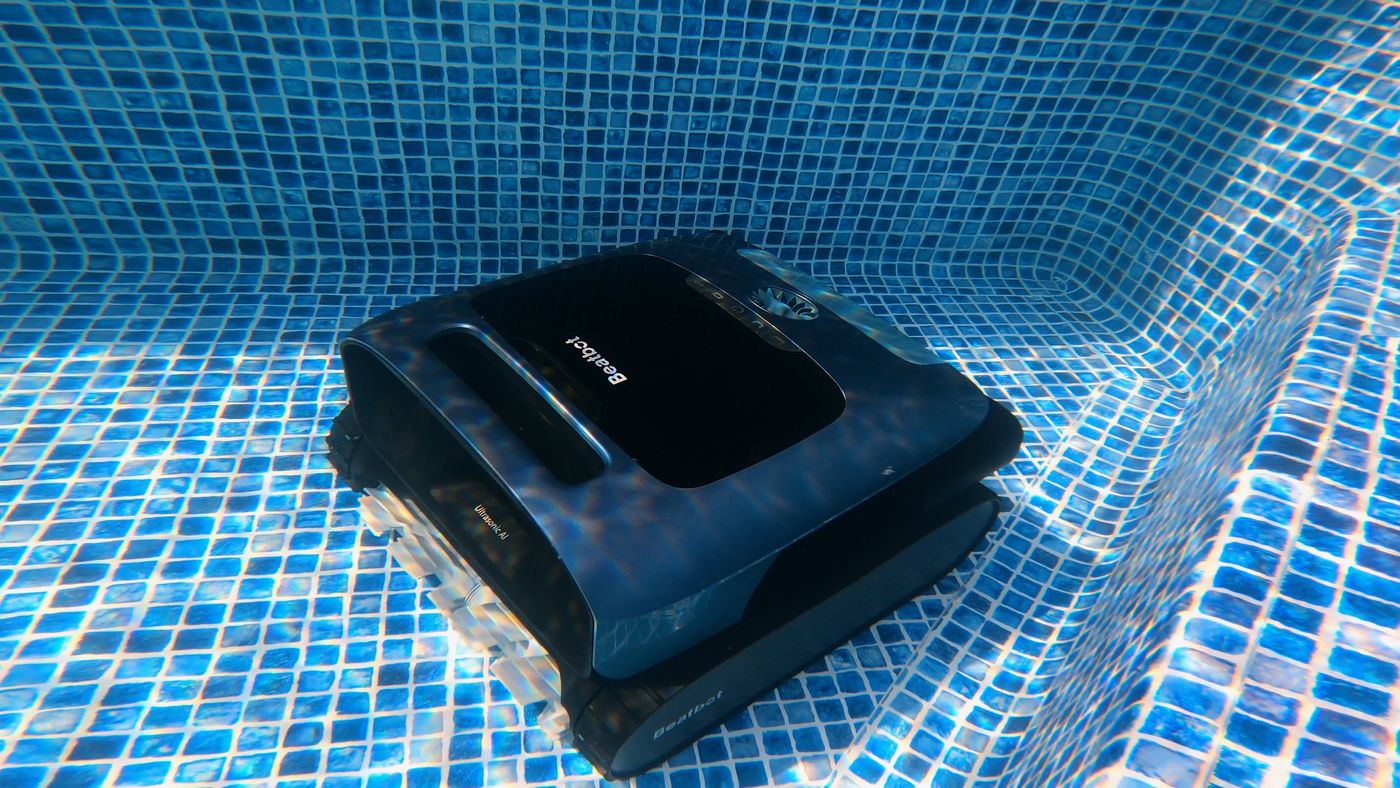
The short answer
Most Beatbot AquaSense 2 Pro problems trace back to three things: a filter sealed with fine debris, a battery that is not fully charged, or air trapped in the body. Rinse the filter until the water runs clear, charge until the light shows full, and let the air out before the next run.
This is the troubleshooting home for the Beatbot AquaSense 2 Pro. It is a cordless, battery-powered robot that cleans the floor, walls, waterline and plus water-surface skimming and a clarifier dispenser. Below are the 12 problems owners run into most, each with the checks we would make first and the point where it stops being a do-it-yourself fix.
Safety first: take the AquaSense 2 Pro out of the water and switch it off before you open the filter, touch the brushes, or reach near the impeller. Never charge it while it is wet at the charging contacts, and never open the sealed battery or motor housing.
AquaSense 2 Pro Quick Checks First
Run through these before you chase a specific symptom. Between them they clear up most of what goes wrong with a Beatbot AquaSense 2 Pro.
- Charge it all the way. Leave the AquaSense 2 Pro on charge until the light shows full, not just until it turns on. A partial charge causes short runs, weak climbing, and robots that stop in the middle of the pool.
- Rinse the filter until the water runs clear. A filter that looks clean can still be sealed with fine dust. Most pickup, climbing, and early-shutoff complaints end here.
- Let the air out. Hold the robot under the surface and rock it until the bubbles stop before you let go. Trapped air makes it float, tip, and lose grip.
- Rinse it and seat it squarely on the charger. Rinse the AquaSense 2 Pro with fresh water after every run, dry the charging area, and make sure it sits fully in place on the charger. A robot that is a little off will look docked and never fill.
- Check the water. Algae, very cold water, and chemistry far out of range all make a robot slip. Fix the water before you blame the machine.
Beatbot AquaSense 2 Pro at a glance
- Type
- Cordless, battery powered
- Cleans
- Floor, walls and waterline, plus water-surface skimming and a clarifier dispenser
- Filter
- One top-loading dual filter basket, up to 3.7 L
- Battery
- 13,400 mAh. The manual lists 4 to 4.5 hours to charge on the included charge dock; Beatbot claims up to 5 hours on the floor and…
- App
- Beatbot app over Wi-Fi and Bluetooth
- Built for
- In-ground and above-ground pools
- Weight
- About 25 lb
- Warranty
- 3 years
AquaSense 2 Pro Won’t Charge or Won’t Turn On
- No breathing light when the robot is on the dock
- Light stays orange or yellow after hours on the dock
- Nothing happens when you press Power
- Robot not seated squarely on the charge dock
- Wet, dirty or corroded charging contacts
- Dock unplugged or dead outlet
- Faulty charge dock
- Battery fully drained after it shut itself off in the pool
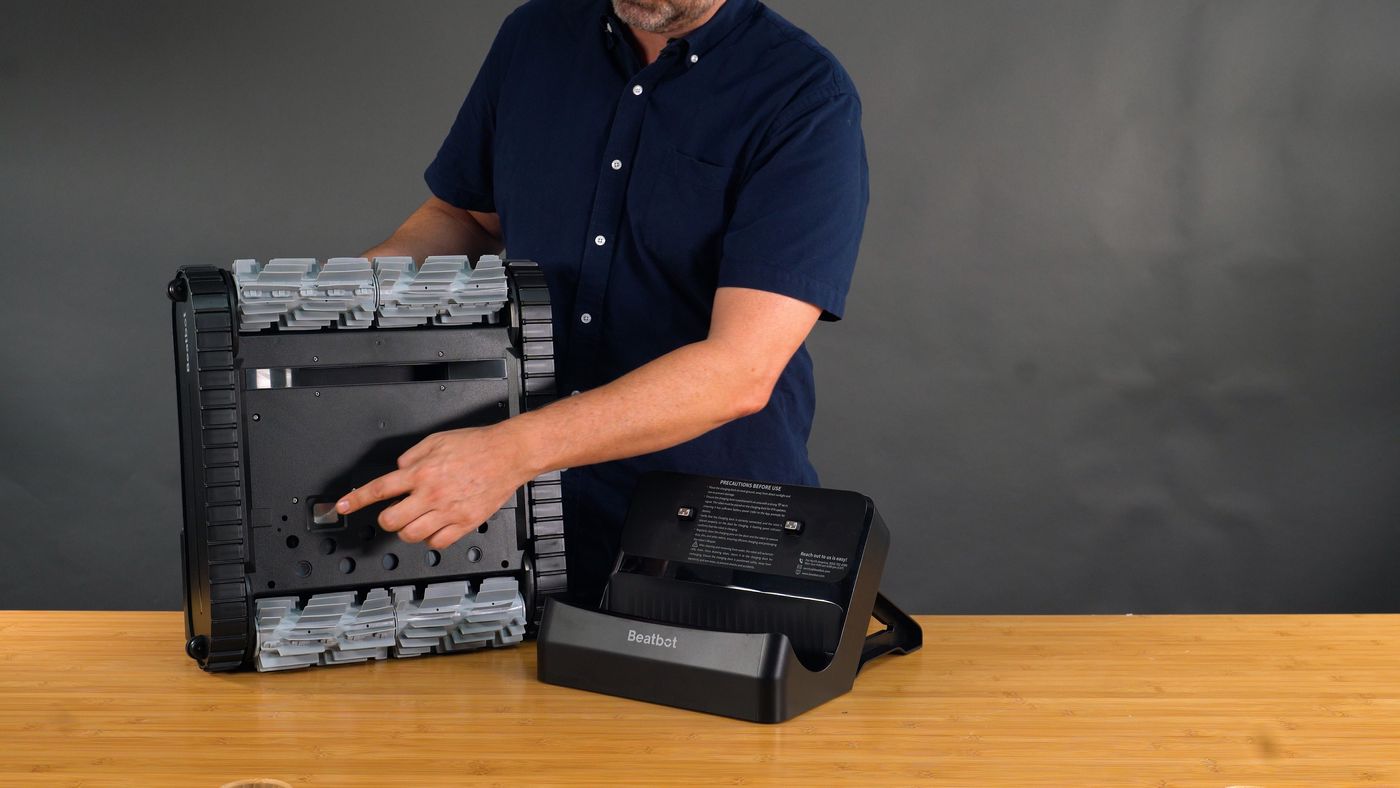
- Check the outlet and the dock. Plug something else into the outlet to prove it works. Make sure the dock's bracket is clicked into the back of the dock and the power cord is fully in.
- Reseat the robot. Lift the AquaSense 2 Pro off and set it back on the dock squarely. The panel indicator should start a slow breathing pulse. A dead-flat robot can take a moment before the light appears.
- Drain it, then dry the contacts. Unplug the dock. If the robot came out mid-cycle, hold the Pro Mode button for 3 seconds and let it pump out for about 3 minutes. Then wipe the charging contacts on the underside of the robot and on the dock, removing dirt or any rust-colored film.
- Restart the robot. If the light color does not match the battery level, hold Power for about 3 seconds to shut it off, short-press Power to turn it on, and dock it again.
- Test the dock with a multimeter. Set a multimeter to DC volts and touch the probes to the dock's two metal contacts. Beatbot's guide says above 25.6 V means the dock is fine and the robot is the problem; below 25.6 V points to a bad dock.
- Mind the temperature. The manual limits charging to 32 to 104 F. Keep the dock in the shade or indoors, away from moisture and direct sun.
Stop and call support if: the dock reads above 25.6 V and the robot still shows no breathing light, or the dock reads low. Beatbot replaces a faulty dock or robot under the 3-year warranty.
AquaSense 2 Pro Floats and Takes Forever to Sink
- Robot bobs on the surface after you put it in
- Pump noise but no movement for the first few minutes
- It skims the surface when you expected floor cleaning
- Normal start-up: it has to push the air out of its buoyancy chamber
- Robot was not powered on or no mode was selected
- A surface-only custom setting is active
- Battery too low to start
- Give it three minutes. The AquaSense 2 Pro vents air from its buoyancy chamber before it sinks, and Beatbot says to allow about 3 minutes. The pump noise before and after a cycle is normal.
- Confirm the mode. Short-press Power, then press Floor Mode, Standard Mode or Pro Mode so that button glows white. If Custom Mode is lit, open the app and check it is not set to surface cleaning only.
- Let it calibrate on the deck. Set the robot on a level surface for about 5 seconds before lowering it in. Beatbot says this calibration is what the cleaning path is built on.
- Lower it in by the handle. Place it in the water and leave it alone while it vents. Do not push it under by hand.
Stop and call support if: it is still on the surface well past the 3-minute start-up with a green light and a floor mode selected.
AquaSense 2 Pro Sits on the Floor or Moves Slowly
- Robot stopped on the pool floor
- Crawls far slower than usual
- App shows a roller brush or track warning after you pull it out
- Dual filter basket packed with debris
- Stuck on a drain or another obstacle
- Circulation pump pulling it toward a drain
- Hair or string wrapped around the roller brushes or tracks
- Battery ran out
- Turn the pool pump off. Beatbot recommends running the robot with the circulation system off. Suction at a main drain can hold the robot in place.
- Free it with the hook. If it has been stuck for several minutes, clip the supplied hook to your pool pole, catch the handle and move the robot clear. It carries on cleaning once it is free.
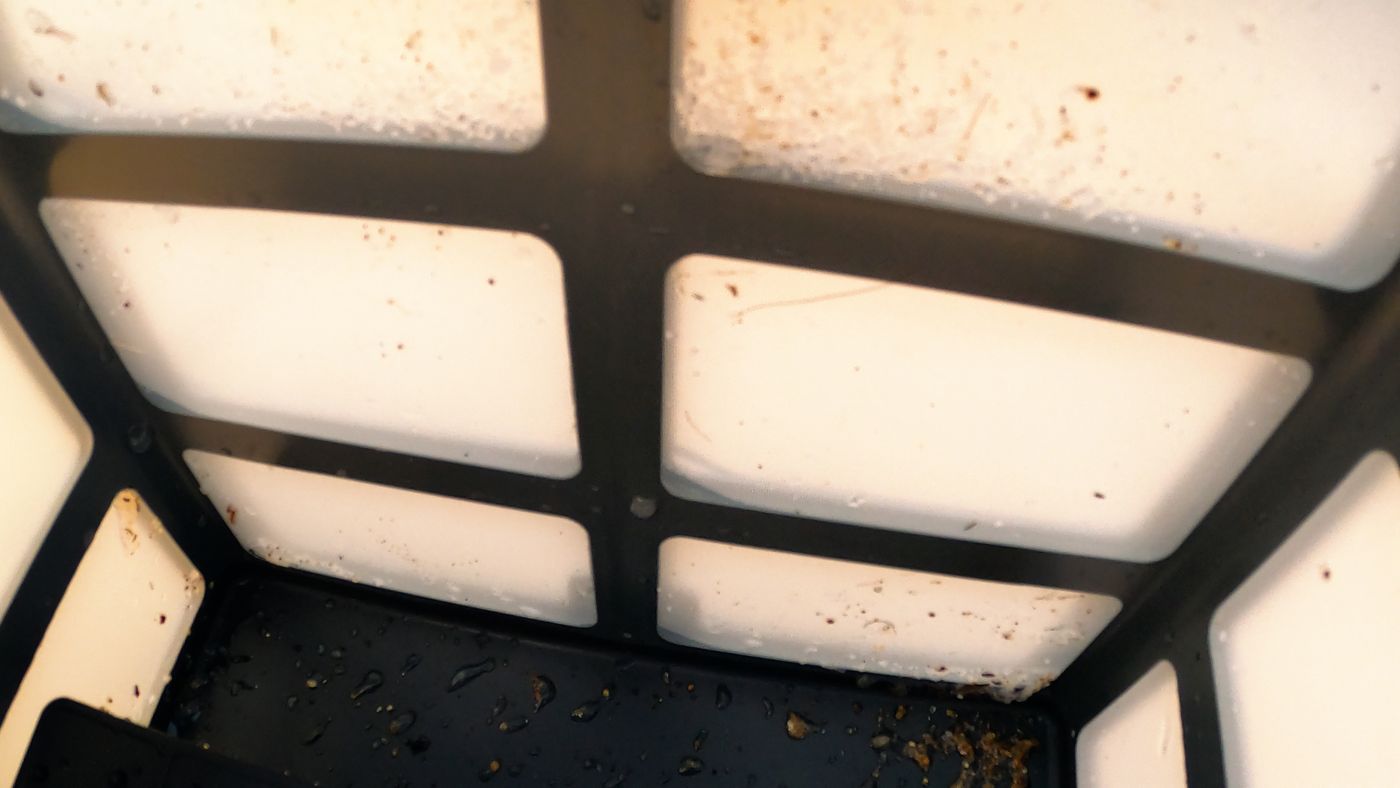
- Empty both baskets. Lift it out, press the push-to-open switch, raise the cover and pull the basket. Separate the inner and outer baskets and rinse each one; dirt trapped between the two layers is easy to miss.
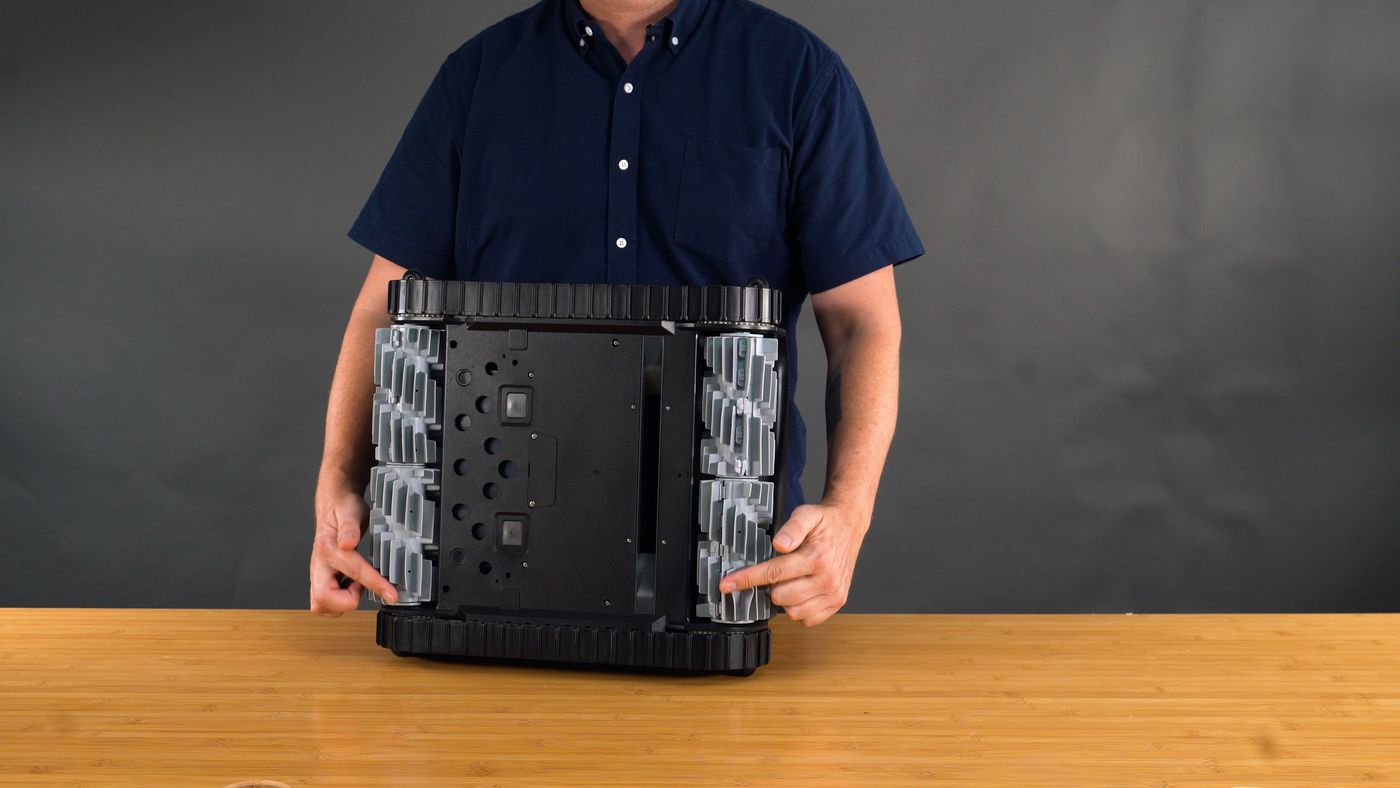
- Clear the brushes and tracks. Power off, turn the robot over on a towel and pull hair, string and leaves out of the roller brushes and both tracks. The app message about the status of the roller brush or track wheels is asking for exactly this.
- Recharge and retest. Dock it until the light is solid green, then run one cycle while you watch.
Stop and call support if: one track or the brushes do not turn at all with nothing wrapped around them, or the app keeps reporting a brush or track fault on a clean robot.
AquaSense 2 Pro Won’t Climb Walls
- Stays on the floor for the whole cycle
- Starts up the wall and slides back
- Climbs on some runs and not others
- Floor Mode selected
- Clogged filter basket (Beatbot's most common cause)
- Debris in the roller brushes or tracks
- Water chemistry outside the manual's range
- Check the mode. Floor Mode only cleans the floor. Standard Mode adds walls and waterline, and Pro Mode adds the surface as well. The button you want should be lit white.
- Clean the filter basket. Beatbot names debris in the basket as the main reason this robot stops climbing. Pull the basket, split the inner and outer baskets and hose both. We saw the mesh clog often, so do this every cycle.
- Clean the brushes and tracks. With the robot off, remove hair and grit from the roller brushes and the tracks so they can grip the wall.
- Check the water. The manual calls for chlorine at 4 ppm or less, pH 7.0 to 7.8 and water between 43 and 95 F. Brush slick algae off the walls before the cycle.
- Send Beatbot a log. If it still will not climb with a clean basket, upload a device log from the Beatbot app, then contact support with the serial number.
Stop and call support if: it will not climb in Standard or Pro Mode with a clean basket, clean tracks and balanced water.
AquaSense 2 Pro Not Picking Up Debris or Fine Sand
- Dirt or sand still on the floor after a cycle
- Pickup gets worse toward the end of the cycle
- Fine dirt washes out when you lift the robot
- Particles smaller than 150 microns pass through the mesh
- Clogged dual basket choking the water flow
- Hair or sand packed in the roller brushes or water outlet
- Battery running down late in the cycle
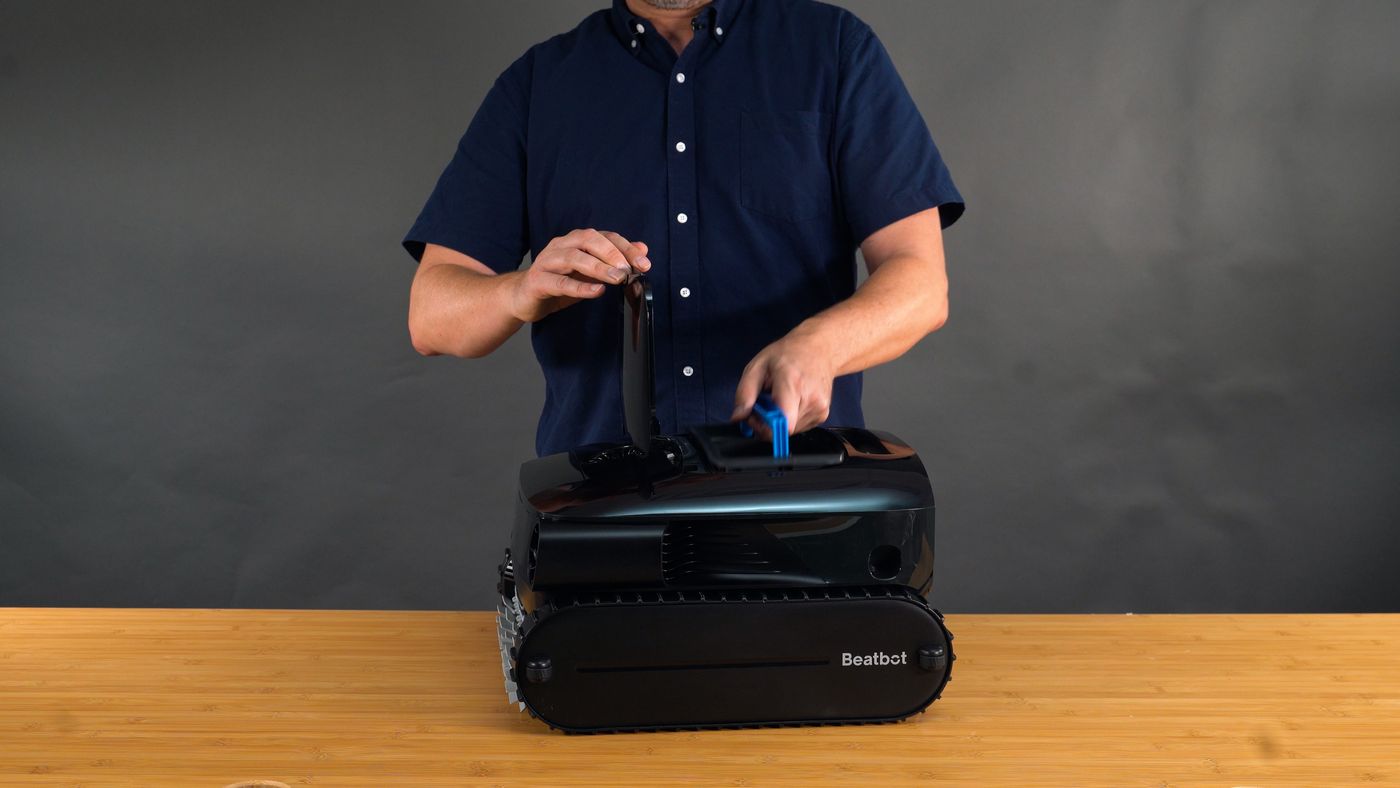
- Know the limit of the mesh. The dual basket stops debris down to 150 microns. Finer sand and silt pass through and leave by the water outlet, which is what we saw when dirt fell back into our pool.
- Split and rinse both baskets. Pull the basket, separate the inner and outer baskets and rinse each with a hose. For algae film, use a soft brush and a light touch so the mesh is not damaged.
- Clear the outlet and brushes. After each use check the water outlet on top and the roller brushes, and remove tangled hair and trapped sand.
- Empty it mid-cycle in a dirty pool. Pickup faded as the basket filled in our testing. For a heavy clean-up, pull the robot, rinse the baskets and restart rather than waiting for the cycle to end.
- Ask Beatbot about the fine basket. Beatbot's support page says an optional fine filter basket rated to 60 microns exists and that you can request one through support.
Stop and call support if: there is no water flow from the top outlet with clean baskets, which points at the pump rather than the filter.
AquaSense 2 Pro Surface Skimming Not Working
- Robot never comes up to skim
- It floats but barely moves across the surface
- App says to check the propeller
- Standard or Floor Mode selected (no surface stage)
- Hair or debris wrapped around a propeller
- Battery spent before the surface stage
- Infinity-edge pool
- Select Pro Mode. Only Pro Mode runs the surface. It works in order: floor, walls, waterline, then the water surface. Surface-only runs are set up under Custom Mode in the app.
- Clear the propellers. Power the robot off. Turn each propeller's protective grille counterclockwise to remove it, spin the blades by hand and pull out anything wrapped around the shaft. This is the fix for the app's propeller entanglement message.
- Start with a full charge and clean basket. The surface stage comes last in Pro Mode. If the battery is drained by a clogged basket and repeated wall attempts, the robot never gets there.
- Steer it from the app. On the surface the Wi-Fi link works, so you can use the app's remote control to drive it to a patch of leaves or bring it to the edge.
- Know the infinity-edge limit. Beatbot says the Pro will clean the walls and waterline of an infinity pool but not its water surface.
Stop and call support if: a propeller will not spin freely by hand with nothing wrapped around it, or the propeller alert returns on a clean robot.
AquaSense 2 Pro Clarifier Won’t Dispense
- No purple light
- Clarifying agent kit level never drops
- Purple light is on and you want it off
- Dispensing not switched on
- Foil seal still on the kit
- Kit not pressed fully into place
- Kit opened more than 30 days ago
- Seat the kit properly. Open the agent kit cover on top of the robot. Remove the kit's cap, peel the foil off its opening, and press it into the bay with the opening facing down until it clicks. Close the cover.
- Turn dispensing on. Hold the Floor Mode button for about 3 seconds. The indicator turns solid purple when dispensing is active. Hold it for 3 seconds again to switch it off.
- Replace an old kit. Beatbot says to replace a kit that is not used up within 30 days of opening. A kit lasts about four uses, and Beatbot suggests dosing about once a week.
- Use only Beatbot's kit. The cartridge has a one-way outlet and cannot be refilled, and Beatbot does not support third-party clarifiers in the dispenser. You can still dose the pool by hand with a regular pool clarifier instead.
Stop and call support if: a new, correctly seated kit gives no purple light after holding Floor Mode. The clarifying agent kit itself is a consumable and is not covered by warranty.
AquaSense 2 Pro Misses Spots, Corners or the Shallow Ledge
- Corners and steps left dirty
- No clear back-and-forth pattern
- Tanning ledge or Baja shelf never gets cleaned
- Rounded or irregular pool floor makes path planning fail
- MultiZone Mode uses a random path by design
- Ledge water is too shallow
- Robot not calibrated on level ground
- Dirty ultrasonic sensors
- Calibrate before every cycle. Set the robot on a flat part of the deck for about 5 seconds after you choose the mode, then lower it in.
- Wipe the sensors. Clean the ultrasonic sensors with a soft dry cloth and make sure nothing is stuck over them.
- Use Floor x2 in the app. Beatbot says a bowl-shaped floor, or choosing MultiZone Mode, puts the robot into a random pattern. For straight S-shaped lanes, choose Custom Mode and Floor x2 in the app, which runs two crossing passes.
- Check the ledge depth. Beatbot's troubleshooting page says the Pro needs at least 20 inches (50 cm) of water to clean a tanning ledge. If your ledge is deep enough, select Multi-Zone Mode in the app for that run.
- Brush corners toward the middle. Corners and the area around steps were the weak spot in our testing. Brush them toward open floor before the cycle.
Stop and call support if: the robot spins in place or runs one track only, which is a drive fault rather than a navigation quirk.
AquaSense 2 Pro Stuck on the Main Drain
- Stops on the same drain cover every cycle
- Tracks turn but the robot does not move
- Circulation pump suction holding it on the drain
- Raised drain cover lifting the tracks off the floor
- Run it with the pump off. Suction through the main drain can pin the robot. Turn the circulation pump off for the cleaning cycle.
- Free it with the hook. Use the supplied hook on a pool pole to slide the robot off the cover. Do not get in the pool while it is running.
- Fit a drain cover clip. Beatbot's fix for a protruding cover is a correctly sized drain cover clip, which gives the tracks and brush something to grip. Never remove, flatten or modify an anti-entrapment drain cover.
- Check the app afterwards. A roller brush or track warning after a stall means the brush motor was overloaded while it was stuck. Clear the brush before the next run.
Stop and call support if: it stalls on open floor away from any drain, or the drain cover itself is loose or cracked (call a pool professional for the cover).
AquaSense 2 Pro Doesn’t Come Back to the Surface
- Cycle is over and the robot is on the floor
- It surfaced in the middle of the pool, out of reach
- Handle stays under the coping
- Clogged filter basket (most common)
- Debris wrapped in the roller brush or tracks
- Pool coping too close to the waterline
- Battery died mid-cycle
- Park it from the app. If the robot is floating, the app reconnects. Use the parking or remote control function to drive it to the edge nearest you.
- Hook it out. If it is on the floor, thread the supplied hook onto a pool pole, catch the handle and bring it up. It is about 25 lb dry and heavier full of water, so lift with your legs.
- Clean the basket. Beatbot lists a clogged basket as the top reason the robot does not return to the surface. Split and rinse both baskets before the next cycle.
- Look for an entanglement alert. If the app reports entanglement on the roller brush or track wheels once the robot is out, clear it before running again.
- Check the gap under the coping. Beatbot says to lower the water until there is at least 7 inches (18 cm) between the coping edge and the waterline so the handle can rise clear.
Stop and call support if: it never returns to the surface with a clean basket and a full charge. Upload a log in the app and give support the serial number.
AquaSense 2 Pro Battery Runs Out Early
- Cycle ends before the surface stage
- Robot found dead on the floor
- Light drops to orange quickly
- Clogged basket making the robot retry wall climbs
- Robot getting stuck and overloading a motor
- Very dirty pool
- Partial charge
- Cold weather slowing the charge
- Start with clean baskets. Beatbot explains that a full basket reduces climbing power, so the robot keeps attempting the wall and burns through the battery. Rinse both baskets before each run.
- Charge to solid green. Leave it on the dock until the breathing light stops and the indicator is solid green, 4 to 4.5 hours from empty. Charging takes longer in cool weather.
- Remove what traps it. Stalls on a drain or tangled brushes and propellers drain the pack fast. Fix those first.
- Pick a shorter job. Pro Mode does four surfaces in one run. Use Floor Mode or Standard Mode when you do not need skimming, or set a shorter Custom Mode in the app.
- Store it half charged. For the off-season the manual says to power it off, store it indoors and top the battery up to about 50% at least every 6 months.
Stop and call support if: run time stays far below normal on a full charge with a clean basket. The battery is covered under the 3-year main-body warranty.
AquaSense 2 Pro App Won’t Connect or Shows Offline
- Pairing fails in the Beatbot app
- Robot shows offline
- No verification code email
- Robot is under water (Wi-Fi does not pass through water)
- Robot not in setup mode
- Weak signal or wrong Wi-Fi password
- VPN running on the phone
- Robot bound to another account
- Router restarted or its name or password changed
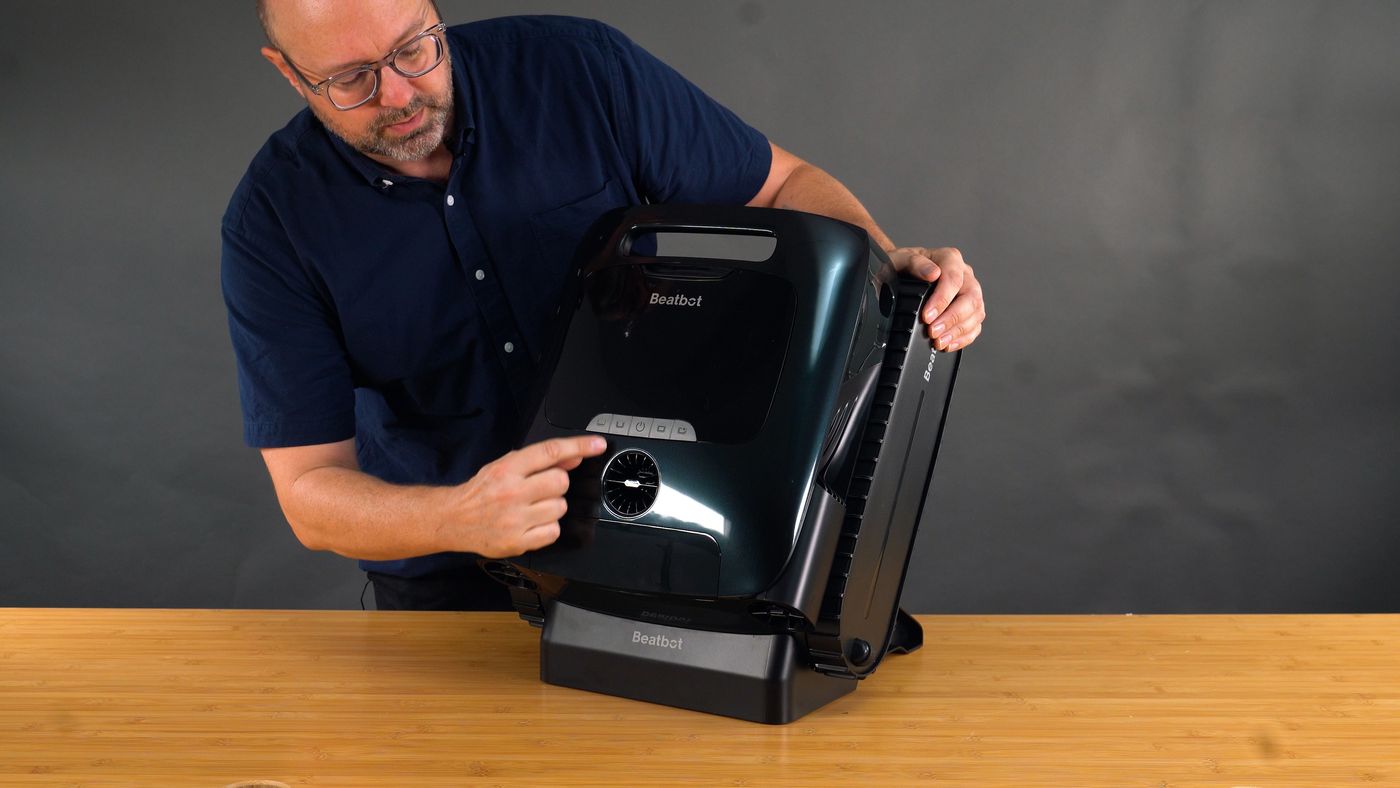
- Wait for it to surface. Offline during floor and wall cleaning is normal. The link returns when the robot is on the surface or out of the pool, and the app then syncs the cleaning record.
- Put it in setup mode. With the robot on and within about 3 feet of your phone, hold Power and Floor Mode together for about 3 seconds until the indicator flashes blue.
- Check the network. Beatbot says the Pro works on 2.4 GHz and 5 GHz Wi-Fi. Check signal strength where the dock sits, confirm the password, and turn off any VPN. In setup mode a network whose name starts with Beatbot should appear in your phone's Wi-Fi list.
- Try another add method. In the app use Add Device with Bluetooth switched on, or Scan to Add and point the camera at the QR code on the robot, or add the model manually.
- Reset if it was paired before. If the robot is tied to another account or the router changed, repeat setup mode and pair again. A full factory reset is Standard Mode, Power and Pro Mode held together for about 10 seconds.
- Find the verification email. If the code never arrives, check spam and promotions folders and any forwarding or auto-delete rules. Work and school mailboxes sometimes block these messages.
Stop and call support if: the indicator will not flash blue, or no Beatbot network ever appears in setup mode. Beatbot treats that as a replacement case.
AquaSense 2 Pro Lights and What They Mean
These are the indicator states listed in the official Beatbot material for the Beatbot AquaSense 2 Pro. If what you see is not here, check the manual for your exact production run before acting on it.
Nothing to fix. Pick a mode and put it in the pool.
Put the robot on the charge dock before starting a full cycle.
Charge it now. A cycle started at this level will end early.
This is not a fault. To turn dispensing off, hold the Floor Mode button for about 3 seconds.
Lift it out, hold Power for about 3 seconds to shut it off, then read the alert in the Beatbot app. Clear the filter basket, roller brushes, tracks and propellers before restarting.
Finish pairing in the app, or leave the robot on the dock until the update completes.
Leave it on the dock until the light is solid green.
Check the right button is lit before the robot goes in. Only Pro Mode includes the water surface.
What We Saw Testing the AquaSense 2 Pro
We ran the Beatbot AquaSense 2 Pro in our own test pool for our Beatbot AquaSense 2 Pro review. These are the things we ran into ourselves, so you can tell a quirk of the model from a real fault.
- Corners and steps missed: The mapped patterns looked tidy, but debris was left in corners and around the steps.
- No app control under water: Once the robot submerged, the app connection cut out. We could not steer it, check progress or call it back until it surfaced.
- Drives past debris: The robot moved slowly and went past leaves several times before it finally collected them, and sometimes moved on without them.
- Pickup fades during the cycle: Cleaning seemed to get weaker as the battery drained or the filter filled. By the end of a cycle it was collecting very little.
- Dirt falls back when lifted: Fine dirt slipped through the mesh and we saw it fall back into the pool when we lifted the robot out.
- Mesh clogs often: The mesh basket clogged often in our pool, and suction dropped further each time it did.
- Wall climbing was inconsistent: Wall climbing was not consistent from run to run in our pool.
- Charge time matches run time: We got roughly 3 to 4 hours of cleaning depending on mode, and charging took almost as long.
When to Call Beatbot Support
Stop troubleshooting and get the AquaSense 2 Pro looked at if any of these are true:
- The same fault comes back right after a full clean and a restart
- You see water inside a sealed compartment, or the robot has become noticeably heavier
- There is a burning smell, a melted connector, or visible corrosion on the electrical contacts
- The battery will not take a charge, or the runtime has dropped to a fraction of what it was
- A motor is silent or grinding with nothing blocking it
Before you call, write down the serial number, find your proof of purchase, and record a 20 to 30 second video of the problem. A clip of the robot failing, plus a clear shot of any light on the robot or charger, gets a warranty claim moving faster than any description.
- Support: Beatbot support
- Phone: (833) 702-4399 (9:00 AM to 6:00 PM Central, seven days a week)
- Email: service@beatbot.com
- Manual: Beatbot AquaSense 2 Pro user manual
- Warranty: 3 years
36-month warranty on the main body including the battery and power supply; 3 months on filter baskets and roller brushes; the clarifying agent kit is not covered. Valid for purchases from Beatbot or an authorized dealer in the US or Canada. Have proof of purchase and the serial number ready; Beatbot may ask you to….
Beatbot AquaSense 2 Pro Troubleshooting FAQ
Why does my Beatbot AquaSense 2 Pro float instead of sinking?
It empties a buoyancy chamber of air at the start of each cycle, and Beatbot says to allow about 3 minutes. Check that a floor mode button is lit white, since a surface-only custom setting keeps it on top on purpose. If it still floats with a green light after that, contact Beatbot.
What does the purple light mean on the Beatbot AquaSense 2 Pro?
Solid purple means clarifier dispensing is switched on. It is not an error. Hold the Floor Mode button for about 3 seconds to turn dispensing off or back on.
What does a flashing orange light mean on the Beatbot AquaSense 2 Pro?
Flashing orange is the manual's malfunction signal. Take the robot out, switch it off, read the alert in the app and clear the basket, brushes, tracks and propellers. Solid orange only means the battery is nearly empty.
How do I clear the propeller on the Beatbot AquaSense 2 Pro?
Power the robot off first. Turn the propeller's protective grille counterclockwise to take it off, spin the blades by hand and remove any hair or string. Refit the grille before the next run.
Can the Beatbot AquaSense 2 Pro clean a tanning ledge?
Only if the water on the ledge is deep enough. Beatbot's troubleshooting page gives 20 inches (50 cm) as the minimum and says to start that run in Multi-Zone Mode from the app.
Why does the Beatbot AquaSense 2 Pro app stop working during a cycle?
Wi-Fi does not travel through water, so the robot goes offline while it is on the floor and walls. It reconnects on the surface, where you can steer or park it from the app, and when you lift it out.
Still stuck after every check?
Go back to our review for how the AquaSense 2 Pro is supposed to behave, or contact Beatbot with your serial number and a short video of the problem.