
The short answer
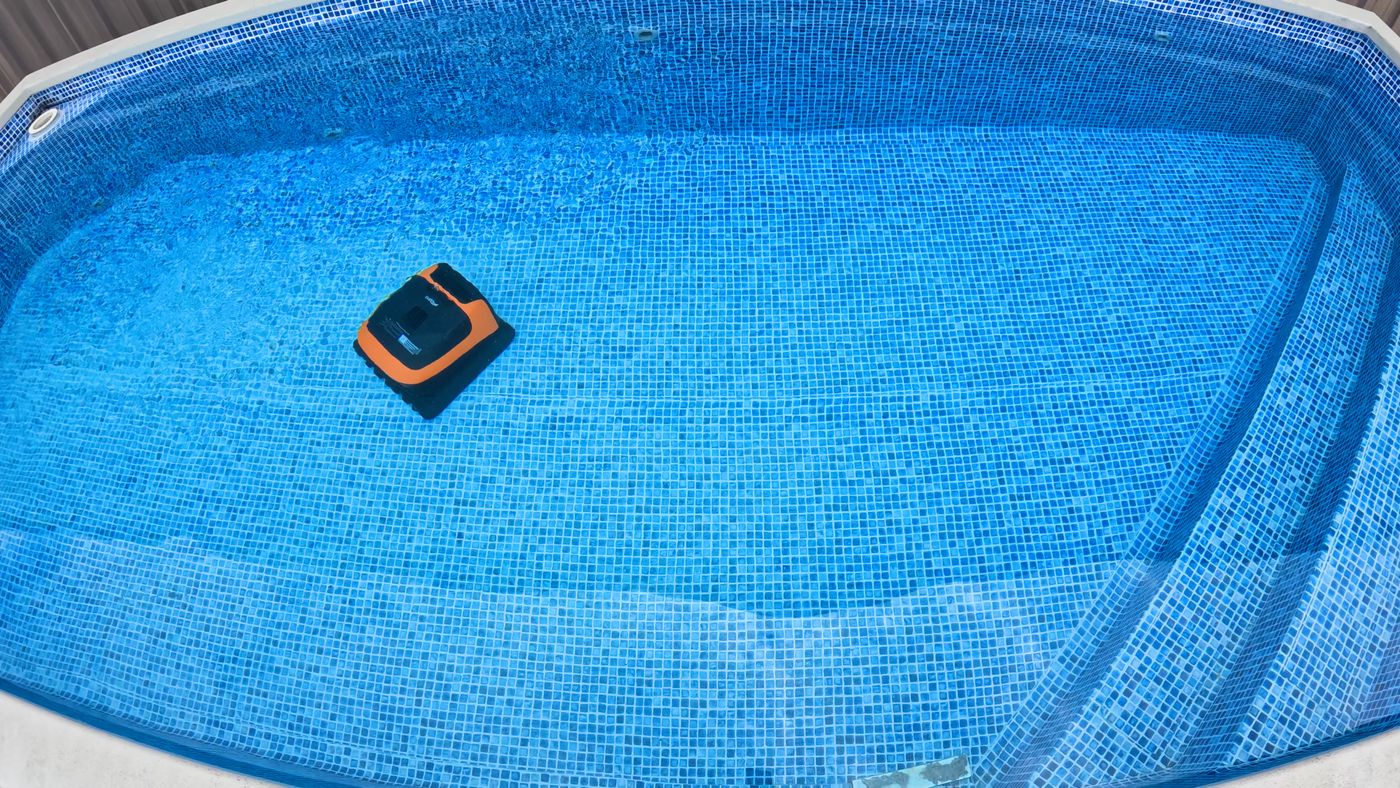
Most Beatbot Sora 30 problems trace back to three things: a filter sealed with fine debris, a battery that is not fully charged, or air trapped in the body. Rinse the filter until the water runs clear, charge until the light shows full, and let the air out before the next run.
This is the troubleshooting home for the Beatbot Sora 30. It is a cordless, battery-powered robot that cleans the floor, walls and waterline. Below are the 11 problems owners run into most, each with the checks we would make first and the point where it stops being a do-it-yourself fix.
Safety first: take the Sora 30 out of the water and switch it off before you open the filter, touch the brushes, or reach near the impeller. Never charge it while it is wet at the charging contacts, and never open the sealed battery or motor housing.
Sora 30 Quick Checks First
Run through these before you chase a specific symptom. Between them they clear up most of what goes wrong with a Beatbot Sora 30.
- Charge it all the way. Leave the Sora 30 on charge until the light shows full, not just until it turns on. A partial charge causes short runs, weak climbing, and robots that stop in the middle of the pool.
- Rinse the filter until the water runs clear. A filter that looks clean can still be sealed with fine dust. Most pickup, climbing, and early-shutoff complaints end here.
- Let the air out. Hold the robot under the surface and rock it until the bubbles stop before you let go. Trapped air makes it float, tip, and lose grip.
- Rinse it and seat it squarely on the charger. Rinse the Sora 30 with fresh water after every run, dry the charging area, and make sure it sits fully in place on the charger. A robot that is a little off will look docked and never fill.
- Check the water. Algae, very cold water, and chemistry far out of range all make a robot slip. Fix the water before you blame the machine.
Beatbot Sora 30 at a glance
- Type
- Cordless, battery powered
- Cleans
- Floor, walls and waterline
- Filter
- One top-loading filter basket, 150-micron mesh, 5 L
- Battery
- 10,000 mAh. Rated for 5 hours of run time and 4.5 hours to charge. It charges from a plug-in charger that connects to the…
- App
- Beatbot app over Wi-Fi and Bluetooth
- Built for
- Residential pools in concrete, vinyl, fiberglass or tile
- Weight
- About 20 lb
- Warranty
- 2 years
Sora 30 Won’t Turn On or Doesn’t Seem to Respond
- Nothing obvious happens when you push the mode switch
- It powered on, then went dark while sitting on the deck
- Water runs out of it when you switch it on
- Switch held too long (a long hold to the left is the power-off action)
- Robot left out of the water and inactive for 2 hours
- Flat battery
- Looking for movement when the only feedback is a small light
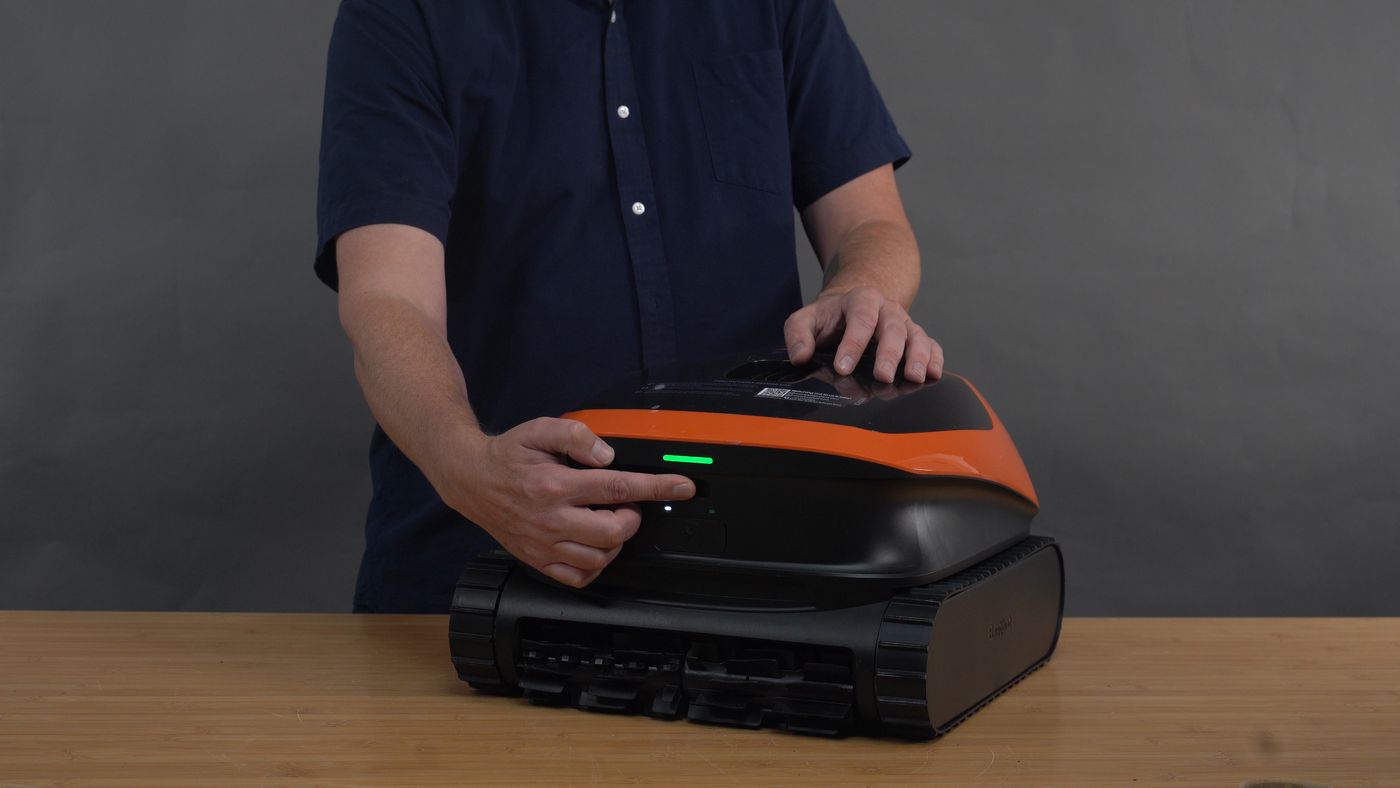
- Push and release within a second. Push the mode switch left for Standard Mode or right for Preset Mode and let go straight away. The only confirmation is that mode's small light turning solid white, plus the status light. In our testing the switch gave almost no other feedback.
- Do not hold it. Holding the switch to the left for about 3 seconds turns the robot off. If you held it while checking for a response, you probably switched it back off.
- Check the status light. Green means plenty of charge, yellow low, orange very low. No light at all means it is off or flat. The robot powers itself off after 2 hours out of the water with nothing to do.
- Charge it. Connect the charger. The robot powers on by itself when charging and the status light should start a breathing pulse. It ships partly charged, so a yellow light on day one is normal and it needs a full charge first.
- Expect it to drain when switched on. If it still has water inside from the last cycle, it starts pumping out as soon as it powers on. Switch it on outdoors, not on an indoor floor.
Stop and call support if: there is no status light at all with the charger connected to a working outlet.
Sora 30 Won’t Charge
- No breathing light with the charger connected
- Light never reaches solid green
- White crust on the charging port
- Charger plug not pushed fully into the charging port
- Wet, dirty or scaled charging contacts
- Dead outlet
- Faulty charger
- Test the outlet. Plug in another device to confirm the outlet is live.
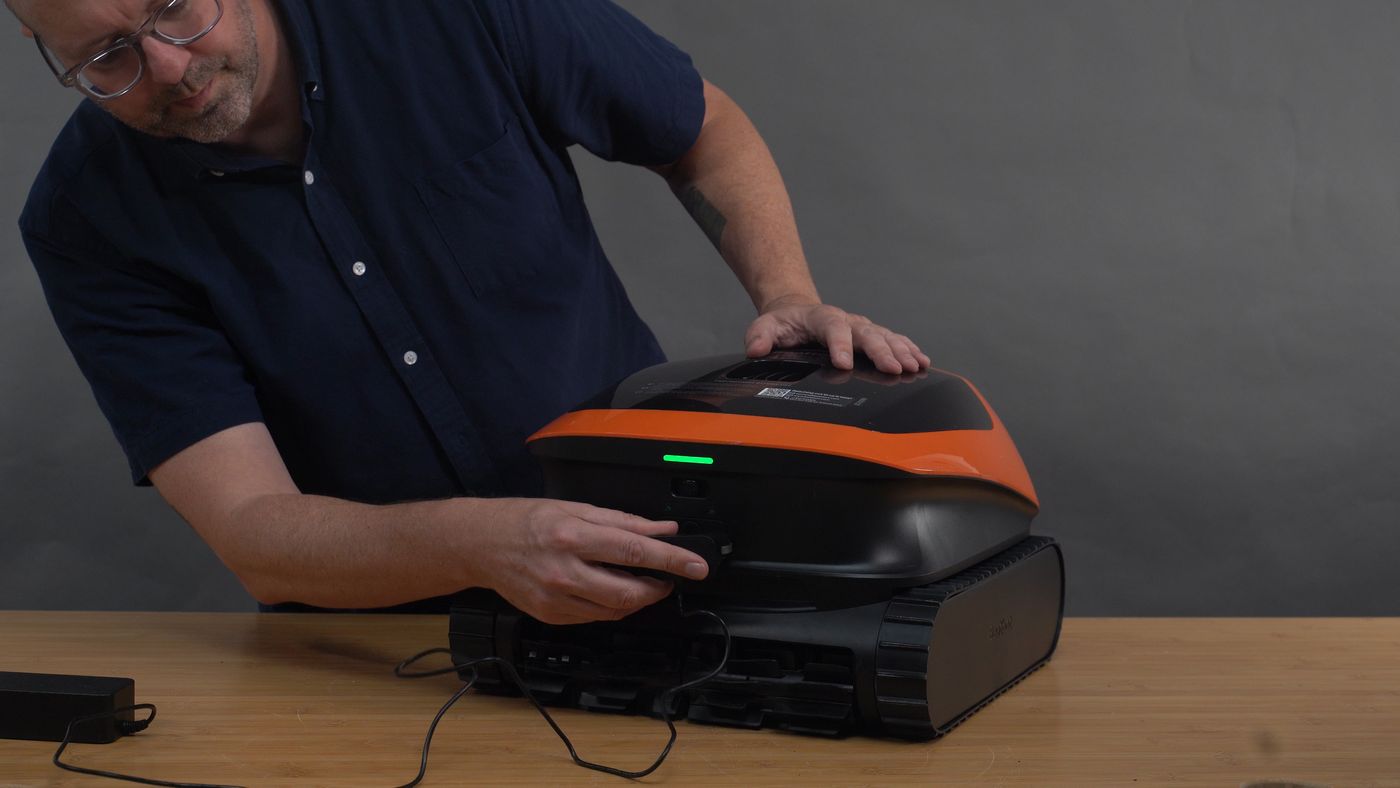
- Dry and clean the port. Unplug the charger. Let the robot finish draining, then make sure the contacts on the charger plug and in the charging port are dry. Beatbot says to wipe the port with a damp towel and to dissolve white crystal deposits with citric acid or white vinegar, then dry it.
- Seat the plug firmly. Line the charger plug up with the charging port and push until it is fully home. The manual specifically warns that the charger must be fully and securely inserted.
- Read the breathing color. Orange breathing means 15% or less, yellow 15 to 30%, green above 30%. A full charge takes about 4.5 hours and ends with a solid green light. Charge indoors, somewhere dry and between 32 and 104 F.
- Measure the charger. With a multimeter on DC volts, measure across the two metal terminals of the charger plug. Beatbot's guide says a healthy charger reads between 26.6 V and 30 V. Outside that range the charger needs replacing; inside it, the robot is the problem.
Stop and call support if: the charger reads 26.6 to 30 V and the robot still will not charge, or the charger reads out of range. Use only Beatbot's charger for this robot.
Sora 30 Floats on the Surface and Doesn’t Start
- Robot sits on top of the water after you put it in
- No movement for the first couple of minutes
- You think the battery is dead
- Normal start-up: it is releasing air from its floating chamber
- Robot was never actually switched on
- Battery too low to start
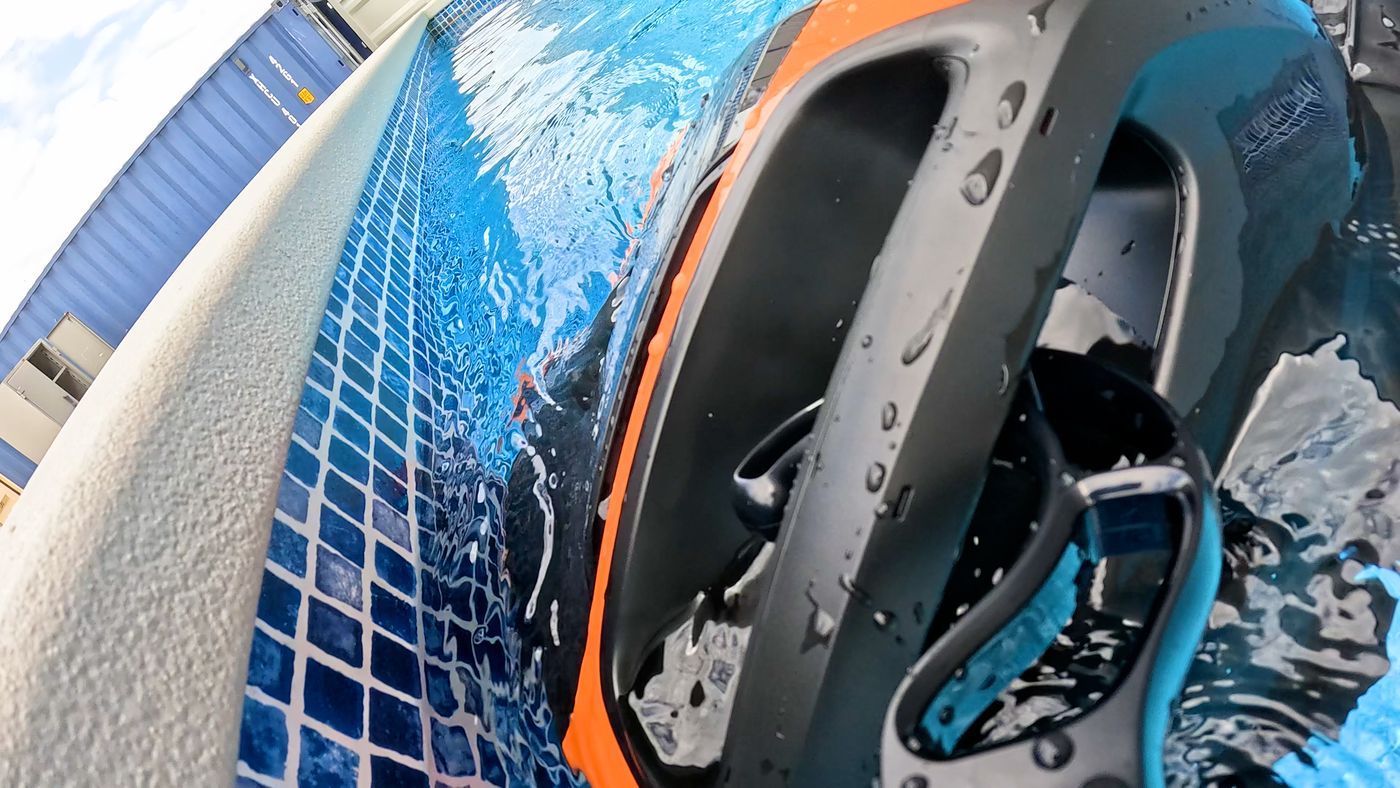
- Wait two minutes. The Sora 30 has a floating chamber that it empties of air before it can sink. The manual says it settles on the floor within about 2 minutes and then starts cleaning by itself. We mistook this for a dead battery the first time.
- Confirm it is on. Before it goes in, check that one mode light is solid white and the status light is green or yellow. If not, push the switch left or right and release within a second.
- Place it at the wall. Lower the robot into the water alongside the pool wall by its handle and let go. Do not hold it under.
- Rule out a low battery. The robot ships only partly charged. If the status light is yellow or orange, give it a full 4.5-hour charge to solid green before deciding something is wrong.
Stop and call support if: it is still floating several minutes after going in with a mode light on and a charged battery.
Sora 30 Stops on the Pool Floor and Doesn’t Move
- Robot motionless on the floor
- Status light flashing orange when you pull it up
- It cleaned earlier and has been sitting on the floor since
- ECO Mode is on (it rests on the floor between cleans)
- Trapped near a drain or obstacle
- Filter basket clogged
- Battery ran out
- Check for ECO Mode. In ECO Mode the Sora 30 settles on the floor after cleaning and stays there, starting another clean every other day. If that is not what you want, lift it out and pick another mode in the app.
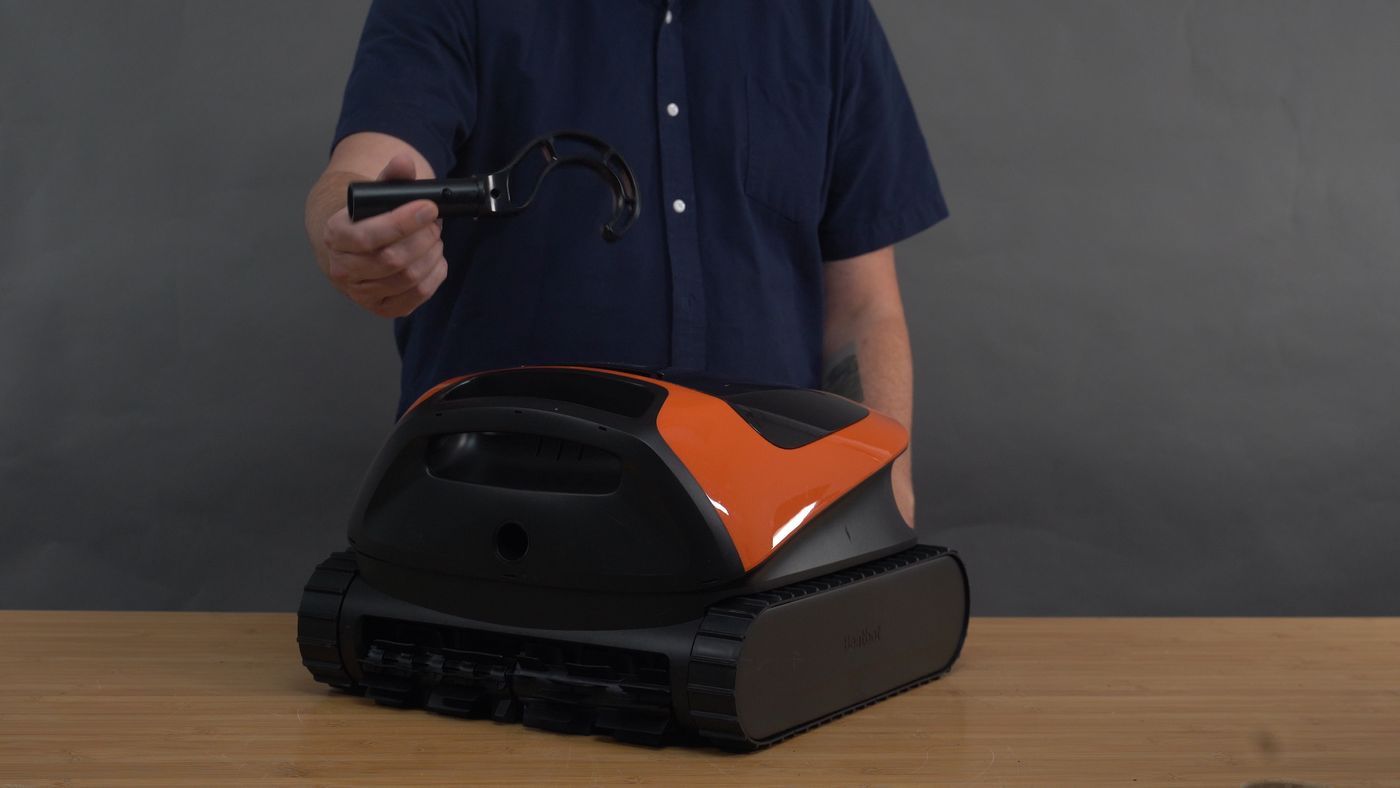
- Free it with the hook. The robot tries to work itself loose from a drain or obstacle. If it is still stuck after several minutes and the status light is flashing orange, use the supplied hook on a pool pole to pull it clear.
- Empty the basket. Lift the robot out, press the switch, remove the cover and pull the basket. In a heavily soiled pool the basket clogs quickly, and the manual says that can stop the robot getting back to the pool edge.
- Clean the brushes. Release the tabs on each roller brush, pull the rubber brush strips off, clear out hair and grit and thread the tabs back through every slot.
- Run with the pool pump off. Beatbot recommends running the robot with the circulation system off so drain suction does not hold it down.
Stop and call support if: it stays dead on the floor with a full charge, a clean basket and nothing in its way, or flashes orange again straight after restarting.
Sora 30 Won’t Climb Walls or Reach the Waterline
- Stays on the floor all cycle
- Starts up the wall and drops back
- Tilts nose-up with the ultra-fine basket fitted
- Preset Mode selected (floor only by default)
- Clogged filter basket reducing climbing power
- Ultra-fine basket fitted for a wall cycle
- Dirty brush strips and tracks
- Water chemistry outside the manual's range
- Use Standard Mode. Push the mode switch left for Standard Mode so that light is white. Pushing right selects Preset Mode, which is floor only unless you changed it in the app. The app also offers a Wall Mode.
- Clean the basket. Beatbot explains that a full or clogged basket cuts climbing power and the robot wastes battery retrying. Rinse the basket before each wall run.
- Fit the standard basket for walls. If you bought the 3-micron ultra-fine basket, Beatbot says to use the standard basket for full floor-and-wall cycles and save the ultra-fine one for Floor Mode. It clogs faster and can make the robot tilt.
- Clean the brushes and tracks. Pull the rubber brush strips off both roller brushes, rinse out grit and refit them. Clear anything caught in the tracks.
- Check the water. The manual calls for chlorine at 4 ppm or less, pH 7.0 to 7.8 and water between 43 and 95 F. Brush slick algae off the walls first.
Stop and call support if: it never leaves the floor in Standard Mode with the standard basket clean and the brush strips in good shape.
Sora 30 Not Picking Up Fine Debris
- Silt, pollen or cloudy dust left after a cycle
- Basket holds leaves but the floor still looks dusty
- Robot does not recognize or tilts with the ultra-fine basket
- Particles smaller than the 150-micron mesh pass through
- Basket mesh coated with fine dirt
- Ultra-fine basket not supported by old firmware
- Ultra-fine basket worn out or clogged
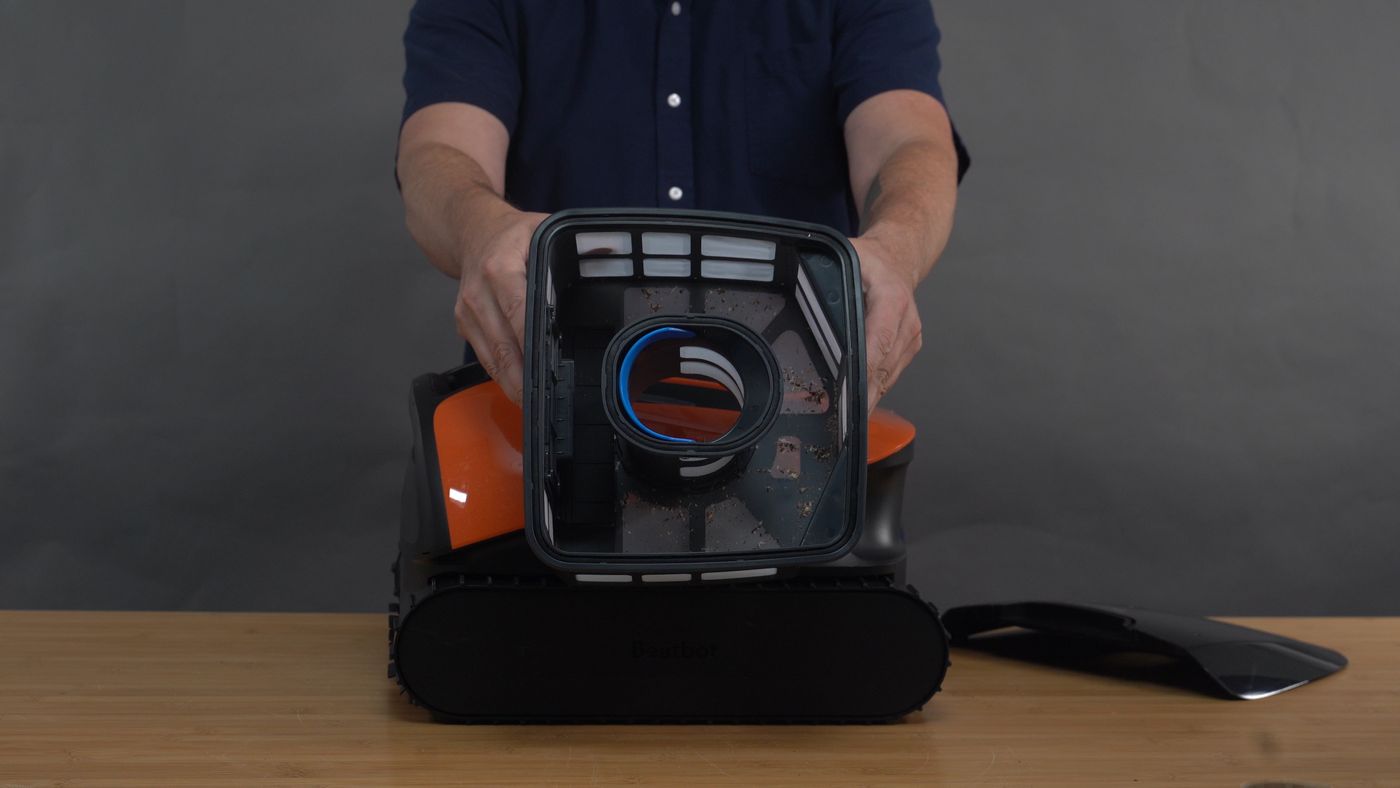
- Know the limit of the stock basket. The basket in the box is 150-micron mesh. Beatbot confirms finer sand, dust and algae pass through it and are blown back out, which is what we saw in testing.
- Rinse the basket properly. Press the switch, remove the cover and lift the basket. Dump it and hose the mesh until water runs through freely, then seat it and close the cover.
- Consider the 3-micron basket. Beatbot sells an Ultra-Fine Dual Filter Basket for the Sora 30 rated to 3 microns. It is not included. Update the robot's firmware in the app before first use, or the robot may not recognize it.
- Use the ultra-fine basket the right way. Dunk the ultra-fine basket and shake it for about 10 seconds to release trapped air before fitting it. Run it in Floor Mode for fine dust after the standard basket has dealt with the bulk debris.
- Replace it when it is spent. Beatbot rates the ultra-fine basket for about 40 cycles (150 hours). Replace it if the fabric stays gray or stiff after washing or suction clearly drops.
Stop and call support if: the robot still rejects the ultra-fine basket after a firmware update, or there is no water flow from the top outlet with a clean standard basket.
Sora 30 Misses Spots, Steps or Corners
- Corners and steps left dirty
- Parts of the floor look untouched
- Spends too long on a shallow shelf
- Standard Mode spreads one cycle across floor, walls and waterline
- Irregular edges, steps or fixtures cause overlapping passes
- Dirty ultrasonic sensors
- Out-of-date firmware
- Wipe the sensors. The manual says to check the ultrasonic sensors after every use. Wipe them with a soft dry cloth and make sure nothing is stuck over them.
- Use Floor Mode at Max for the floor. Beatbot says Floor Mode drives S-shaped lanes over the open floor and then makes a second sweep for missed spots and corners. Set the run time to Max in the app when corners are the complaint, or when the robot lingers on a sun shelf.
- Use Wall Mode for walls. Run Wall Mode with the run time at Max as its own cycle instead of expecting one Standard cycle to do everything well.
- Expect some overlap. Beatbot describes retracing near steps, curved edges and fittings as normal and says the robot adjusts by itself.
- Brush the steps first. Steps were a weak area in our testing. Brush them down onto the floor before the cycle so the robot can collect the debris there.
Stop and call support if: the robot circles in place or one track does not drive.
Sora 30 Doesn’t Park at the Pool Edge
- Cycle finished and the robot is on the floor
- It never floated up
- No notification that it finished
- Clogged basket stopped it returning
- Battery ran out before the end of the cycle
- It is stuck against a drain or obstacle
- ECO Mode is on
- Use the hook. Screw the supplied hook onto a pool pole, catch the handle and bring the robot to the surface before lifting by hand. It is about 20 lb before the water inside it, so lift with your legs. The orange version is easier to spot on the floor.
- Clean the basket. The manual says a rapidly clogged basket in a dirty pool can prevent the robot returning to the poolside. Empty it and run again.
- Charge fully before each cycle. If the battery runs out mid-cycle the robot shuts down where it is, cannot float up and cannot drain itself. Start every cycle from a solid green light.
- Set a timer. The app cannot tell you it has finished while the robot is under water. Set a phone timer for the end of the cycle so you are there when it parks.
- Check the mode. If ECO Mode is active the robot is supposed to stay on the floor between cleans. Change modes in the app if you want it to park at the edge.
Stop and call support if: it regularly fails to float up with a clean basket and a full battery.
Sora 30 Water Pours Out After Cleaning
- Water streams out when you lift it from the pool
- Pump noise for a couple of minutes after a cycle
- Water runs out when you switch it on indoors
- Normal automatic draining of the floating chamber
- Battery died in the pool, so it could not drain
- Draining was interrupted
- Let it finish. The Sora 30 pumps itself out automatically once it leaves the pool. The manual says the noise and water flow last about 2 minutes and are normal.
- Drain it outdoors. Hold it over the pool or set it on the deck until the dripping stops. Keep it away from the charger and any outlet while it drains.
- Charge a dead robot outside. If the battery ran out in the pool the robot could not drain. It will start draining as soon as it powers on, so do the first few minutes of charging somewhere water on the floor does not matter.
- Run a manual drain before storage. The manual describes a manual drain started from the mode switch: push the switch one way, then push and hold the other way for about 5 seconds, and allow about 2 minutes. Do this before winter storage and dry the charging port afterwards.
Stop and call support if: water keeps coming out long after a completed drain, or you see moisture behind the status light.
Sora 30 Battery Runs Out Early
- Cycle ends well short of the rated 5 hours
- Robot found dead on the floor
- Light drops to orange quickly
- Clogged or ultra-fine basket making the robot retry wall climbs
- Robot getting stuck or a motor overloading
- Pool shape and how dirty it is
- Partial charge
- Start with a clean basket. Beatbot explains that a full basket reduces climbing power, so the robot keeps attempting the wall and uses more battery. Rinse the basket before each run.
- Charge to solid green. Leave the charger connected until the breathing light becomes solid green, about 4.5 hours from empty.
- Save the ultra-fine basket for floor runs. Beatbot lists the ultra-fine basket as a cause of faster drain because it clogs sooner. Use the standard basket for full cycles.
- Fix what traps it. Stalls against a drain or obstacle drain the pack quickly. Clear those first.
- Store it half charged. For winter the manual says to drain it, power it off, store it indoors and top the battery up to about 50% at least every 6 months.
Stop and call support if: run time stays far below the rating on a full charge with a clean standard basket. The battery is covered under the 2-year main-body warranty.
Sora 30 App Won’t Connect or Shows Offline
- Pairing fails in the Beatbot app
- Robot shows offline
- No Beatbot-Sora 30 network in the Wi-Fi list
- Robot is under water (Wi-Fi does not pass through water)
- 6 GHz or combined-band Wi-Fi network
- Wrong Wi-Fi password
- Robot bound to another account
- Router restarted or its name or password changed
- Pair it on dry land. Offline during cleaning is normal; the link comes back when the robot is at the surface or out of the pool and the app syncs then. For setup, power the robot on next to your phone. It enters network setup by itself when switched on.
- Turn on the hotspot by hand. If the first attempt failed or the robot belongs to another account, push and hold the mode switch for about 5 seconds, as shown in the manual's hotspot step, until the status light flashes blue. A network named Beatbot-Sora 30 followed by four characters should appear in your phone's Wi-Fi list.
- Use the 2.4 GHz band. Beatbot says the robot supports 2.4 and 5 GHz but not 6 GHz, and that you should pick the separate 2.4 GHz network if your router merges bands.
- Check the password. The Wi-Fi password must be 8 to 32 characters. Tap the eye icon in the app to read back what you typed.
- Switch pairing method. If Wi-Fi pairing keeps failing, tap Add Robot and use Bluetooth, scan the QR code on the robot, or choose Add Manually and pick the Sora 30 from the list.
Stop and call support if: the status light will not flash blue or the Beatbot-Sora 30 network never appears. Beatbot treats that as a replacement case.
Sora 30 Lights and What They Mean
These are the indicator states listed in the official Beatbot material for the Beatbot Sora 30. If what you see is not here, check the manual for your exact production run before acting on it.
Nothing to fix. Unplug the charger and start a cycle.
Charge it fully before the first run or the next cycle.
Plug in the charger now.
Use the hook to free the robot or lift it out, then clear the basket, brushes and tracks before restarting.
Finish setup in the Beatbot app, or leave the robot alone until the update completes.
Leave the charger connected until the light turns solid green.
Check it is the mode you want before the robot goes in. Preset Mode is floor only unless you changed it in the app.
Get ready to lift it out while it is parked at the surface.
What We Saw Testing the Sora 30
We ran the Beatbot Sora 30 in our own test pool for our Beatbot Sora 30 review. These are the things we ran into ourselves, so you can tell a quirk of the model from a real fault.
- Mode switch gives no feedback: Pushing the single mode switch produced almost no immediate response, so it was hard to tell whether the robot had turned on.
- App only works out of the water: The app was fine for changing modes and pushing settings on the deck, but the Wi-Fi link dropped once the robot was submerged.
- Very slow on the floor: It crawled across the floor slowly enough that we wondered whether it had a full charge.
- Navigation not thorough: Despite the ultrasonic sensors, coverage in our pool was not as thorough as other robots we have tested.
- Weak on steps: Cleaning on the steps was weak in our two weeks of testing.
- 3-micron filter is not in the box: The 3-micron filtration Beatbot advertises needs an optional basket that is sold separately and was not available when we tested.
- Heavy to lift: Pulling the waterlogged robot out of the deep end was hard on the back.
- Auto-park was unreliable: The robot did not reliably park itself at the pool edge when it finished, so we often had to find it under water.
When to Call Beatbot Support
Stop troubleshooting and get the Sora 30 looked at if any of these are true:
- The same fault comes back right after a full clean and a restart
- You see water inside a sealed compartment, or the robot has become noticeably heavier
- There is a burning smell, a melted connector, or visible corrosion on the electrical contacts
- The battery will not take a charge, or the runtime has dropped to a fraction of what it was
- A motor is silent or grinding with nothing blocking it
Before you call, write down the serial number, find your proof of purchase, and record a 20 to 30 second video of the problem. A clip of the robot failing, plus a clear shot of any light on the robot or charger, gets a warranty claim moving faster than any description.
- Support: Beatbot support
- Phone: (833) 702-4399 (9:00 AM to 6:00 PM Central, seven days a week)
- Email: service@beatbot.com
- Manual: Beatbot Sora 30 user manual
- Warranty: 2 years
24-month warranty on the main body including the battery and charger; 3 months on filter baskets and roller brushes. Valid for purchases from Beatbot or an authorized dealer in the US or Canada. Have proof of purchase and the serial number ready; Beatbot may ask for a firmware update first.
Beatbot Sora 30 Troubleshooting FAQ
Why is my Beatbot Sora 30 floating and not cleaning?
It has to release the air in its floating chamber before it can sink, which the manual says takes up to about 2 minutes. Make sure a mode light is solid white before it goes in. If it is still floating several minutes later with a charged battery, contact Beatbot.
How do I turn the Beatbot Sora 30 on and off?
Push the mode switch left (Standard Mode) or right (Preset Mode) and release within a second to turn it on. Hold the switch to the left for about 3 seconds to turn it off. The only feedback is the small mode light and the status light.
What does a flashing orange light mean on the Beatbot Sora 30?
The manual lists flashing orange as an error (it also shows during a factory reset). In the pool it typically means the robot is trapped and could not free itself, so pull it clear with the hook. Solid orange only means the battery is very low.
Does the Beatbot Sora 30 come with the 3-micron filter?
No. The basket in the box is 150-micron mesh. The 3-micron Ultra-Fine Dual Filter Basket is a separate purchase, needs current firmware, and Beatbot rates it for about 40 cycles.
Why does water pour out of my Beatbot Sora 30?
That is the automatic drain. After a cycle the robot pumps the water out of its floating chamber for about 2 minutes once it is lifted from the pool. Let it finish outdoors before charging.
Why does the Beatbot Sora 30 go offline in the app?
Wi-Fi does not travel through water, so the robot disconnects when it submerges. It reconnects at the surface or out of the pool and syncs the cleaning record then.
Still stuck after every check?
Go back to our review for how the Sora 30 is supposed to behave, or contact Beatbot with your serial number and a short video of the problem.