
The short answer
Most Clear UV problems trace back to three things: a filter sealed with fine debris, something caught in the impeller, or a cable and control box problem. Rinse the filter until the water runs clear, check the impeller, and reseat the cable before you assume a part has failed.
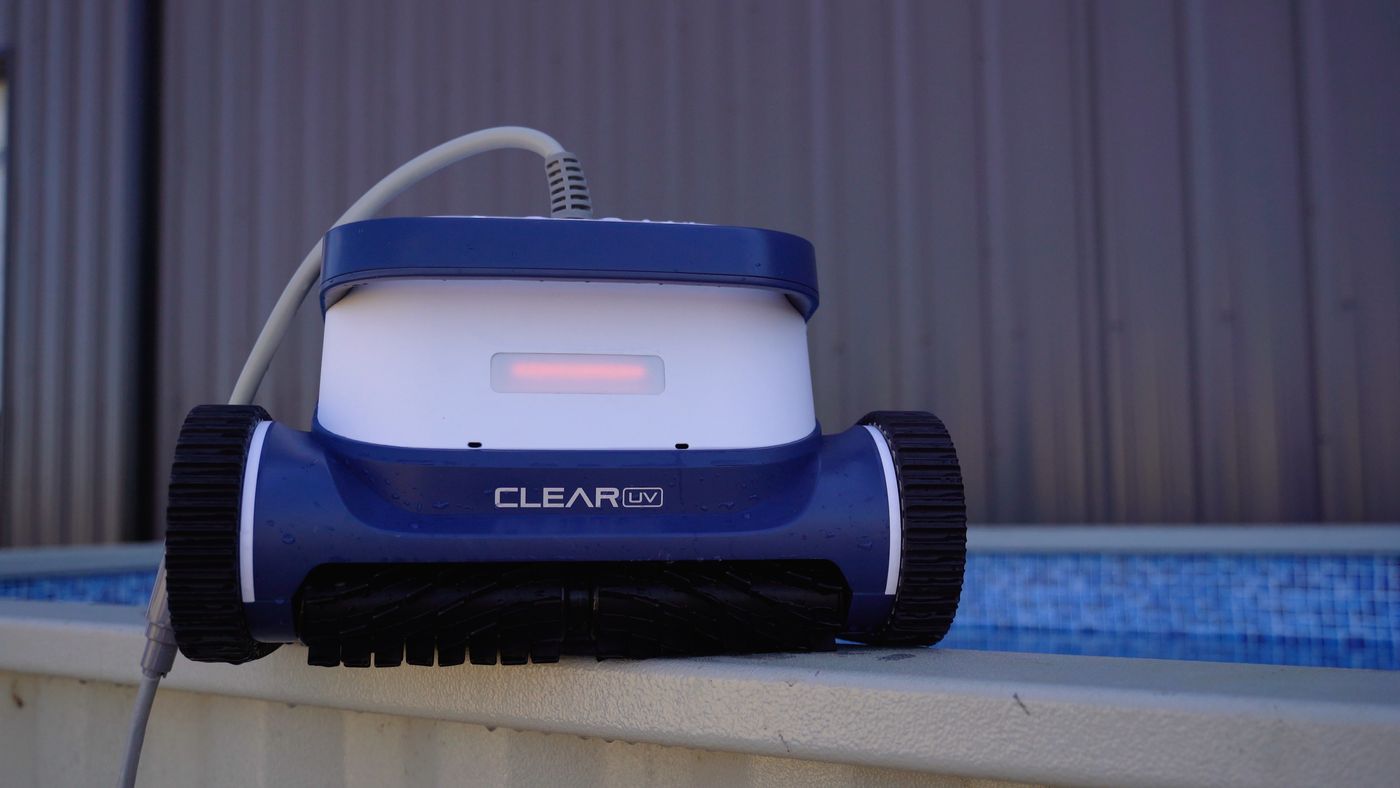
This is the troubleshooting home for the Clear UV. It is a corded robot that cleans the floor, walls and waterline. Below are the 12 problems owners run into most, each with the checks we would make first and the point where it stops being a do-it-yourself fix.
Safety first: unplug the control box from the outlet before you lift, open, or reach into the Clear UV. Keep the control box dry and well back from the pool edge, and never run the robot out of the water.
Clear UV Quick Checks First
Run through these before you chase a specific symptom. Between them they clear up most of what goes wrong with a Clear UV.
- Clean the filter until the water runs clear. A filter that looks clean can still be sealed with fine dust. Most pickup, climbing, and steering complaints end here.
- Restart the control box. Unplug it from the wall, wait 30 seconds, reseat the cable connector, and plug it back in. Start the cycle only after the Clear UV is on the floor.
- Check the impeller. With the power unplugged, look into the impeller opening (the fan that pulls water through the filter) for hair, string, or a twig. One small piece is enough to stall it.
- Put the right amount of cable in the water. Use about as much cable as the longest dimension of your pool. Too little holds the robot back. Too much tangles.
- Check the water. Algae, very cold water, and chemistry far out of range all make a robot slip. Fix the water before you blame the machine.
Clear UV at a glance
- Type
- Corded, runs from a control box
- Cleans
- Floor, walls and waterline
- Filter
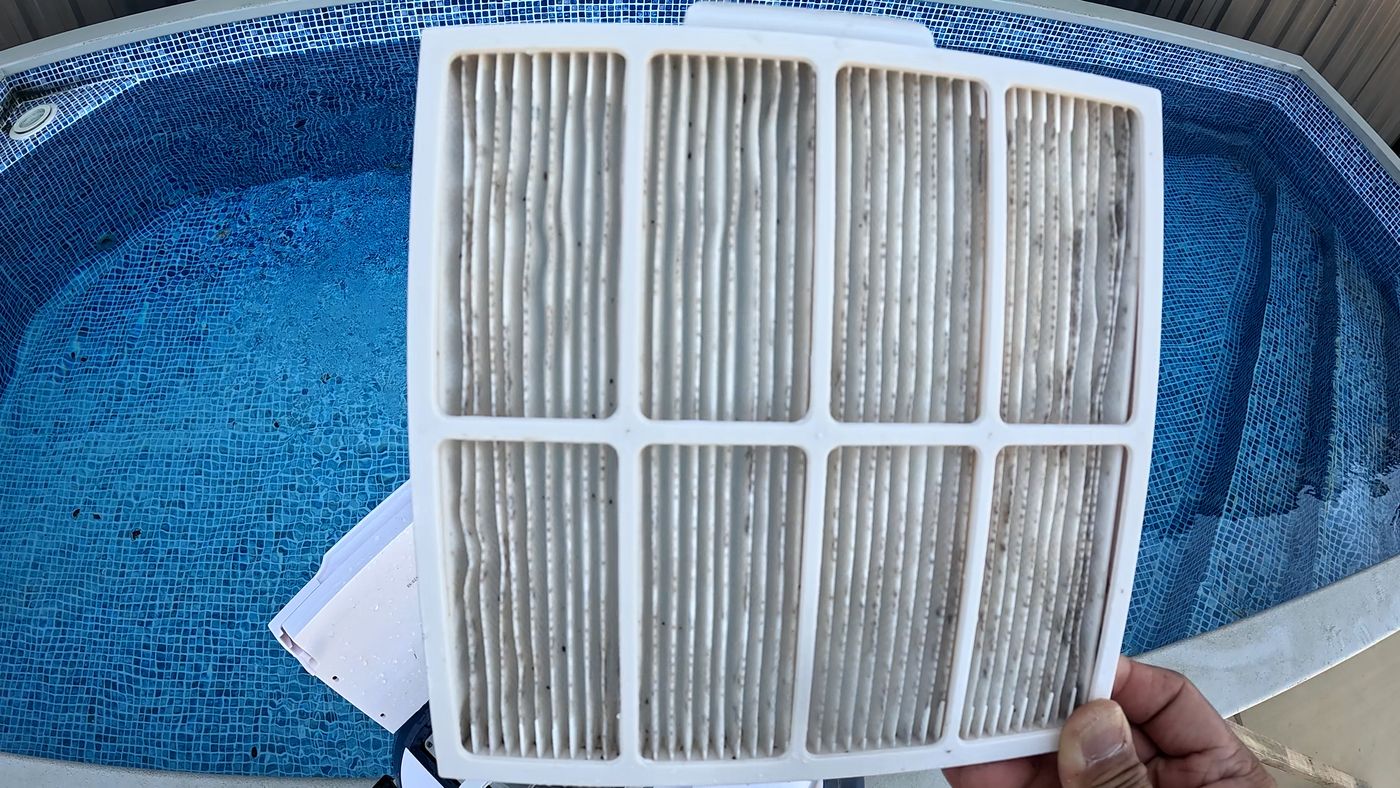
- UltraBin top-loading basket holding a set of UltraFilter panels, with a second set in the box
- Cable
- 59 ft anti-tangle floating cable with a swivel
- App
- Clear app, pairs over Bluetooth and Wi-Fi
- Built for
- In-ground residential pools up to 50 ft long, 2.5 to 16.4 ft deep
- Weight
- 27.6 lb without the cable
- Warranty
- 3-year limited
Clear UV Won’t Start, Control Box Is Dark, or the Outlet Trips
- Pressing START/STOP does nothing
- Control box shows only a lit ON/OFF button, or nothing at all
- The GFCI outlet trips when the robot is plugged in
- Control box is asleep (lights off after 3 minutes)
- No power at the outlet, or a tripped or aging GFCI
- Power cord or floating cable not fully connected
- Robot not submerged, or floating on trapped air
- Moisture in an outdoor outlet or an overloaded shared circuit
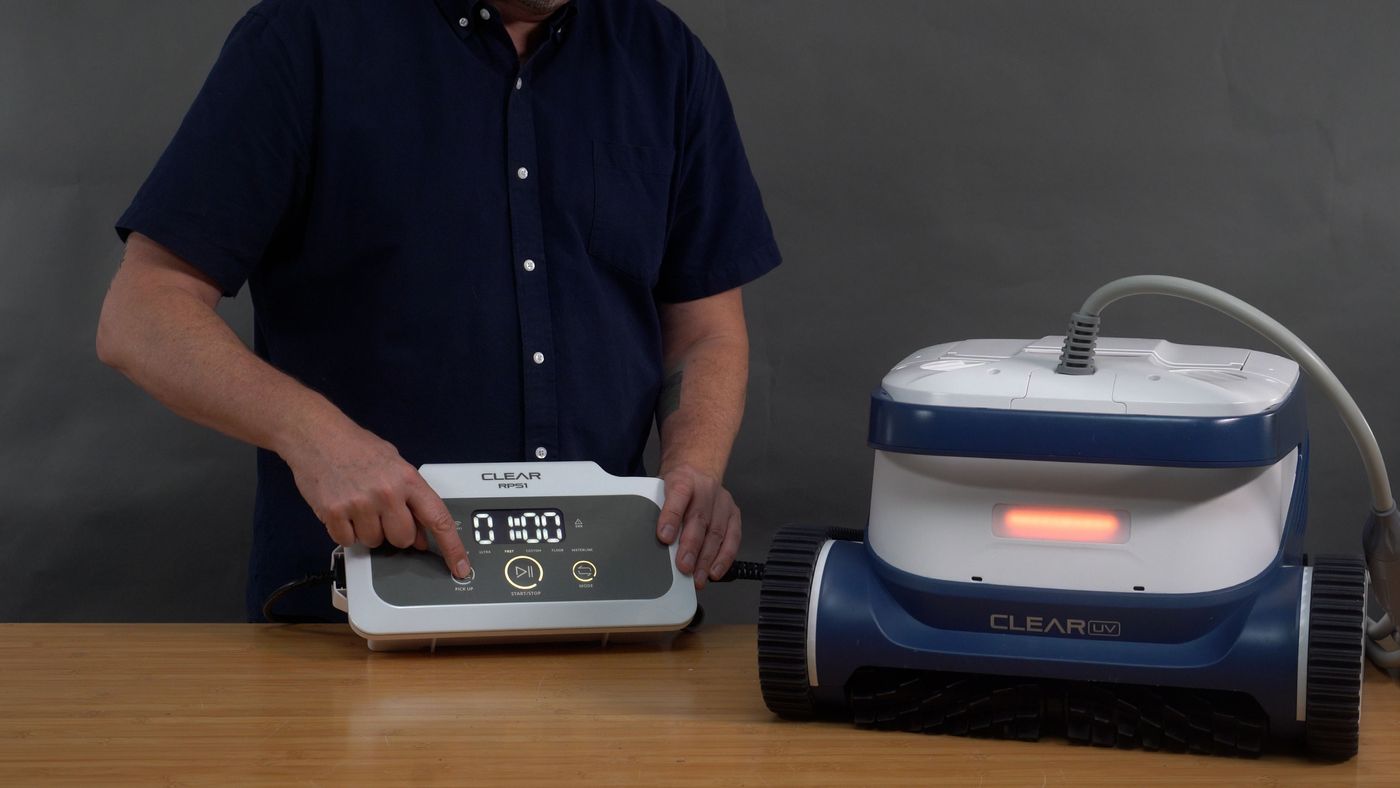
- Wake the control box. After 3 minutes idle only the ON/OFF button stays lit. Press any button once to wake the lights; that first press does nothing else. When it is awake and ready, the START/STOP button glows yellow.
- Test the outlet. Plug a lamp or phone charger into the same outlet. If it is dead, reset the GFCI or use another outlet. Plug the control box straight into the wall; Clear advises against extension cords.
- Check both connections. The power cord goes in the LEFT port of the control box and the robot's floating cable in the RIGHT port. Push the power cord in firmly and tighten the cable nut by hand.
- Submerge the robot. The Clear UV will not start if it is out of the water or floating. Lower it by the handle, tilt it side to side until the bubbles stop, and let it sink. The robot's status light is solid orange when it is not in the water and yellow when it is ready.
- If the outlet keeps tripping, isolate it. Unplug the robot's cable and power the control box alone. If its lights come on, reconnect the cable, submerge the robot and power on again. Clear says the outlet, the circuit or moisture is the usual cause, and that outdoor GFCI outlets may only last 5 to 7 years.
- Check where the control box sits. Keep it at least 10 ft from the pool edge, at least 4 in off the ground, and in the shade. In direct sun it can overheat and shut itself down until it cools.
Stop and call support if: the outlet trips again after the isolation test, the START/STOP button shows steady red, or the control box stays dead on a known-good outlet.
Clear UV Red Light or Error Code (E:00 to E:36)
- START/STOP button on the control box is red
- Robot status light flashes red
- A code such as E:00, E:15 or E:26 on the control box display
- Debris jamming a track or impeller (E:15, E:25, E:35, E:16, E:26, E:36)
- Control box and robot not communicating (E:00)
- Bad outlet voltage (E:01)
- Motion sensor fault (E:02, E:03)
- Control box fault (steady red)
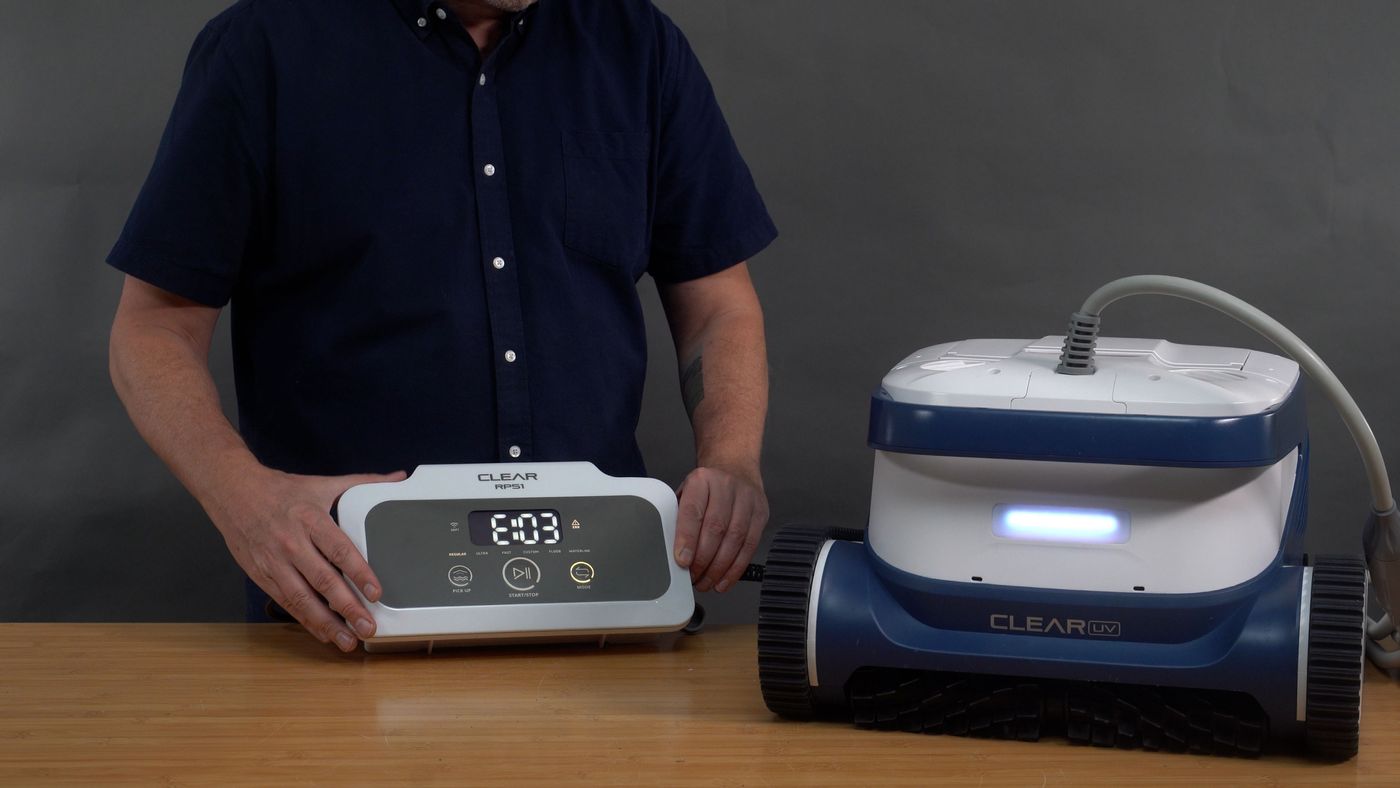
- Tell the two reds apart. Steady red on the START/STOP button is a control box fault. Flashing red means the robot has a fault, and the display shows which one. Write the code down before you clear anything.
- Jam codes: clear the tracks. For E:15, E:25 or E:35, unplug the control box and lift the robot out by the handle. Pull debris out of both tracks and check that each track is sitting on its drive wheels. Reseat a track that has slipped off.
- Pump codes: clear the impellers. For E:16, E:26 or E:36, open the top cover, lift out the UltraBin and look into the impellers for leaves, hair ties or pebbles. Rinse the basket while it is out.
- E:00: check the cable, then the firmware. Make sure the floating cable is tight in the RIGHT port and restart. If E:00 keeps returning, Clear traces it to firmware: open the app, update to version 1.0.25 or later, restart the robot and the control box, and give them a few minutes to reconnect.
- E:01: fix the power source. Plug the control box directly into a good GFCI outlet. Drop any extension cord or power strip and try an outlet on a different circuit.
- E:02 / E:03: restart. These are the accelerometer and gyroscope. Power the control box off and on with the robot sitting on the pool floor. If the code comes back, it needs Clear.
Stop and call support if: any code will not clear after its fix, E:02 or E:03 returns after a restart, E:00 survives the firmware update, or the control box shows steady red. Send Clear the code, the light color and a short video.
Clear UV Floats or Won’t Sink
- Robot bobs at the surface
- It tilts or one end rides up
- It will not start a cycle
- Air trapped inside the body
- Started before the air was out
- Cable too short or tight, pulling the robot off balance
- Lower it by the handle. Hold the handle and submerge the robot slowly. Do not drop it in or lower it by the cable.
- Tilt until the bubbles stop. Underwater, tilt it side to side and rotate it slowly. Keep going until no more bubbles come out.
- Let it sink on its own. Release it and watch it settle on the floor. Only then press START/STOP. Starting it while it floats is the reason it refuses to run.
- Give the cable slack. Lay the cable loosely on the water with no coils or tension. A tight cable can tip the robot and keep it from sitting flat.
Stop and call support if: it still floats after a full air purge with the cable slack.
Clear UV Not Moving, Flipping, or Struggling to Drive
- Robot status light is spinning yellow
- One track turns and the other does not
- Robot tips over or labors across the floor
- E:15, E:25 or E:35 on the display
- Debris jammed in a track
- Track has come off its drive wheel
- UltraBin full or heavy with debris
- Robot not fully submerged
- Unplug and lift it out. Disconnect the control box from the outlet and lift the robot by the handle. Never touch the tracks, brushes or impellers while it is powered.
- Clear the tracks. Turn the robot over on a towel and pick out stones, twigs and string from both tracks and around the front and rear brushes.
- Reseat a slipped track. If a track has walked off, work it back onto the drive wheels so it sits evenly on both ends.
- Empty the UltraBin. Clear's fix for a robot that flips or struggles is to empty and rinse the basket. Open the top cover, lift the basket out and hose it.
- Restart on the floor. Submerge it, purge the air, let it settle on the pool floor and start the cycle again.
Stop and call support if: a drive code stays after the tracks are clear and seated, or one track never moves.
Clear UV Won’t Climb Walls
- Stays on the floor in a mode that should include walls
- Climbs partway and drops back every time
- Used to reach the waterline and no longer does
- UltraBin or UltraFilter panels clogged (weak suction is the top cause)
- Impellers blocked
- Floor mode selected
- Water temperature or pH outside the operating range
- Algae film on the walls
- Check the mode. Floor mode cleans the floor only. Use Mode on the control box or the app to pick Regular, Ultra, Fast or Waterline.
- Rinse the basket and panels. Suction is what pins the robot to the wall. Unplug the control box, open the top cover, lift out the UltraBin and hose the basket and all the panels. Swap in the spare panel set if the installed ones are past cleaning.
- Clear the impellers. With the basket out, look into the impellers and remove anything lodged there.
- Check the water. The robot is rated for 50 to 95 F water and pH 7.0 to 7.8. Outside that range Clear warns climbing suffers.
- Brush off algae. Test and balance the water, then brush the walls. A slick film you can barely see is enough to make the tracks slip.
- Know what is normal. Climbing, sliding down and trying again is normal navigation. It is only a problem if the robot never makes the waterline.
Stop and call support if: it cannot climb with clean filters, clear impellers and balanced water.
Clear UV Weak Suction or Debris Left Behind
- Robot moves normally but leaves debris
- Robot status light is spinning cyan
- Fine dust or silt remains after a cycle
- E:16, E:26 or E:36 on the display
- UltraFilter panels clogged with fine debris, even when the basket does not look full
- Impellers blocked
- Panels worn out or not seated in order
- Silt stirred up and resettled
- Flocculant or clarifier residue in the filters
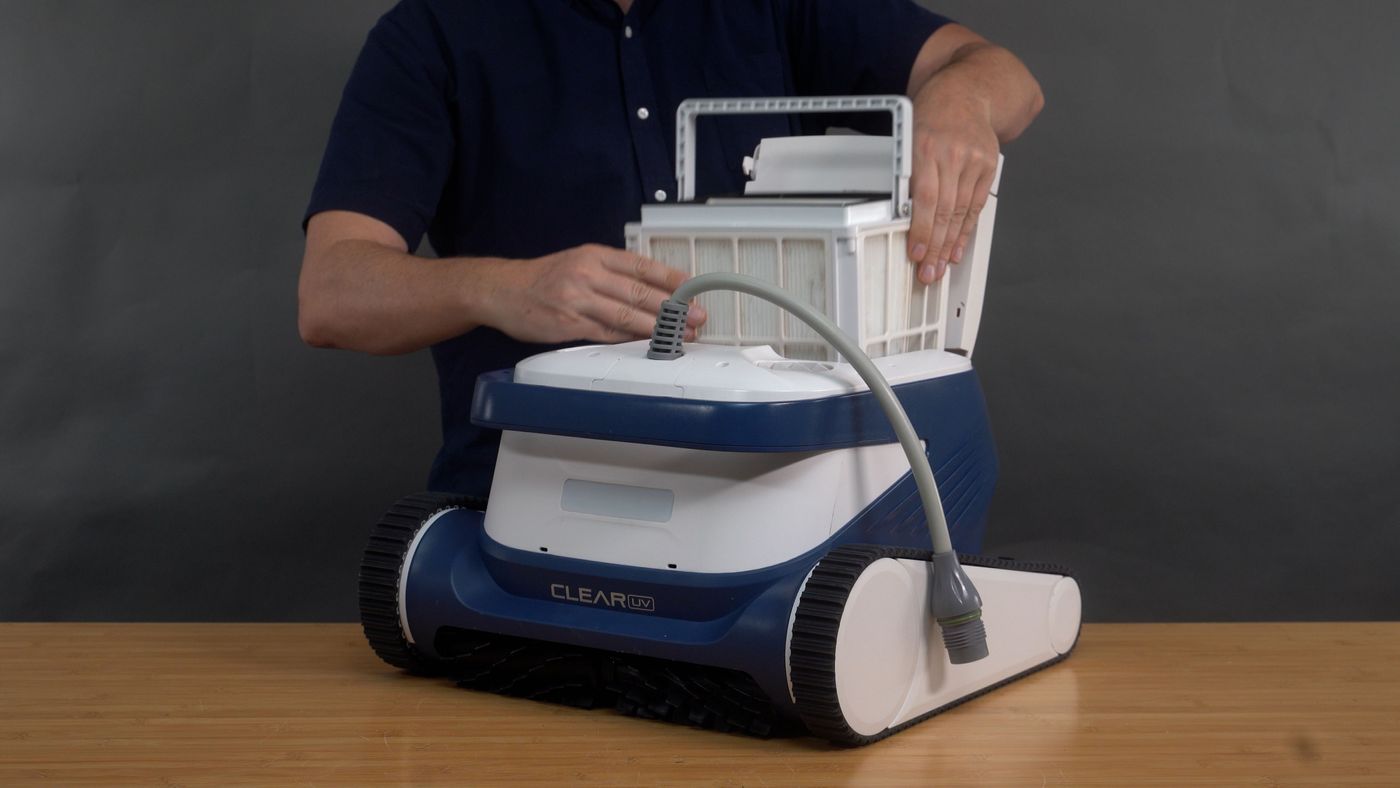
- Rinse the UltraBin. Unplug the control box, open the top cover and lift the basket straight up. Hose the basket and panels until the water runs clear. Do it whenever the basket is full, suction drops, or the status light spins cyan.
- Check the impellers. Look for leaves, hairpins or pebbles in the impellers and remove them.
- Pull and reseat the panels. Press lightly on the basket frame and slide the panels up and out in order: Middle (5M), Front (1), Back (2), Left (3), Right (4). Rinse each one gently, then install in reverse: Right, Left, Back, Front, Middle.
- Replace tired panels. Clear recommends new UltraFilter panels every 3 to 6 months. A spare set comes in the box. Handle them carefully; the fine media tears more easily than mesh.
- Run a second pass for silt. If fine dust is left, let what the robot stirred up settle and run another cycle with a freshly rinsed basket.
- Wait after floc or clarifier. Do not run the robot right after adding liquid flocculant or clarifier. They can clog or permanently damage the panels. Wait until the water is clear.
Stop and call support if: suction is still weak with clean or new panels and clear impellers, or a pump code will not clear.
Clear UV Only Cleans Part of the Pool
- One end or one side is never reached
- Robot seems to wander, pause or repeat areas
- Cable pulls tight before the far wall
- Control box not centered along the pool
- Cable not fully uncoiled
- UltraBin clogged
- Toys, ladders or hoses in the water
- Pool longer than 50 ft
- Separate normal from not. Pausing, reversing, repeating a section and changing direction are normal for this robot, and Clear says efficiency improves over the first few cycles. Judge it by what is left dirty after a full cycle.
- Move the control box. Set it roughly centered along the long side of the pool, 10 ft back from the edge, so the 59 ft cable reaches both ends.
- Uncoil all of the cable. Lay the full length out so it floats freely with no coils or tension. A short or tight cable tilts the robot and cuts off part of the pool.
- Clean the basket and clear the pool. Rinse the UltraBin and take out toys, floats, ladders and hoses the cable or robot can catch on.
- Target what was missed. Use Floor or Waterline mode for the zone that was skipped, set Custom mode in the app for your pool, or drive the robot there with the app's Remote Control joystick (needs a Clear account).
Stop and call support if: the same area is missed cycle after cycle with the control box centered, the cable free and the pool within 50 ft.
Clear UV Stuck on the Main Drain
- Robot stops on the drain cover
- Front of the robot lifts while it sits on the drain
- It frees itself, then hangs up again on a later pass
- Shape of the drain cover catches the robot
- Drain cover is loose and lifts as the robot crosses
- Give it a few minutes. The robot has an escape routine. When forward movement times out it usually kicks in within about four minutes, and the front lifting during that is normal.
- Check the cover from the deck. A loose, broken or missing drain cover is a swimmer-safety problem. Have it secured or replaced before running the robot again.
- Free it without pulling hard. Press Pick-Up on the control box or app so it drives to the nearest wall. If it stays put, guide it off gently with the cable, never lifting or yanking, and restart it on the floor.
- Add a little weight to the cover. A small weight on top of the drain cover keeps it from lifting or catching. Leave the drain openings clear and use nothing that can shift or scratch the floor.
- Fit a main drain clip. If it still hangs up, Clear will send a main drain clip on request. It installs with screws for the strongest hold or with 3M adhesive for no drilling. Tell them your model and send a photo of the cover.
Stop and call support if: it still sticks after trying weight and the clip. Send Clear a photo or short video of the drain and where the robot hangs up.
Clear UV Cable Tangles
- Cable twists or coils during a cycle
- Robot is pulled short or tips
- Cable keeps a corkscrew shape after storage
- Cable not fully uncoiled before the run
- Obstacles in the pool
- Long cycles twisting the cable
- Cable stored in tight coils
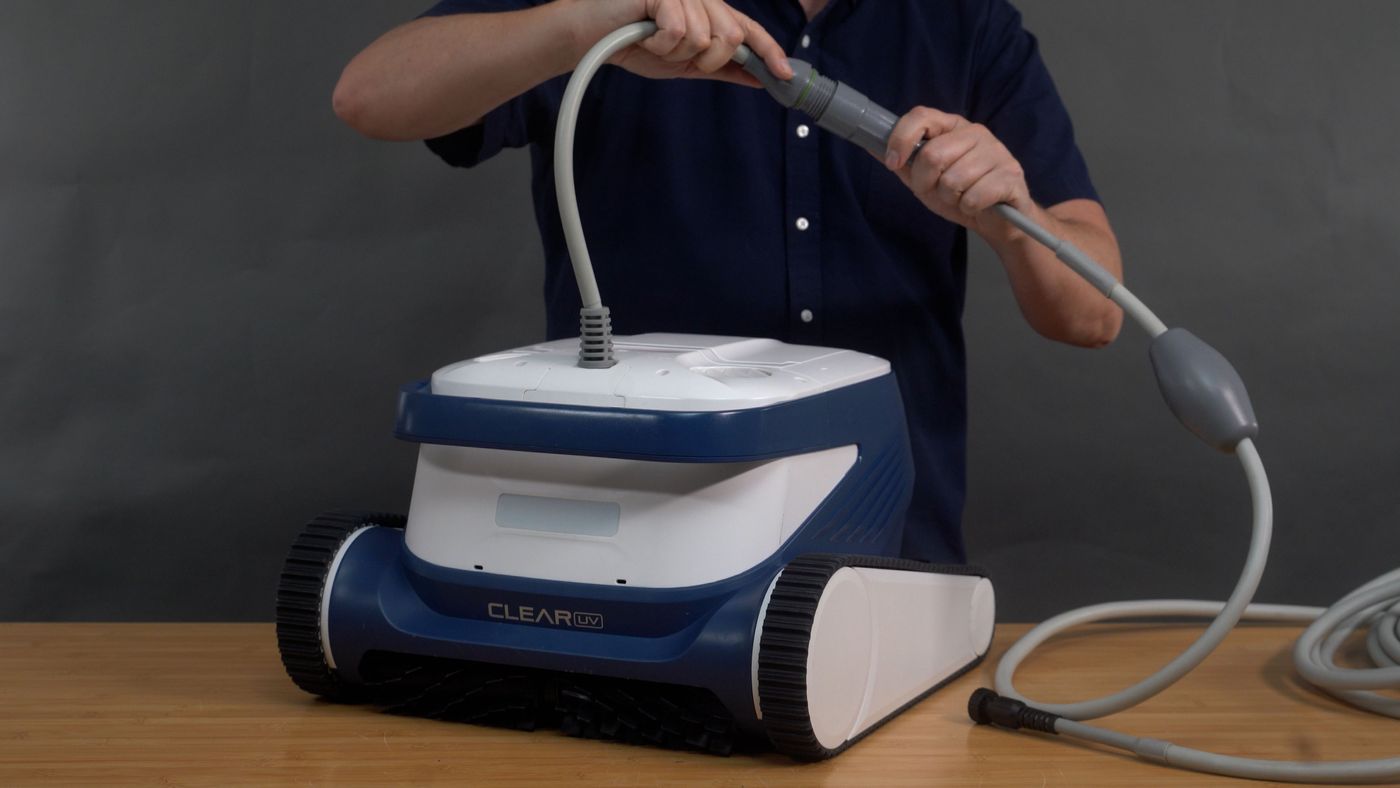
- Uncoil before every run. Lay the whole cable out and work out the twists by hand before the robot goes in. Let it float freely on the surface.
- Clear the pool. Remove toys, floats and hoses the cable can wrap around.
- Reset a twisted cable. Unplug the control box, disconnect the cable and straighten it. Lay it flat in the sun for about 8 hours to relax the memory.
- Store it in loose loops. Coil it loosely and keep it out of direct sun between uses. Tight wraps create the twists that show up next cycle.
- Never lift by the cable. Use the handle. Pulling on the cable can damage the wires inside and is not covered by the warranty. Gently guiding the robot to the wall with it is fine.
Stop and call support if: the swivel does not rotate, the jacket is cut, or E:00 appears after a hard pull on the cable.
Clear UV App Won’t Connect
- App cannot find the robot
- Robot shows as bound to another phone or account
- UV icon or Remote Control is missing or greyed out
- Bluetooth or Wi-Fi off on the phone
- Phone too far from the control box
- Robot already bound to another device
- Not logged in to a Clear account
- Control box asleep or unplugged
- Turn on Bluetooth and Wi-Fi. Both have to be on. Stand close to the control box and make sure it is plugged in and awake.
- Pair from the app. Open the Clear app, sign in, choose Clear UV, tap To Connect and let the phone search. Confirm your home network and password when asked. The Link / Wi-Fi light on the control box flashes while connecting and stays on once the app has the robot.
- Restart the app. Close it fully and reopen it, then try To Connect again.
- Unbind the old phone. If the robot was paired to another phone, remove it under Manage Bound Devices on that account and pair again. Contact Clear if you cannot unbind it.
- Log in for Remote Control and UV. The joystick needs a Clear account. The UV icon only appears while the robot is in the pool and connected; if it is greyed out, reconnect.
- Run it from the control box meanwhile. The app is optional for cleaning. START/STOP, Mode and Pick-Up on the control box run a full cycle without it.
Stop and call support if: the robot cannot be unbound from an old account, or the app connects but the robot will not respond even after updating the app and firmware.
Clear UV Hard to Get Out of the Pool
- Robot finishes on the floor out of reach
- It feels very heavy at the surface
- Pick-Up does nothing on the first press
- Control box asleep, so the first press only woke it
- Lifting before the water has drained
- It is a 27.6 lb robot
- UV still on
- Turn UV off first. If the START/STOP button is blue or the app shows the UV banner, tap TURN UV OFF. Do not touch or lift the robot with the lamp on.
- Wake, then press Pick-Up. Tap any button to wake the control box, then press Pick-Up, or use Pick-Up in the app. The Pick-Up light comes on while the mode is active.
- Let it come to you. The robot drives to the nearest wall, climbs to the waterline and holds there.
- Or guide it in gently. If you are not near that wall, use the cable to ease the robot toward the side. Do not lift it by the cable.
- Drain before you lift. Take the handle and hold the robot just above the water for 10 to 20 seconds. It sheds a lot of weight as the water runs out, then lift it onto the deck.
Stop and call support if: pick-Up never sends the robot up a wall even though it climbs normally during cycles.
Clear UV UV Lamp Won’t Turn On or Shuts Off
- No UV icon in the app, or it is greyed out
- Control box stays green instead of blue
- App shows UV turned off for safety
- Robot not underwater and running
- One-time UV safety acknowledgment not completed
- App not connected to the robot
- Cycle ended or robot stopped (the lamp shuts off with it)
- Lamp at the end of its service life
- Start a cycle with the robot submerged. UV is blocked above water. The robot has to be fully underwater and cleaning before the lamp will light.
- Complete the first-time safety step. The first time, open UV settings in the app, read the UV Safety notice, tick the box that you understand the hazard and tap Continue. The UV controls do not appear until this is done.
- Turn UV on and confirm. Tap the UV icon at the top right of the app, or Run UV Now, and confirm the warning. The control box START/STOP button turns blue and the robot's status light spins blue when the lamp is on.
- Reconnect if the icon is greyed out. A greyed-out UV icon means the app has lost the robot. Reconnect and try again.
- Set Automatic UV for scheduled runs. Manual UV covers only the current cycle. For the weekly timer, switch on Automatic UV in UV settings so the lamp runs during scheduled cleanings.
- Treat safety shutoffs as normal. The lamp turns off when the cycle ends, when the robot stops, or when it senses an unsafe condition such as leaving the water. That is by design. Never look at the lamp or try to test it out of the pool.
Stop and call support if: the lamp will not light with the robot submerged, running and connected, or it is near its rated life of about 2,000 hours. The UV Lamp Assembly is a replaceable part; do not open the robot yourself.
Clear UV Lights and What They Mean
These are the indicator states listed in the official Clear material for the Clear UV. If what you see is not here, check the manual for your exact production run before acting on it.
Normal. Press START/STOP to begin a cycle.
Short-press START/STOP to resume, or long-press to stop the cycle.
Normal operation.
Normal operation. Keep everyone out of the pool and do not handle the robot until UV is off.
Unplug it, let it cool in the shade, and plug it straight into a known-good GFCI outlet. Contact Clear if the red light returns.
Read the error code on the control box display and follow the fix for that code.
Press any button to wake it. The first press only wakes the lights; press again for the function you want.
Wait. The light stays on steadily once the app has found the robot.
Wait for it to finish.
Ready to start.
Submerge it fully and release the trapped air before starting.
Resume from the control box or the app.
Normal operation.
Normal operation. Stay out of the pool and do not lift the robot.
Unplug the control box, lift the robot out by the handle and clear the tracks and impellers.
Unplug, lift out the UltraBin and rinse the basket and panels.
Check the code on the control box display.
Check that the cable is tight at both ends and restart. If it keeps coming back, update the firmware through the app (Clear says version 1.0.25 or later fixes it), then restart the robot and control box.
Plug the control box directly into a working GFCI outlet with no extension cord.
Restart the robot. Contact Clear if it stays.
Restart the robot. Contact Clear if it stays.
Unplug, lift the robot out, clear debris from the tracks and make sure both tracks are seated on their drive wheels.
Unplug, lift the robot out, clear debris from the tracks and make sure both tracks are seated on their drive wheels.
Clear and reseat both tracks, then restart. A code that will not clear needs Clear support.
Unplug, lift the robot out and clear the impellers.
Unplug, lift the robot out and clear the impellers.
Clear both impellers and rinse the UltraBin, then restart. A code that will not clear needs Clear support.
Keep people out of the water and do not touch or lift the robot. Tap TURN UV OFF before handling it.
Normal safety behavior. Make sure the robot is fully underwater and running before turning UV back on.
What We Saw Testing the Clear UV
We ran the Clear UV in our own test pool for our Clear UV review. These are the things we ran into ourselves, so you can tell a quirk of the model from a real fault.
- No cable tangles in weeks of use: After laying the cable flat and working the twists out once, we never had to untangle it.
- UV lamp only runs submerged: The lamp will not run unless the robot is fully underwater.
- Heavy to lift: At 27.6 lb without the cable, you feel it coming out of the water. Pick-up mode and letting it drain help.
- Do not run right after floc or clarifier: We repeat the manual's warning: fine sediment from flocculants and clarifiers can clog the filtration.
- Pauses, reverses and repeats sections: In our pool the Clear UV would stop, back up, redo a section or change direction mid-cycle. It is part of how it navigates, not a fault.
- Coverage was consistent: Over several weeks we did not find areas the robot had skipped after a cycle.
- Long-term reliability unknown: We have only run it for weeks, so we cannot speak to how it holds up over seasons.
- Holds the waterline: It climbed confidently for us and kept its grip at the tile line.
When to Call Clear Support
Stop troubleshooting and get the Clear UV looked at if any of these are true:
- The same fault comes back right after a full clean and a restart
- You see water inside a sealed compartment, or the robot has become noticeably heavier
- There is a burning smell, a melted connector, or visible corrosion on the electrical contacts
- The floating cable is cut, crushed, or showing copper
- The control box will not stay on with nothing plugged into it
- One track or the impeller will not turn under power with nothing blocking it
Before you call, write down the serial number, find your proof of purchase, and record a 20 to 30 second video of the problem. A clip of the robot failing, plus a clear shot of any light on the control box, gets a warranty claim moving faster than any description.
- Support: Clear support
- Phone: 737-327-3005 (Business hours (not specified); messages answered within 1 to 2 business days)
- Manual: Clear UV user manual
- Warranty: 3-year limited
3-year limited manufacturer's warranty. Open a warranty claim through the contact form at clearrobot.com/contact/ or by phone. Include the model, serial number or order number, what happens and when, the error code or light color, and a photo or short video. Cable damage from lifting the robot by the cable and….
Clear UV Troubleshooting FAQ
What do the lights on the Clear UV control box mean?
On the START/STOP button, yellow is standby, flashing green is paused, steady green is cleaning with UV off and steady blue is cleaning with UV on. Steady red is a control box fault and flashing red is a robot fault with a code on the display. If only the ON/OFF button is lit, the box is asleep; press any button.
What does E:00 mean on the Clear UV?
The control box and robot are not talking to each other. Check that the cable is tight at both ends and restart. If it keeps returning, Clear says a firmware update through the app (version 1.0.25 or later) fixes it; restart both afterward and allow a few minutes to reconnect.
Why won't the UV light turn on on my Clear UV?
The lamp only runs with the robot fully underwater and cleaning. You also have to accept the one-time UV safety notice in the app, then tap the UV icon and confirm the warning. A greyed-out icon means the app needs to reconnect.
How often should I clean and replace the Clear UV filters?
Rinse the UltraBin whenever it is full or suction drops, and more often than it looks like it needs, since fine debris clogs the panels early. Replace the UltraFilter panels every 3 to 6 months. A spare set is in the box.
How do I get the Clear UV out of the pool?
Turn UV off, wake the control box, and press Pick-Up on the box or in the app. The robot climbs the nearest wall to the waterline. Lift it by the handle, hold it over the water for 10 to 20 seconds to drain, and never lift it by the cable.
How long does the Clear UV lamp last?
Clear rates the UV-C lamp for about 2,000 operating hours, roughly 2 to 3 years depending on use. It is replaced as a UV Lamp Assembly through Clear rather than repaired.
Still stuck after every check?
Go back to our review for how the Clear UV is supposed to behave, or contact Clear with your serial number and a short video of the problem.