
The short answer
Most Dolphin Nautilus EON 100 problems trace back to three things: a filter sealed with fine debris, a battery that is not fully charged, or air trapped in the body. Rinse the filter until the water runs clear, charge until the light shows full, and let the air out before the next run.
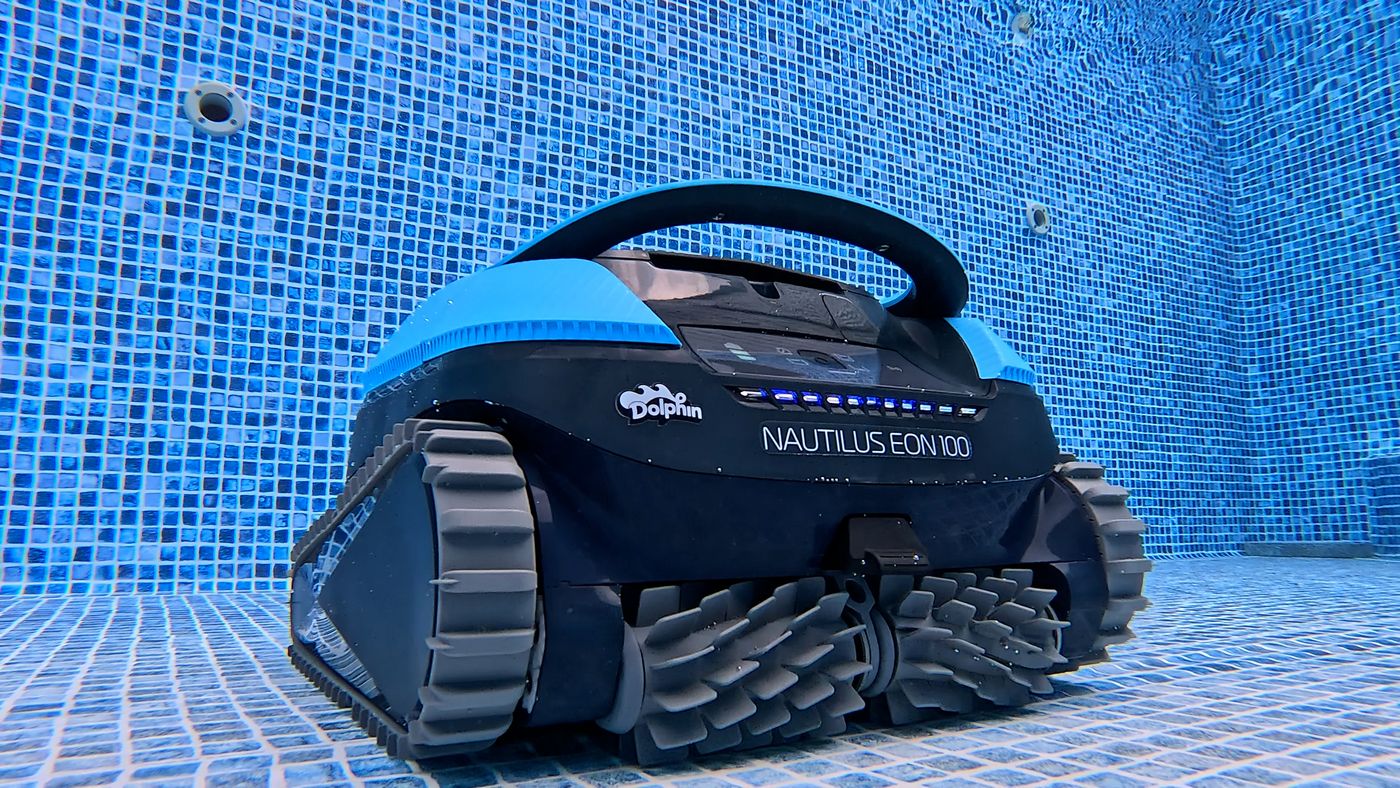
This is the troubleshooting home for the Dolphin Nautilus EON 100. It is a cordless, battery-powered robot that cleans the floor, walls, waterline and plus steps and sun ledges in water as shallow as about 8 inches. Below are the 12 problems owners run into most, each with the checks we would make first and the point where it stops being a do-it-yourself fix.
Safety first: take the EON 100 out of the water and switch it off before you open the filter, touch the brushes, or reach near the impeller. Never charge it while it is wet at the charging contacts, and never open the sealed battery or motor housing.
EON 100 Quick Checks First
Run through these before you chase a specific symptom. Between them they clear up most of what goes wrong with a Dolphin Nautilus EON 100.
- Charge it all the way. Leave the EON 100 on charge until the light shows full, not just until it turns on. A partial charge causes short runs, weak climbing, and robots that stop in the middle of the pool.
- Rinse the filter until the water runs clear. A filter that looks clean can still be sealed with fine dust. Most pickup, climbing, and early-shutoff complaints end here.
- Let the air out. Hold the robot under the surface and rock it until the bubbles stop before you let go. Trapped air makes it float, tip, and lose grip.
- Rinse and dry the charging contacts. Pool water left on the charging port or contacts corrodes them. Rinse with fresh water and dry them before every charge.
- Check the water. Algae, very cold water, and chemistry far out of range all make a robot slip. Fix the water before you blame the machine.
Dolphin Nautilus EON 100 at a glance
- Type
- Cordless, battery powered
- Cleans
- Floor, walls and waterline, plus steps and sun ledges in water as shallow as about 8 inches
- Filter
- One top-load filter basket
- Battery
- Lithium-ion, 6000 mAh / 151.2 Wh, not user-replaceable
- App
- Maytronics One over Bluetooth and 2.4 GHz Wi-Fi
- Built for
- In-ground and above-ground pools up to 50 ft long
- Weight
- About 23 lb dry; 22.05 lb on Maytronics' spec sheet
- Warranty
- 1 year
EON 100 Won’t Charge
- Battery bars never start blinking green on the charger
- Charger light is off
- All the battery lights blink at once
- Still not at three solid bars after hours on the charger
- Dead wall outlet or tripped GFCI
- Wet, dirty or poorly seated charging contacts
- Robot or charger too hot or too cold
- Not left on the charger long enough
- Check the charger light. The EON's charger shows a green light when it has power from the wall. If it is dark, test the outlet with another device, reset the GFCI, or move to an outlet you know works. Do not use an extension cord.
- Dry and clean the charging port. Pull the rubber seal off the charging port on the robot and make sure the contacts on both the robot and the charger plug are clean and completely dry. Wipe away grit or scale, then push the charger on firmly until it seats.
- Move it into the shade. The EON only charges between about 43 and 95 F. If the battery lights blink together, or the middle and outer lights alternate, the battery or charger is too hot. Take it indoors or into deep shade; in summer, charge overnight.
- Give it the full time. A flat battery takes up to about 4.5 hours. The battery bars blink green and climb as it fills, then all three go solid. Leave it connected the whole time.
- Do not test with the power button. The robot ignores the power button while it is plugged into the charger. That is normal, not a fault. Unplug it first, then press the button.
Stop and call support if: the charger light is green, the contacts are clean and dry, the robot is in the shade, and the battery bars still never light or never reach three solid bars after 4.5 hours. Stop using a charger that has been dropped in water or damaged.
EON 100 Won’t Start a Cycle
- Nothing happens when you press the power button
- Status light goes solid blue but the robot never starts in the pool
- Status light blinks red
- Still plugged into the charger
- Battery not fully charged
- Put in the water too late after starting
- Something stuck in the tracks or impeller
- An error is stored (red light)
- Unplug the charger. The EON will not respond to its power button while the charger is connected. Disconnect the charger and press the rubber seal back over the charging port.
- Charge to three solid bars. Maytronics' own table says to charge to 100 percent, three solid green bars, before troubleshooting a no-start. That can take up to 4.5 hours.
- Start it, then get it wet within 30 seconds. Short-press the power button so the status light under it goes solid blue, then lower the robot into the pool within 30 seconds. It begins on its own once it is in the water and the light switches to blinking blue. Start it on the pool floor, not on a step.
- Clear the tracks and impeller. With the robot switched off, check both tracks and the wheels for stones, hair ties or twigs. If the tracks are clear, clean the impeller using the charger-and-screwdriver safety method described under Not Picking Up Debris.
- Read the error in the app. If the status light blinks red, take the robot out, press the power button or plug in the charger so it reconnects, and open Maytronics One. The home screen shows the last error; tap it for the fix.
Stop and call support if: it is fully charged, unplugged, clear of debris and still will not start, or the red light returns after you follow the app's instructions.
EON 100 Moving in Circles or Only One Direction
- Robot spins or loops in one part of the pool
- Robot drives one way and will not turn
- Clogged filter basket
- Debris in the impeller housing or cover
- Something caught in a track or wheel
- Algae or water chemistry out of range
- Rinse the filter until it is white. Open the filter cover on top, lift the basket and hose it. Maytronics' test is color: a clean EON filter is white. If it is still brown or green, keep rinsing, and if it stays brown it is time for a new one.
- Clean the impeller. The EON steers with water flow, so a partly blocked impeller makes it circle or refuse to turn. Clear it using the safety method under Not Picking Up Debris.
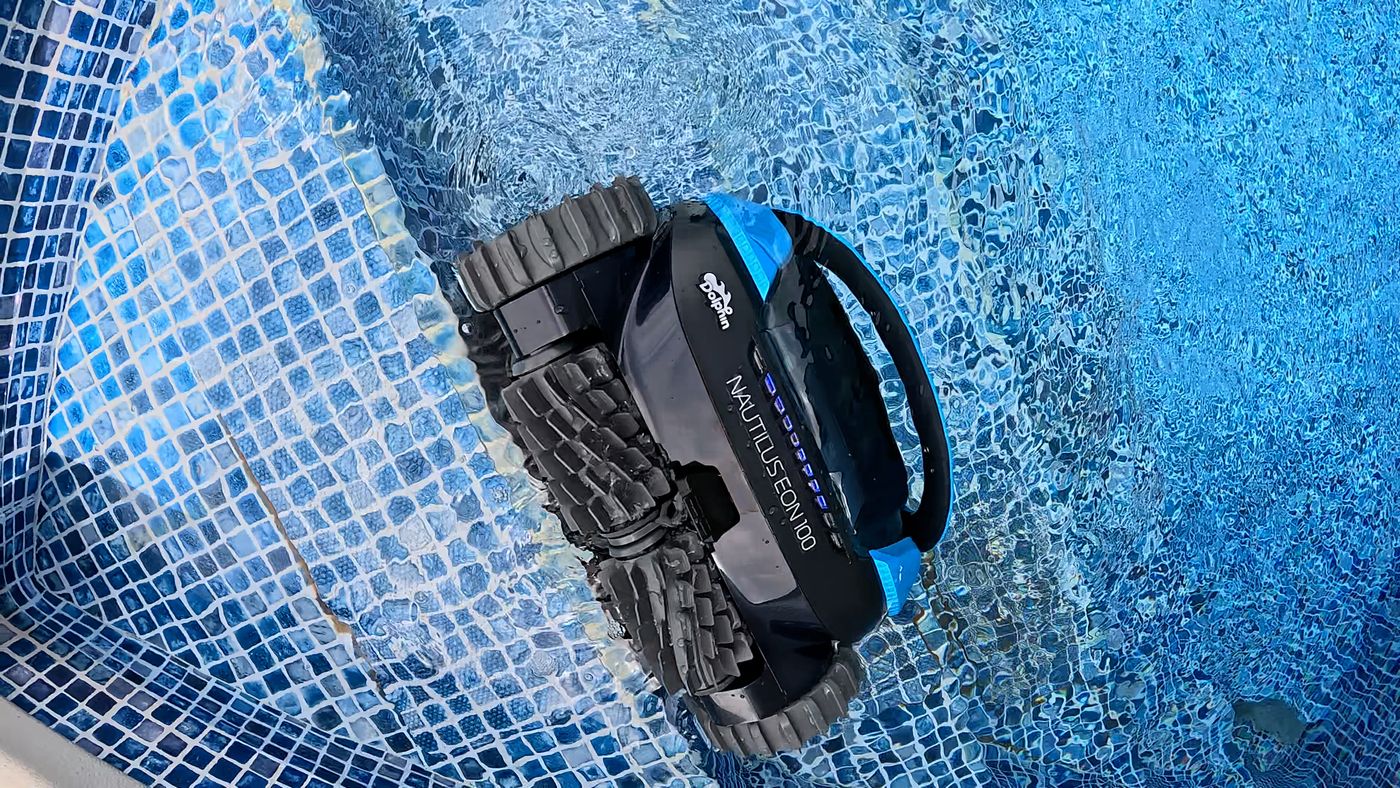
- Check both tracks. Look along each track and around the wheels for anything wedged in. One dragging track will pull the robot round in a curve.
- Test the water. Slick algae and off-balance water stop the tracks gripping. Keep pH between 7.0 and 7.8, treat any algae, and wait 24 hours after a chemical treatment before putting the robot back in.
Stop and call support if: the filter is white, the impeller and tracks are clear, the water is balanced and it still circles or will not turn.
EON 100 Won’t Climb Walls
- Robot reaches the wall and turns away
- Only climbs near the end of the cycle
- Climbs a little and slides back
- Scan pattern set to Line-by-Line, which saves walls for the last third of the cycle
- Robot arrived at the wall tail first
- Filter too full for the jet to push it up the wall
- Debris in the impeller or tracks
- Algae or pH out of range
- Out-of-date robot software
- Check the scan pattern in the app. In Maytronics One, set the scan pattern to Maze. In Maze the EON climbs from the start of the cycle. In Line-by-Line it spends roughly the first two thirds on the floor and only climbs in the final third, which looks like a robot that will not climb.
- Watch which end meets the wall. The EON only climbs when its front reaches the wall. If the rear gets there first it backs off. That is normal behavior, so watch a few approaches before deciding something is wrong.
- Rinse the filter basket. The EON uses a water jet to press itself onto the wall, and a full basket chokes that jet. Lift the basket out of the top and hose it until it is white.
- Clear the impeller and tracks. Check the tracks and wheels for debris, then check the impeller and its housing for hair and leaves. Use the charger-and-screwdriver safety method before putting fingers near the impeller.
- Update the app and the robot. Install the latest Maytronics One app. If it offers a robot software update, finish it before the next cycle; Maytronics says old software can affect climbing and navigation.
- Test the water. Check pH in particular. Algae film and unbalanced water make walls too slick to climb. Brush the walls and correct the chemistry, or have a pool professional treat it.
Stop and call support if: it is set to Maze, the filter and impeller are clean, the software is current, the water is balanced and it still will not climb front-first.
EON 100 Moves but Doesn’t Pick Up Debris
- Robot drives the pool and leaves dirt behind
- Status light is solid yellow
- Debris comes back out when you lift it
- Filter basket full or clogged with fine silt
- Monoblock basket installed the wrong way round
- Debris in the impeller
- Too much debris for one cycle
- Wrong filter-type setting after swapping baskets
- Rinse the basket right after each cycle. Open the filter cover, lift the basket and hose it before the debris dries on. A solid yellow status light, or a filter alert in the app, means it is full. Clean is white; brown or green means keep rinsing.
- Seat the monoblock basket correctly. The EON 100's closed 70-micron basket only works one way round: the latch faces the impeller. Drop it in that way and close the filter cover fully.
- Clean the impeller safely. Remove the filter. Connect the charger to the robot and plug it in, which keeps the motors disabled. Push a screwdriver into the opening between the handle and the filter cover latch as a second safeguard; Maytronics says not to skip this. Then open the filter cover door, reach the impeller opening and pull out hair and debris, keeping fingers clear of the blades.
- Split a heavy clean into shorter runs. For a pool full of leaves, run shorter cycles and empty the basket between them. One long cycle on a packed basket just pushes water around.
- Match the filter setting to the basket. If you have fitted the optional DebrisLock backwash basket, turn on Activate Backwash under Settings, Filter Type in the app. If you went back to the monoblock or the open basket, turn it off and confirm the change to a non-DebrisLock filter.
Stop and call support if: the basket is white, seated correctly and the impeller is clear, yet the robot still leaves debris behind, or the monoblock filter stays brown after washing and needs replacing.
EON 100 Misses Spots, Steps or the Sun Ledge
- Patches of floor left dirty after a cycle
- Robot never goes up the steps
- Robot reaches the sun ledge and comes straight back, or never finds it
- No Smart Mode calibration run yet
- Robot started facing away from the steps or ledge
- Wrong mode or scan pattern
- Clogged filter cutting the jet it climbs with
- Water on the ledge shallower than 8 inches
- Out-of-date software
- Run Smart Mode once. In the app, add your pool features, then pick Smart Mode. It spends 20 to 30 minutes scanning the pool's size, shape, depth and slope, then goes straight into the cycle it recommends. Afterwards the app marks the recommended run time and scan pattern with a star.
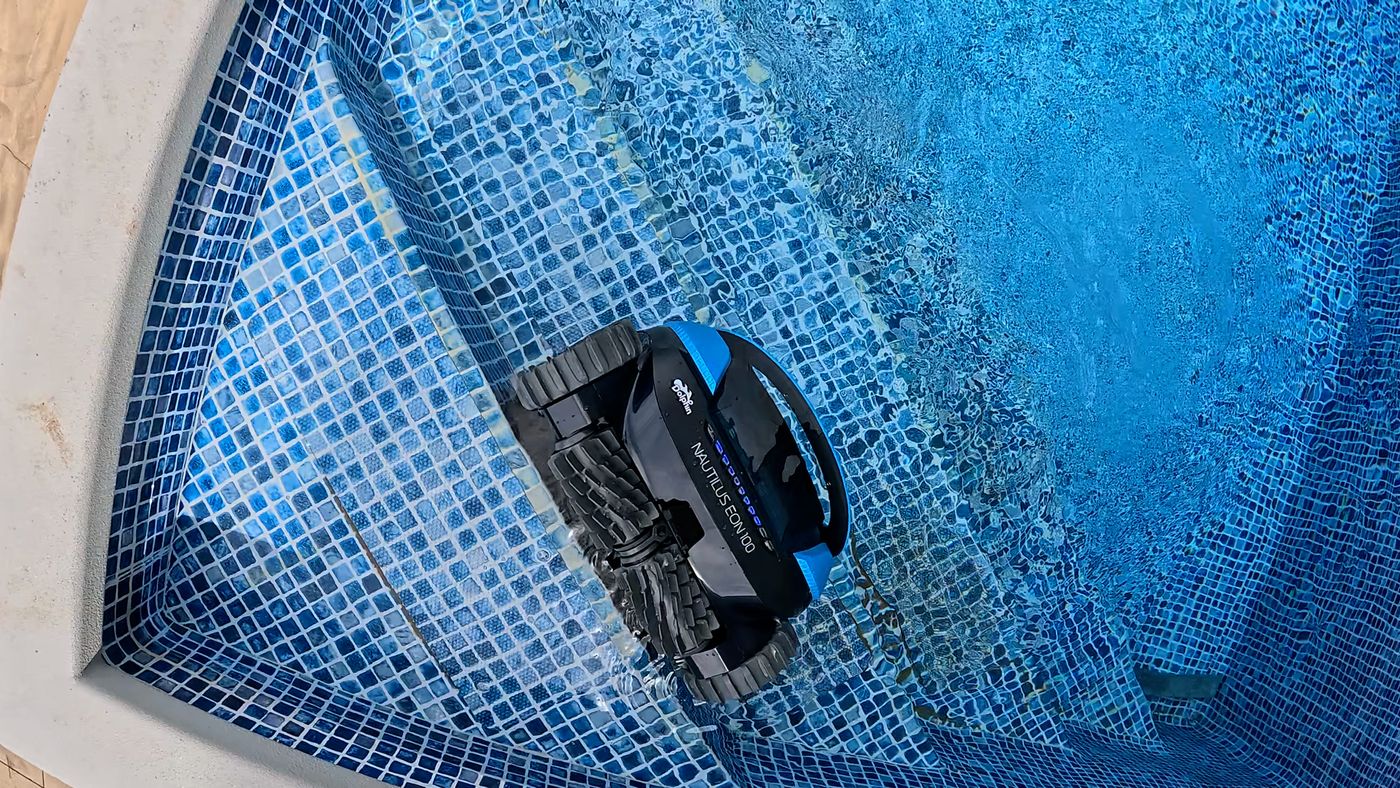
- Aim it at the steps or ledge. Set the robot on the pool floor with its front facing the steps or the sun ledge. Start it in Full Coverage with the Maze pattern. That makes it go for those areas early in the cycle. Floor-Only mode will never climb them.
- Rinse the filter. Step and ledge climbing depends on the same water jet as wall climbing. Hose the basket until it is white before blaming navigation.
- Check the water depth on the ledge. The EON needs at least 8 inches of water. Maytronics' check: if water is not flowing out of the top of the robot while it sits on the ledge, the water is too shallow for it to work there.
- Try Line-by-Line for the floor. If the gaps are on the floor rather than the steps, switch the scan pattern to Line-by-Line, which works the floor harder, or lengthen the cycle from 2 hours to 2.5.
- Update the software. Update the Maytronics One app and accept any robot software update before the next run. Maytronics lists this as the first step for an EON that is not behaving.
Stop and call support if: after a Smart Mode calibration, a clean filter and a software update it still ignores steps or a ledge with more than 8 inches of water over it.
EON 100 Won’t Pair With the Maytronics One App
- App cannot find the robot
- Pairing stalls on a loading screen
- Wi-Fi step fails after Bluetooth pairing works
- Robot is in the water or plugged into the charger during first pairing
- Robot not in pairing mode
- Phone Bluetooth off, busy with another device, or location services off
- Battery too low
- Wi-Fi name or password the robot cannot accept, or a 5 GHz network
- Take it out and unplug it. The EON cannot talk to the app under water. For first-time pairing, have it on the deck and disconnected from the charger, with a good charge in it. A low battery blocks pairing.
- Put the robot in pairing mode. Hold the power button for 3 to 5 seconds until the connectivity LED blinks blue. Keep the phone right next to the robot.
- Sort out the phone. Turn Bluetooth off and on, make sure the phone is not connected to another Bluetooth device, and switch location services on; pairing needs them. Give the app every permission it asks for.
- Finish the software update. If the app offers a robot update during pairing, stay beside the robot and leave the app open on the update screen until it completes. Interrupting it causes trouble later.
- Check the Wi-Fi details. The EON joins 2.4 GHz networks only. Maytronics also says the network name and password should be under 32 characters with no spaces or special characters. You can skip Wi-Fi and add it later. When it connects, the connectivity LED blinks three times and goes solid blue.
- Back out, reinstall, restart. If you are stuck on a loading screen, go back, select the robot again and continue. Failing that, uninstall and reinstall Maytronics One with all permissions, then restart the phone and try once more.
Stop and call support if: a fully charged robot blinking blue next to a restarted phone with a fresh install still is not found. The manual's contact for that case is wecare@maytronics.com.
EON 100 App Loses Connection or Wi-Fi Keeps Dropping
- App shows the robot offline during a cycle
- Cannot stop or steer the robot from the phone
- Works over Bluetooth beside the robot but Wi-Fi drops out
- Normal: the EON has no Wi-Fi or Bluetooth link while submerged
- Dual-band router hopping between 2.4 and 5 GHz
- Weak Wi-Fi where the robot charges
- Too many users paired
- Know what is normal. The EON drops its connection the moment it goes under and runs the program you set beforehand. We saw exactly this in testing. Set the mode, scan pattern or UltraRun plan first, then launch.
- Wake the connection after a cycle. Take the robot out and either press the power button or plug in the charger. It reconnects by itself if it was paired before. Maytronics suggests having it at half charge or more, the second battery bar, before you try.
- Lock the router to 2.4 GHz. The EON only uses 2.4 GHz. On a dual-band or mesh router, split the bands and give the 2.4 and 5 GHz networks different names so the robot is not dropped when the router switches.
- Check signal at the charging spot. Stand where the robot charges and stream a video on your phone. If it struggles, move the charging spot or add a 2.4 GHz extender.
- Remove extra users. One person can connect by Bluetooth at a time and up to five over Wi-Fi. If several people have paired, unpair the ones who do not need it in the app settings and reconnect.
Stop and call support if: the robot is out of the water, charged, on a strong 2.4 GHz-only network and still will not stay connected.
EON 100 Hard to Get Out of the Pool
- Robot finishes on the floor instead of at the waterline
- It parks at a different wall from the one you chose
- Clicker does nothing
- Normal: the EON waits on the floor beside its Homing wall, not at the surface
- Homing wall never set, or set before the robot had learned the pool
- The EON 100 does not include the Clicker
- Clicker used while the robot was climbing, with pump noise, or on a flat battery
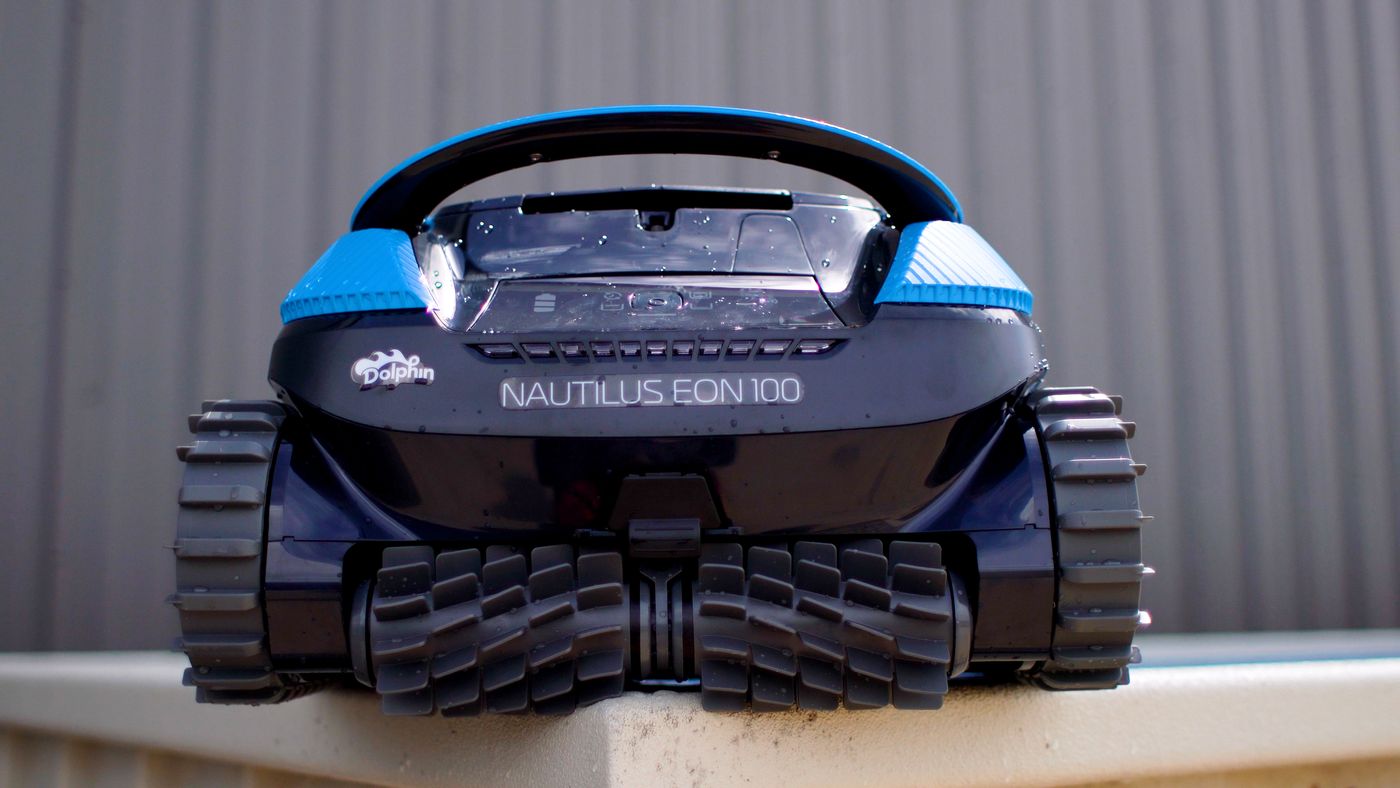
- Use the grab hook. The EON 100 comes with a hook that screws onto a standard pool pole. Hook the robot, draw it up to the waterline, then lift it by the handle, never by the back panels. It is about 23 pounds before the water drains, so let it drain on the edge.
- Set a Homing wall. Let the robot finish two or three cycles first so it learns the pool. Then in Maytronics One open Settings from the three dots, stand at the wall you want facing the pool, tap that you are in position, and pick the wall where the robot ended its last cycle. From then on it parks there.
- Understand how Homing aims. Homing works from a compass heading, not from recognizing a wall. In an irregular pool it parks in the chosen direction, which can be a different stretch of wall from the one you expected. To change it, the robot has to be parked at the current Homing wall first. Homing is unavailable when Beach Entry is switched on in the app.
- If you add a Clicker. The Clicker is an optional accessory for the EON 100. After a cycle, shake it in the water for 3 to 5 seconds and the robot climbs the wall and waits about a minute; miss it and it goes back down and faces another wall. Mid-cycle, one shake stops the robot when it is on the floor and a second sends it to the Homing wall. It ignores the Clicker while climbing.
- If the Clicker gets no response. Turn the pool pump off for a moment, since circulation noise can drown the signal. Shake the Clicker hard for 3 seconds, then for 5 more as you dunk it in deep enough water. Check the robot's light: blinking green means it has charge to respond, no green means it has shut down and needs charging, flashing red is an error. Shake the Clicker to check whether water has got inside it.
Stop and call support if: the robot shows blinking green, the pump is off, the Clicker is dry inside and it still does not come up, or the robot never parks in the Homing direction after several full cycles.
EON 100 UltraRun Schedule Isn’t Running
- Robot sits in the pool and does not start its next cycle
- UltraRun option cannot be selected
- Schedule disappeared after charging
- Cycles are much shorter than a normal clean
- UltraRun has to be set again after every recharge
- It cannot be set while the robot is on the charger
- Started on a partial battery
- A Clicker shake cancelled the remaining cycles
- Short cycles are how UltraRun works
- Know what UltraRun does. On the EON 100 the default plan is one week: three Full Coverage cycles of 45 minutes, 48 hours apart. The other plans are half a week with two 60-minute cycles, or a week of 45-minute Floor Only cycles. It is one battery shared out, not a full clean every day, and that matched our experience.
- Start from a full battery. Charge to three solid green bars first. UltraRun on a part-charged battery runs out before the plan finishes.
- Unplug, then select it. UltraRun cannot be chosen while the robot is charging. Unplug the charger, turn the robot on and press the power button until the UltraRun mode light is lit, or pick the UltraRun plan and scan pattern in the app with the robot out of the water.
- Re-arm it after every charge. The app remembers your last mode except UltraRun. Once a schedule has finished and the robot has been recharged, you have to set UltraRun again before putting it back in.
- Read the light between cycles. A green flashing light on the power button means the robot is in standby between UltraRun cycles, which is correct. If you use a Clicker during UltraRun, the first shake cancels the rest of the schedule, so restart UltraRun before returning the robot to the pool.
Stop and call support if: ultraRun is set on a full battery with the charger unplugged and the robot still never starts a second cycle.
EON 100 Battery Runs Out Too Soon
- Robot stops before the pool is clean
- Not enough charge for a second cycle the same day
- Robot is dead on the floor and ignores the Clicker
- Started below a full charge
- UltraClean mode, which runs until the battery is empty
- Charging in heat or sun
- Stored hot, or stored flat over the off-season
- Start every full clean at three bars. A standard cycle is 1.5, 2 or 2.5 hours, and the EON needs a full battery for the longer ones. Charge it straight after you take it out so it is ready next time; the manual recommends exactly that.
- Pick the mode to suit the charge. UltraClean adds suction and keeps going until the battery is flat, by design. For routine cleans use Full Coverage at 1.5 or 2 hours, or Floor Only when the walls are clean.
- Expect a recharge after a heavy job. After a storm, one battery may not cover the cleanup. As we noted in our review, there may not be enough charge left for a second full cycle. Run a shorter cycle, empty the basket, recharge, and run again.
- Charge cool and dry. Charge in the shade between 43 and 95 F and keep the charging port dry, with the rubber seal back on afterwards. Heat during charging shortens battery life.
- Store it half charged. Before winter, charge to about two bars and store it between 14 and 104 F, away from heat. Charge it fully before the first run of the new season. The battery is not user-replaceable.
Stop and call support if: a robot that shows three solid bars cannot finish a 1.5-hour Full Coverage cycle in a clean pool.
EON 100 Red, Yellow or Green Status Light
- Light under the power button blinks red
- Light is solid yellow
- Light blinks green and the robot is not moving
- Red: a stored error
- Yellow: full filter
- Green: UltraRun standby or waiting for pickup, not a fault
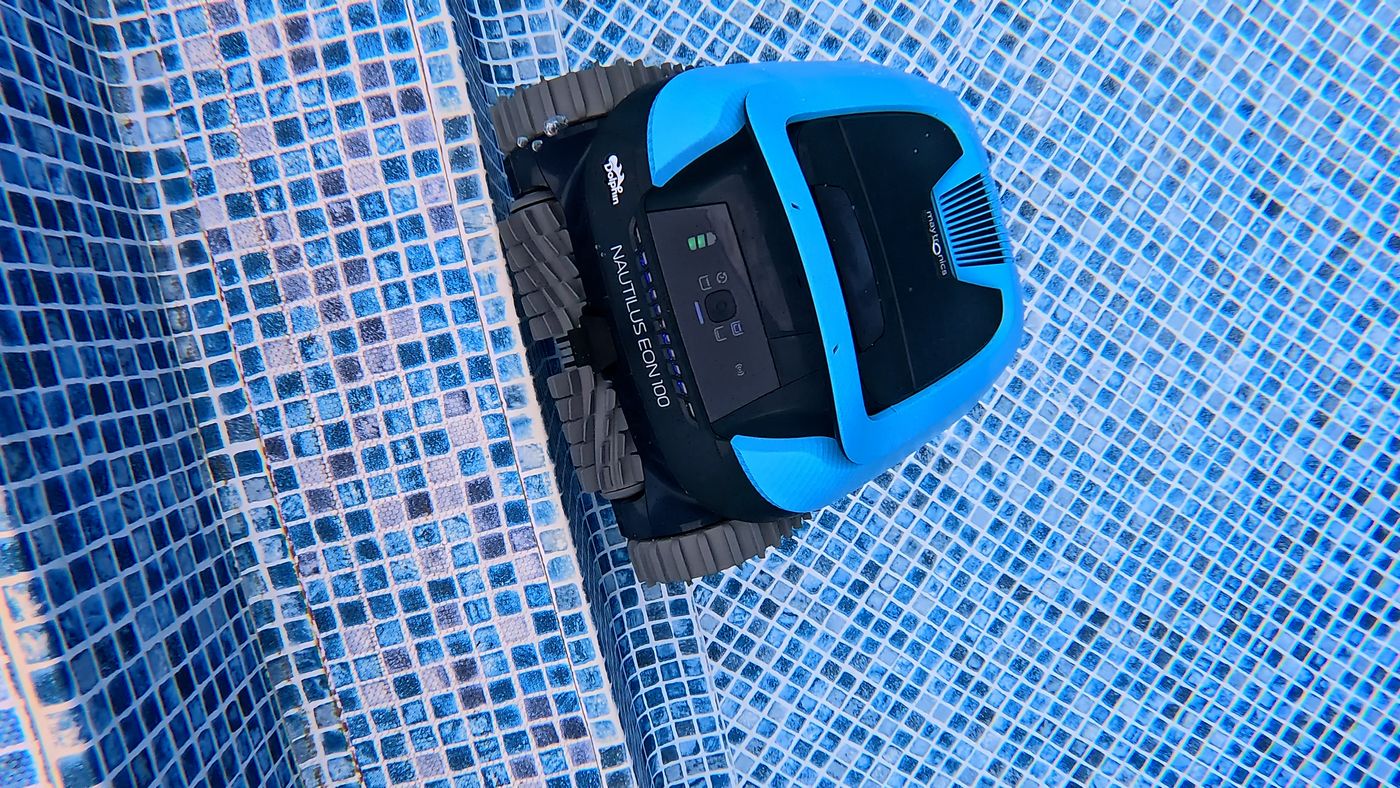
- Blinking red: read the app. Take the robot out, press the power button or plug in the charger so it reconnects, and open Maytronics One. The home screen shows the last error; tap it and follow the guided steps.
- Solid yellow: empty the filter. Open the filter cover, lift the basket and hose it until it is white. The app's filter gauge only has two states, empty and full, so yellow means it is properly full.
- Blinking green: leave it or collect it. Green means the robot is between UltraRun cycles or parked and waiting for you. Nothing is wrong. Hook it out if the cycle is finished.
- Update before chasing odd behavior. For anything that does not fit the lights, Maytronics' first step is a software update: charge to three bars, unplug, pair in the app and accept the update, staying next to the robot until it finishes.
- Do the basics for a repeat red light. If red comes back, clear the tracks, clean the impeller with the charger connected and a screwdriver in the safety hole, rinse the filter and make sure the robot is going into the water within 30 seconds of starting.
Stop and call support if: the red light returns after the app's steps and a software update, or the app shows an error it cannot resolve.
EON 100 Lights and What They Mean
These are the indicator states listed in the official Maytronics material for the Dolphin Nautilus EON 100. If what you see is not here, check the manual for your exact production run before acting on it.
Put it in the pool within 30 seconds of starting it. If it times out, press the power button again.
Nothing to fix.
Nothing to fix. If you did not mean to use UltraRun, take the robot out, press the power button to step to another mode, and restart.
Lift the basket out through the top and hose it until it is white again. A filter that stays brown after rinsing is due for replacement.
Take the robot out of the water, let it reconnect to the Maytronics One app (press the power button or plug in the charger) and read the error on the app's home screen. Tap it and the app walks you through the fix.
Leave it on the charger. A full charge takes up to about 4.5 hours.
Unplug the charger, press the rubber seal back over the charging port and start a cycle.
Move the robot and charger into the shade or indoors, somewhere between 43 and 95 F, and try again. In summer, charge at night. The manual describes the same over-temperature warning as the middle and outer battery lights alternating.
Open Maytronics One with your phone next to the robot and follow the pairing steps. You get into this mode by holding the power button 3 to 5 seconds with the charger unplugged.
Nothing to fix. The link drops once the robot goes under water and comes back after you take it out.
If the charger light is off, test the outlet with another device or move to an outlet that works.
Dim it or switch it off in the Maytronics One app settings if you do not want it.
EON 100 Symptom Quick Reference
The short version, matched to the troubleshooting table in the Dolphin Nautilus EON 100 user manual. Use it to confirm you are in the right section above.
Toggle Bluetooth on the phone, move closer, turn location on, fully charge the robot, check the charger is connected properly and the phone is scanning for devices. Reinstall the app with all permissions and restart the phone if it still cannot find the robot.
The robot uses 2.4 GHz only. Split a dual- or quad-band router into separately named 2.4 and 5 GHz networks. If the signal at the charging spot cannot stream a video comfortably, add a 2.4 GHz extender.
Remove the object from the tracks or wheels, clean the impeller, charge to three green bars, put the robot in the water within 30 seconds of starting it, and check the app for an error message.
Hose the filter basket until it is white (replace it if it stays brown), clean the impeller, clear the tracks and wheels, correct the water.
The charger shows a green LED when it has power, so test or change the outlet. Clean the charger connections on the robot. Charge in the shade or indoors, at night in summer. Allow up to 4.5 hours.
Clean the impeller.
Hose the filter basket until it is white and clean the impeller.
Clean the filter until it is white, clean the impeller, check the water chemistry, and scrub the walls if algae has made them slippery.
With a Clicker, shake it in the water for more than 3 to 5 seconds and the robot climbs and waits a minute. That works for up to 14 days after a normal 2-hour cycle started on a full battery, and for at least 2 days after UltraRun or a partial-battery start. If it is not taken out within the minute it climbs down, turns to another wall and will come up there next time.
What We Saw Testing the EON 100
We ran the Dolphin Nautilus EON 100 in our own test pool for our Dolphin Nautilus EON 100 review. These are the things we ran into ourselves, so you can tell a quirk of the model from a real fault.
- Missed spots: SmartMap navigation was not flawless. We still found areas it skipped.
- App drops under water: The app only connects while the robot is out of the pool; once it is submerged the link is gone.
- No control mid-cycle: You set everything before launch. There is no steering or changing settings during a cycle.
- No Clicker in the box: The Nautilus EON 100 does not come with the Clicker pickup remote; that ships with the EON 120d.
- Parking only goes so far: Parking brings it to the wall, but you still lift it out and carry it to the charger.
- UltraRun is not a full daily clean: UltraRun stretches one charge over several shorter cycles; it is not a full cycle every day.
- Shallow water limit: It is designed for ledges in water down to about eight inches.
- Cleaning and filtration: Cleaning and filtration were solid in our pool; cleaning ability is not the problem with this robot.
EON 100 Replacement Parts
These are the genuine Maytronics part numbers listed for the Dolphin Nautilus EON 100. Order by part number, not by photo. Dolphin filters, tracks, and brushes look alike across models and are not interchangeable.
Filters
- EON backwash filter assy
9998710-R1 - EON backwash cartridge filters
99987101-ASSY - Monoblock filter, EON
9998715-ASSY
Tracks and wheels
- EON track 1PK
9987801-ASSY
Power, cable, and charging
- Charger assy EON
99956070-ASSY
Other
- Clicker for easy pick up
9993400-ASSY - Hook for Liberty & EON
99960103-ASSY - Dolphin ClearPod for EON starter kit
9998718-ASSY
When to Call Maytronics Support
Stop troubleshooting and get the EON 100 looked at if any of these are true:
- The same fault comes back right after a full clean and a restart
- You see water inside a sealed compartment, or the robot has become noticeably heavier
- There is a burning smell, a melted connector, or visible corrosion on the electrical contacts
- The battery will not take a charge, or the runtime has dropped to a fraction of what it was
- A motor is silent or grinding with nothing blocking it
Before you call, write down the serial number, find your proof of purchase, and record a 20 to 30 second video of the problem. A clip of the robot failing, plus a clear shot of any light on the robot or charger, gets a warranty claim moving faster than any description.
- Support: Maytronics support
- Phone: US 1-888-365-7446, Canada 1-855-634-8572 (Monday-Friday 8:00 am-5:00 pm EST)
- Email: customersupport@maytronicsus.com
- Manual: Dolphin Nautilus EON 100 user manual
- Warranty: 1 year
The retail Nautilus EON 100 has a 1-year warranty. Register online with the serial number, which is behind the filter and in the app. The Maytronics One app shows the last error, has built-in troubleshooting and can contact support. The manual also lists wecare@maytronics.com (Maytronics HQ). The battery is not….
Dolphin Nautilus EON 100 Troubleshooting FAQ
What do the lights on the Dolphin EON 100 mean?
The light under the power button is the status light: solid blue is ready, blinking blue is cleaning, blinking green is UltraRun or waiting for pickup, solid yellow is a full filter and blinking red is an error to look up in the app. The three bars show battery charge, and the blue strip across the front is decorative only.
Why does my Dolphin EON 100 disconnect from the app in the pool?
That is how it is built. The EON cannot hold a Wi-Fi or Bluetooth link under water, so it runs whatever you set before launch. Take it out and press the power button or plug in the charger and it reconnects.
How long does the Dolphin EON 100 take to charge?
Up to about 4.5 hours from empty. The battery bars blink green as it fills and all three go solid when it is done. Charge it in the shade between 43 and 95 F and keep the charging port dry.
Does the Dolphin Nautilus EON 100 come with the Clicker?
No. The EON 100 ships with a grab hook, and it parks on the floor by its Homing wall at the end of a cycle. The Clicker comes with the EON 120d and can be bought separately for the EON 100.
Why is my Dolphin EON 100 only running short cycles?
It is probably in UltraRun. On the EON 100 the default UltraRun plan is three 45-minute cycles two days apart, so one charge lasts a week. For a normal clean, press the power button until Full Coverage is lit, or choose a 1.5, 2 or 2.5 hour cycle in the app.
How shallow can the Dolphin EON 100 clean?
About 8 inches of water. If water is not coming out of the top of the robot while it is on the ledge, it is too shallow there. Start it on the pool floor facing the ledge, in Full Coverage with the Maze pattern, so it heads there early.
Still stuck after every check?
Go back to our review for how the EON 100 is supposed to behave, or contact Maytronics with your serial number and a short video of the problem.