
The short answer
Most Dolphin Quantum Pro problems trace back to three things: a filter sealed with fine debris, something caught in the impeller, or a cable and power supply problem. Rinse the filter until the water runs clear, check the impeller, and reseat the cable before you assume a part has failed.
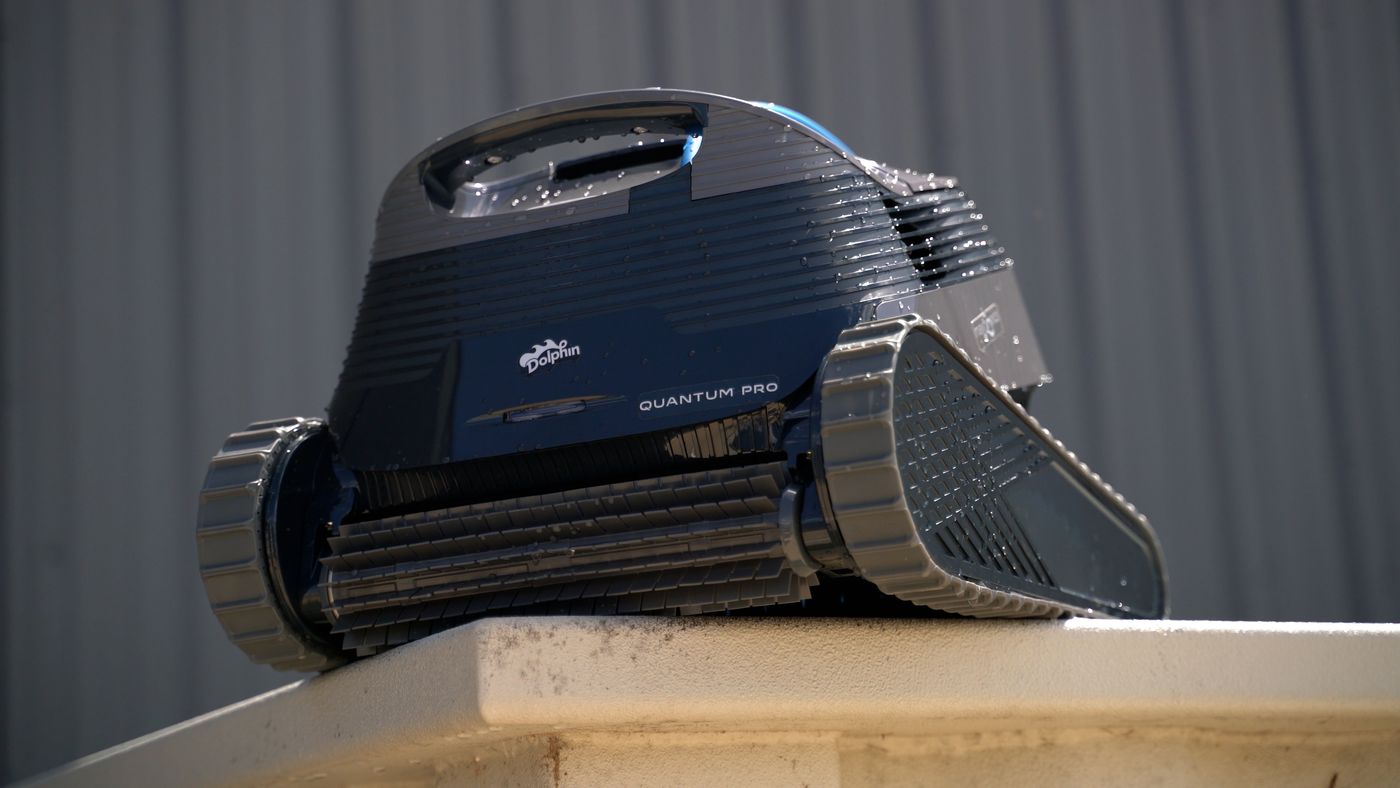
This is the troubleshooting home for the Dolphin Quantum Pro. It is a corded robot with a 56-foot floating cable and an anti-tangle swivel, a top-load filter basket, and Wi-Fi app control, run from a weekly-timer power supply. Below are the 15 problems owners run into most, each with the checks we would make first and the point where it stops being a do-it-yourself fix.
Safety first: unplug the power supply from the outlet before you lift, open, or reach into the Quantum Pro. Keep the power supply dry and well back from the pool edge, and never run the robot out of the water.
Quantum Pro Quick Checks First
Run through these before you chase a specific symptom. Between them they clear up most of what goes wrong with a Dolphin Quantum Pro.
- Clean the filter until the water runs clear. A filter that looks clean can still be sealed with fine dust. Most pickup, climbing, and steering complaints end here.
- Restart the power supply. Unplug it from the wall, wait 30 seconds, reseat the cable connector, and plug it back in. Start the cycle only after the Quantum Pro is on the floor.
- Check the impeller. With the power unplugged, look into the impeller opening (the fan that pulls water through the filter) for hair, string, or a twig. One small piece is enough to stall it.
- Put the right amount of cable in the water. Use about as much cable as the longest dimension of your pool. Too little holds the robot back. Too much tangles.
- Check the water. Algae, very cold water, and chemistry far out of range all make a robot slip. Fix the water before you blame the machine.
Dolphin Quantum Pro at a glance
- Type
- Corded, runs from a power supply
- Cleans
- Floor, walls and waterline
- Filter
- One top-load XXL MaxBin basket with four swappable panels
- Cable
- Floating cable with anti-tangle swivel
- App
- MyDolphin Plus over Wi-Fi
- Built for
- In-ground pools up to roughly 50 ft
- Weight
- 18.3 lb
- Warranty
- 2 years
Quantum Pro Power Supply Won’t Turn On
- No light on the power supply when you press the button
- The power supply turns on, then shuts off within seconds
- The GFCI outlet trips as soon as the Quantum Pro is plugged in
- A dead or tripped outlet, or an extension cord in the chain
- A cut, kinked, or corroded cord or blue cable
- A failed power supply (the unit itself is sealed and not repairable)
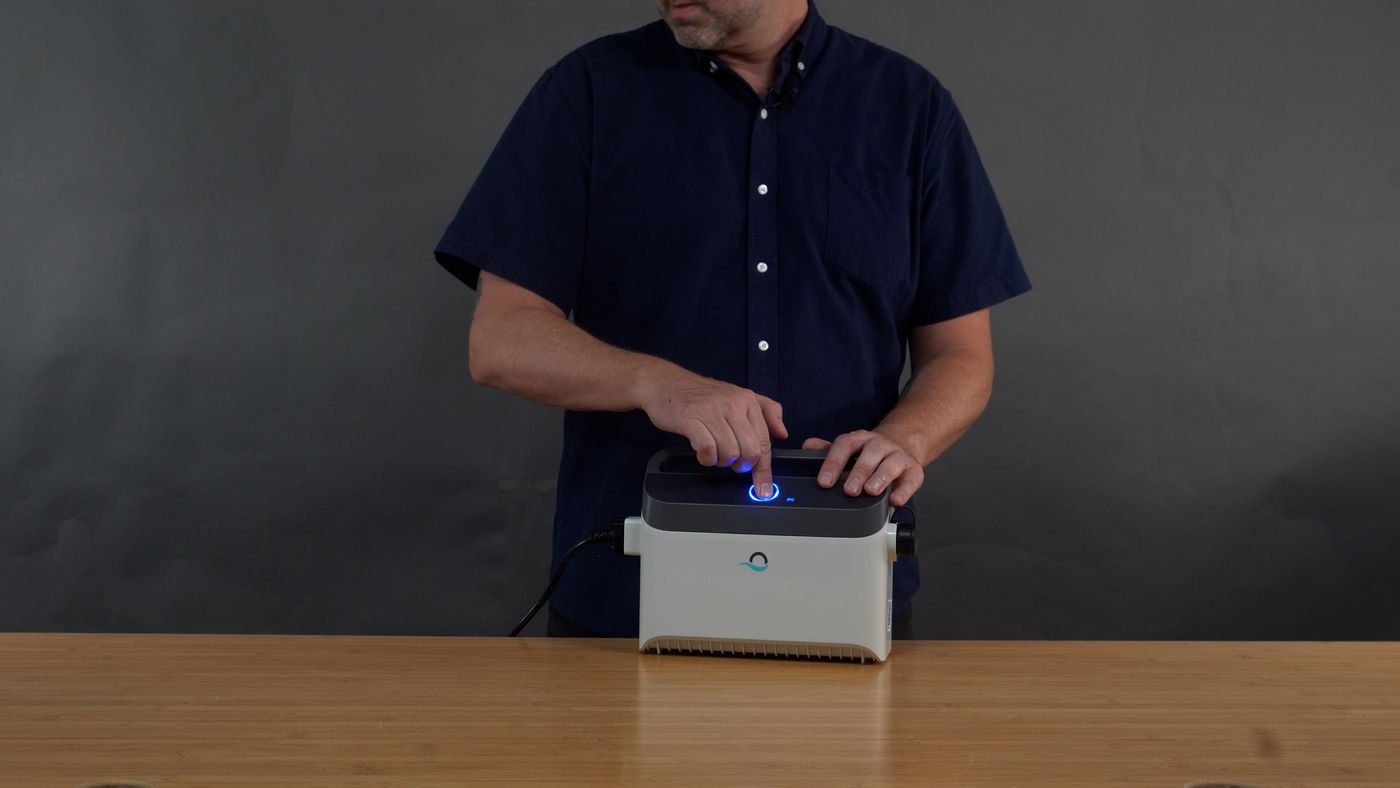
- Prove the outlet. Plug something else into the same outlet, reset the GFCI, then plug the power supply straight into the wall. Skip the extension cord and the surge strip for this test. They are a common reason a Dolphin power supply drops out.
- Look over both cords. Check the black power cord and the full length of the blue floating cable for cuts, crushed spots, and green or white corrosion on the connector pins. A damaged cable gets replaced, not taped.
- Run the isolation test. Unplug the blue cable from the power supply. Plug the power supply into the working outlet and switch it on with nothing attached. This one test tells you which half of the system is at fault.
- Read the result. If the power supply now turns on and stays on, it is fine and the problem is in the blue cable or the motor unit. If it stays dark or shuts off again with nothing connected, the power supply has failed and needs to be replaced.
- Give it a better home. Keep the power supply in the shade, off the ground, and well back from the pool edge. Heat and standing water are what shorten its life. Unplug it before a thunderstorm.
Stop and call support if: the power supply will not stay on by itself, or it stays on alone but shuts down the moment the blue cable is connected. The first is a power supply replacement; the second is a cable or motor repair.
Quantum Pro Won’t Start
- The power supply light is on but the Quantum Pro never moves
- It twitches once at the start and then sits still
- The main LED on the power supply turns red right after you start a cycle
- The blue cable is not fully seated in the power supply
- Debris is jamming the impeller
- Something is wedged in a track or brush
- The robot was started out of the water
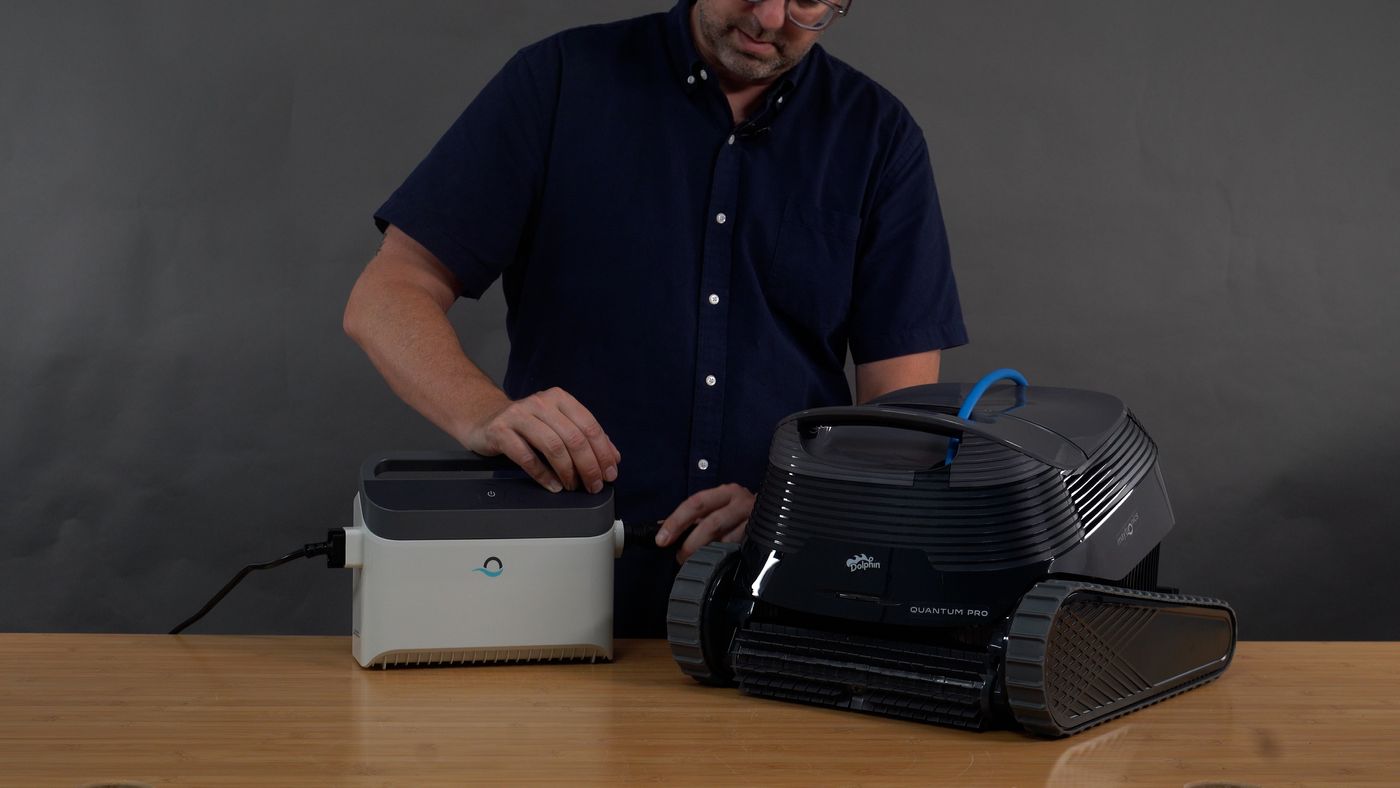
- Do a full restart. Unplug the power supply from the wall. Disconnect the blue cable from it and inspect the cable end. Wait 30 seconds, plug the power supply into a different outlet, reconnect the blue cable, and switch it on.
- Reseat the blue cable properly. Line up the notch on the cable connector with the socket on the power supply, push it all the way in, and turn the collar clockwise until it stops. A connector that is only half-seated lights the power supply but never powers the robot.
- Start it underwater. The Quantum Pro has to be fully submerged before you press start. Run dry, it shuts itself down to protect the motor. Let it sink to the floor first, then turn it on.
- Check the impeller. With the power supply unplugged, look down into the impeller opening on top of the robot. Hair, a twig, or a single acorn cap is enough to stall it. If you see anything, follow the impeller steps further down this page.
- Turn the brushes by hand. Flip the robot over and rotate each brush. You should feel light, even resistance and no grinding. If one side is locked, look for a pebble or pool toy piece wedged in the track.
Stop and call support if: the power supply stays on, the impeller and tracks are clear, and the Quantum Pro still will not move. That points at the cable or motor unit, which a service center has to test.
Quantum Pro Stops Mid-Cycle
- The Quantum Pro runs for a few minutes and stops
- It stops in a different spot each time
- A red light shows on the power supply
- A packed filter making the motor work too hard
- Debris in the impeller or the drive system
- The robot was lifted or started out of the water
- Nothing at all: the cycle simply finished (2 hours (default, original Quantum spec sheet); the review says the app can switch cleaning modes but gives no durations)
- Watch the power supply when it stops. If the power supply goes dark at the same moment the robot stops, treat it as a power supply problem and use the section above. If the power supply stays lit while the robot sits still, keep going here.
- Unplug it and pull the robot. Disconnect the power supply from the outlet, bring the Quantum Pro up by the cable, and lift it out by the handle.
- Clean the filter basket. Open the top lid and lift out the filter basket. Rinse it with a hose until the water runs clear. A filter that looks clean can still be sealed with fine dust, so rinse both sides.
- Check the drive. With the robot on its back, turn the brushes by hand. A little resistance is normal. Look along both tracks and around the brush ends for string, hair ties, or stones.
- Clear the impeller. Remove the impeller cover with a hand screwdriver (never a drill), pull out anything wrapped around the blades, and refit the cover.
- Rule out a normal stop. The Quantum Pro runs a set cycle (2 hours (default, original Quantum spec sheet); the review says the app can switch cleaning modes but gives no durations) and then parks wherever it happens to be. If it ran that long, it is not a fault.
Stop and call support if: the filter, impeller, and tracks are all clear and it still quits early with the power supply lit. Take a short video of the stop and the light on the power supply before you call.
Quantum Pro Moves in Circles
- The Quantum Pro turns tight circles in one area
- It only drives forward or only backward
- One track moves while the other drags
- A clogged filter basket
- Debris in the impeller housing or cover
- Something jammed in one track
- The power supply is in a spot that keeps the cable tight
- Algae or water that is far out of balance
- Clean the filter basket first. A Dolphin steers partly with water flow. When the filter is packed, flow drops and the robot loses its ability to turn. Rinse it until the water runs clear.
- Clear the impeller housing. Unplug the power supply, open the impeller cover, and remove anything inside the housing or stuck to the underside of the cover.
- Check each track. Turn the robot over. Spin both tracks by hand and compare them. They should move with the same effort. Pull out anything wedged between the track and the body.
- Move the power supply. Set the power supply near the middle of the long side of the pool so the cable is not pulling the robot back toward one corner.
- Fix the water. Slick algae on the floor makes the tracks slip. Brush, shock, and balance the pool before you blame the robot. Maytronics’ target range is pH 7.2 to 7.6 with 1 to 3 ppm chlorine.
Stop and call support if: one track will not turn by hand, or one track stays dead in the water after everything is clean. That is a drive motor or gear problem.
Quantum Pro Won’t Climb Walls
- The Quantum Pro touches the wall and reverses
- It gets partway up and slides back down
- It climbs but never reaches the waterline
- A clogged or worn-out filter (the number one cause)
- Debris in the impeller
- Cold water, below about 59°F
- Slippery walls from algae or unbalanced water
- Worn brushes or flattened foam climbing rings
- Not enough cable in the pool
- Wash the filter basket until it rinses clear. Climbing depends on suction holding the robot to the wall. An ultra-fine filter should wash out white. If it stays brown or green after a hard rinse, it is done and needs to be replaced.
- Try the coarser filter. If your Quantum Pro has a fine (net) filter option, run one cycle with it instead of the ultra-fine. If the robot climbs again, the ultra-fine filter is clogged past saving.
- Clear the impeller. Unplug the power supply, open the impeller cover with a hand screwdriver, remove any debris, and close it back up.
- Check water temperature and chemistry. Dolphins climb poorly in water under about 59°F. Balance pH and chlorine too. A thin algae film you cannot see yet is enough to make the walls slick.
- Feed out enough cable. The robot needs slack to reach the top of the wall. Put in roughly as much cable as the longest dimension of your pool. Too little and the cable drags it back down.
- Inspect the brushes. Look for torn or rounded-off PVC fins and foam rings that have gone flat or brown. Leave the rings on. They are what grip the wall.
- Check the cleaning mode. Open the app and confirm the Quantum Pro is not set to a floor-only or quick mode. Those modes skip the walls on purpose.
Stop and call support if: the filter is new or freshly cleaned, the impeller is clear, the water is warm and balanced, and it still will not climb. Record a wall attempt on video for the service center.
Quantum Pro Not Picking Up Debris
- Debris is still on the floor after a full cycle
- The robot pushes leaves around instead of taking them in
- A cloud of fine dust follows it
- A full or clogged filter basket
- The wrong filter for the debris in your pool
- A blocked impeller
- A missing or stuck debris flap on the filter intake
- Worn brushes
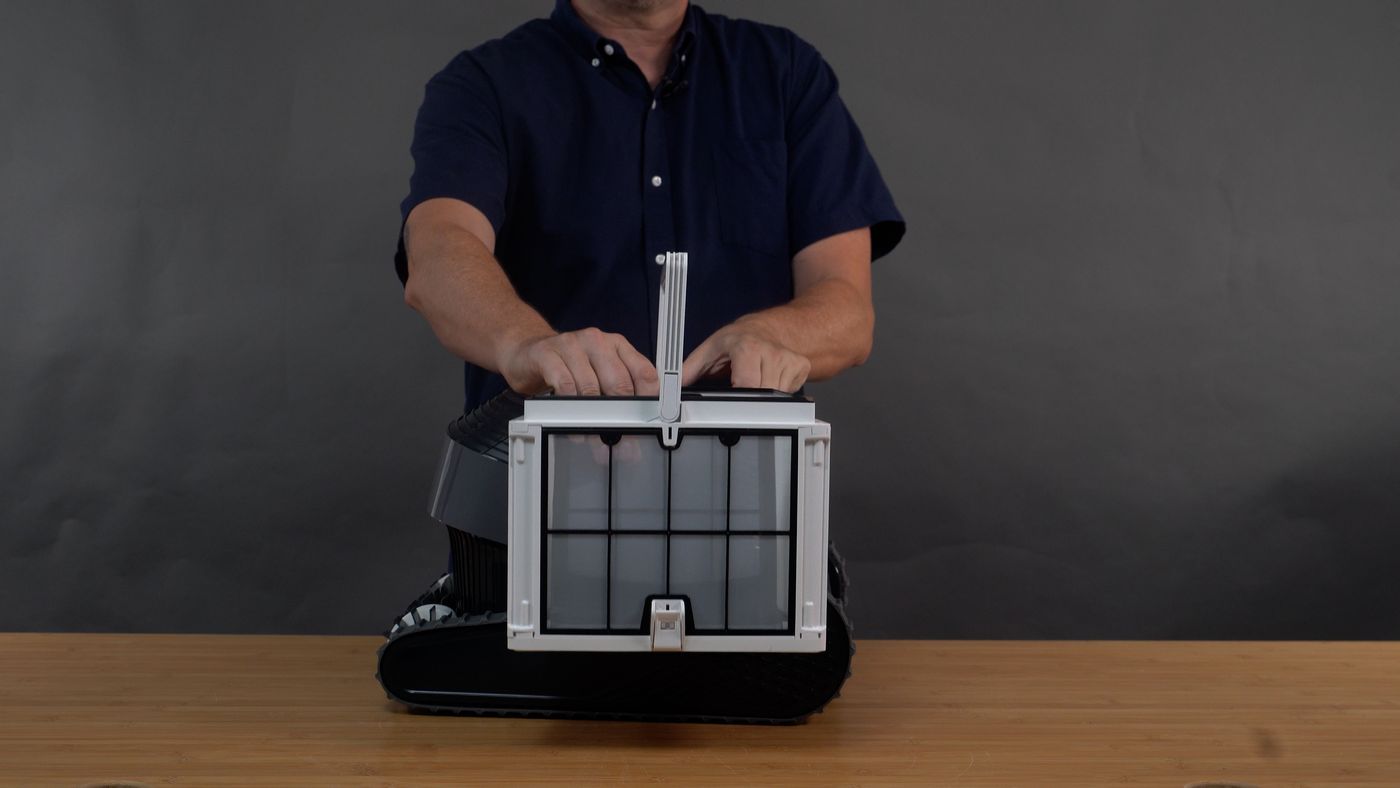
- Empty and rinse the filter basket after every cycle. Open the top lid and lift out the filter basket. Hose it from the outside in, then the inside out. You do not need to let it dry before the next run.
- Match the filter to the mess. Use the fine (net) filter for leaves, acorns, and bugs. Use the ultra-fine filter for sand, dust, and pollen. Running ultra-fine in a pool full of leaves clogs it in minutes.
- Check the intake flap. Look at the opening on the bottom of the filter basket. The small flap or pouch there is a one-way door that keeps debris in. Make sure it is present, seated, and not held open by a stick.
- Clear the impeller. No flow, no pickup. Unplug the power supply, open the impeller cover, and remove anything wrapped around the blades.
- Look at the brushes. The brushes sweep debris toward the intake. Torn, rounded, or stiff brushes miss it. Replace them when the fins are visibly worn down.
- Run back-to-back cycles for a heavy cleanup. After a storm or at pool opening, run two or three cycles in a row and rinse the filter between each one. One pass will not hold all of it.
Stop and call support if: a clean robot with a clear impeller moves normally but pulls in almost nothing. That suggests a weak pump motor.
Quantum Pro Clogged Impeller
- Little or no water pushing out of the top of the Quantum Pro
- A rattle, buzz, or grinding sound
- The robot stalls, will not climb, or will not turn
- Hair, string, or pine needles wrapped around the impeller
- A twig, stone, or acorn cap lodged in the housing
- Unplug the power supply. Pull the plug from the wall, not just the button. The impeller can start without warning if the unit has power.
- Find the impeller cover. On the Quantum Pro it sits under the grille on top of the robot, next to the filter compartment. Take the filter basket out first so you can see what you are doing.
- Remove the cover by hand. Use a Phillips screwdriver. Do not use a power drill. The screws thread into plastic and strip easily.
- Pull out the debris. Unwind anything wrapped around the blades and shake out loose grit. Spin the impeller with a finger. It should turn freely with no scraping.
- Refit and test. Put the cover back, snug the screws, reinstall the filter basket, and run a cycle. You should see a steady stream of water from the top of the robot.
Stop and call support if: the impeller is clear but will not spin under power, or a blade is chipped or missing.
Quantum Pro Floats or Won’t Sink
- The Quantum Pro floats when you set it in the pool
- It sinks, but one end keeps lifting off the floor
- Air trapped inside the body
- Dry foam climbing rings on the brushes
- Salt level above about 5,000 ppm, which makes the robot more buoyant
- Let the air out. Lower the robot into the water and rock it side to side, or roll it onto its back just under the surface, until the bubbles stop. Then let it sink on its own.
- Soak the brushes. The white foam climbing rings float until they are saturated. Squeeze them underwater a few times, or leave the robot submerged for several minutes before the first cycle.
- Check the salt level. In a saltwater pool, test the salinity. Maytronics lists 5,000 ppm as the upper limit. Above that the Quantum Pro rides light and loses traction.
- Make sure the filter basket is locked in. A filter that is not seated leaves a pocket of air. Reseat it and close the lid until it clicks.
Stop and call support if: it still floats after the air is out and the brushes are soaked. Water inside the motor unit can change the balance and needs service.
Quantum Pro Gets Stuck
- The Quantum Pro stops on the main drain with its tracks still turning
- It stays in the deep end and never comes back up the slope
- It wedges under a ladder or against a step
- A raised drain cover lifting the tracks off the floor
- Suction from the pool pump holding it on the drain
- A clogged filter leaving it too weak to climb the slope
- Ladders, toys, or other obstacles in the water
- Turn the pool pump off for the cycle. Suction from the main drain can pin a robot in place. Run the Quantum Pro with the circulation pump off and see if it crosses the drain. Leave the drain cover alone.
- Test the filter. A robot stuck in the deep end is often just underpowered. Clean the filter basket, then, in a pool with no loose debris, run it for 10 to 15 minutes with the filter removed. If it climbs out of the deep end without it, the filter needs replacing.
- Clear the pool. Pull ladders if you can, and take out toys, thermometers, and floating dispensers before the cycle.
- Consider a drain ramp. Clip-on ramps help a robot roll over some raised covers. Fit matters, and the clip must not loosen or block an anti-entrapment cover. Our guide to robots stuck on main drains covers when they make sense.
- Balance the water. Algae on the floor of the deep end takes away traction right where the robot needs it most.
Stop and call support if: it stalls on open, flat floor with nothing near it. That is a drive problem, not a pool-shape problem.
Quantum Pro Misses Spots
- One end of the pool is always dirty
- It cleans the same area over and over
- Steps, benches, or a tanning ledge never get cleaned
- Not enough cable to reach, or a twisted cable holding it back
- The power supply is at the wrong end of the pool
- A partly clogged filter or impeller
- The area is one the Quantum Pro is not built to clean
- Start it where it has been missing. Drop the Quantum Pro in the dirty area at the start of the cycle. A different starting point changes the route it takes.
- Reposition the power supply. Put it near the middle of the long side so the 56-foot cable can reach both ends evenly.
- Give it enough cable. Measure the longest run in your pool, corner to corner, and put that much cable in the water. Keep the rest coiled on the deck.
- Clean the filter, impeller, and tracks. A robot that is low on flow or dragging a track covers less ground per cycle.
- Know its limits on steps. The Quantum Pro can work steps and shelves only where there is enough water over them to keep it submerged. Very shallow ledges and narrow treads still need a brush.
Stop and call support if: it repeats one short path and ignores the rest of the pool even after a clean and a new starting point.
Quantum Pro Cable Tangles
- The blue cable looks like a phone cord after a few cycles
- The robot gets pulled sideways or stops short of the far wall
- You have to untwist the cable every time you take it out
- Too much cable in the water
- The power supply sitting at one end of the pool
- A swivel that is not free to turn
- A track problem making the robot spin in circles
- Cold water, which stiffens the cable
- Lay the cable out in the sun. Unplug it, stretch the full 56-foot cable out straight on the deck or lawn, and leave it in direct sun for at least three hours. Heat relaxes the memory out of the jacket.
- Use only the cable you need. Feed in about as much cable as the longest dimension of your pool. This matters even with a swivel. Extra cable in the water is what knots.
- Center the power supply. Put it near the midpoint of the long side and a few feet back from the edge, so the cable enters the water in a straight, relaxed line.
- Check the swivel. Find the swivel joint on the cable and turn it by hand. It should rotate freely. Rinse out any grit and make sure it is not sitting on the deck where it cannot spin.
- Coil it loosely. Coil the cable in large, loose loops. Never wrap it tight around the robot or your arm.
- Check the tracks. A robot that spins in place winds the cable. If the Quantum Pro is circling, fix that first using the section above.
Stop and call support if: the cable jacket is cut, the copper is showing, or the cable stays badly kinked after sunning. A damaged floating cable has to be replaced.
Quantum Pro Loose Tracks or Worn Brushes
- A track walks off its wheels during a cycle
- The tracks look faded, shiny, or stretched
- Brush fins are torn or the foam rings are flat
- Tracks shifted in shipping (common on a brand-new robot)
- Stretch and wear from age
- Water chemistry that is hard on rubber: low pH or high chlorine
- Debris packed inside the track
- Refit the track. Unplug the power supply and turn the robot over. Seat the track on the drive wheel first, then roll it onto the remaining wheels, making sure the ribs sit in the grooves all the way around.
- Clean inside the tracks. Pull each track off, rinse the wheels and the inner face of the track, and remove sand and grit. Packed debris pushes a track off its guides.
- Check for wear. Compare both tracks. If one is loose, faded, or slips off again after you refit it, replace both as a pair.
- Inspect the brushes. Replace brushes with torn or rounded fins. Replace the foam climbing rings when they are flattened or no longer white.
- Test your water. Rubber that fades and stretches early is usually a chemistry problem. Keep pH between 7.2 and 7.6 and take the robot out of the pool when you shock.
Stop and call support if: new tracks still come off, or a wheel or track guide is cracked.
Quantum Pro Does Wheelies
- The front of the Quantum Pro lifts while it is driving forward or backward
- It tips back and loses contact with the floor
- Air trapped in the body
- The cable pulling tight
- A clogged filter
- Water out of balance
- Know what is normal. A Dolphin lifts its nose briefly to help itself turn. That is by design. A wheelie while it is driving in a straight line is the problem.
- Bleed the air. Turn the robot over underwater before the cycle and let the bubbles escape.
- Give the cable slack. A tight cable lifts the end it is attached to. Feed in enough cable to match the longest side of the pool.
- Clean the filter basket. Restricted flow changes how the robot sits on the floor. Rinse it clear and retest.
Stop and call support if: it flips onto its back or cannot keep both tracks down with a clean filter and a slack cable.
Quantum Pro Debris Falls Out
- A cloud of dirt leaves the robot as it breaks the surface
- Leaves drop out of the bottom on the way to the deck
- Lifting it too fast or by the cable
- A debris flap that is missing or not seated
- An overfull filter
- Very fine debris passing through the fine (net) filter
- Bring it up slowly. Pull the Quantum Pro to the wall by the cable, then lift it by the handle. Never lift it out by the cable. Pause at the surface and let the water drain before you swing it onto the deck.
- Check the flap. The one-way flap or pouch on the bottom of the filter basket has to be in place and closing fully. Clear anything holding it open.
- Empty it more often. A filter packed to the top has nowhere to hold the last load. Clean it after every cycle.
- Switch to ultra-fine for dust. If what escapes is a fine cloud rather than leaves, the fine (net) filter is letting it through. Use the ultra-fine filter if your Quantum Pro has one.
- Check under the basket. Lift out the basket and look at the springs and the opening underneath. Grit packed in there keeps the basket from sealing.
Stop and call support if: the flap is torn or missing. It is a small, inexpensive part, and the robot will keep dumping debris without it.
Quantum Pro App Won’t Connect
- The app cannot find the Quantum Pro
- Pairing stalls partway through the progress bar
- It connects, then shows offline
- A 5 GHz or combined-band Wi-Fi network
- A Wi-Fi password that is too long or has special characters
- Weak signal where the power supply sits
- App permissions that were denied
- Check your Wi-Fi band. The power supply connects on 2.4 GHz only. If your router combines 2.4 and 5 GHz under one name, split them or turn on a 2.4 GHz guest network for setup.
- Check the password. The Wi-Fi password has to be under 32 characters with no spaces or special symbols. A long passphrase is the most common reason pairing fails halfway.
- Check signal at the power supply. Stand where the power supply sits and look at your phone. You need at least two of three Wi-Fi bars there. If it is weak, move the power supply closer to the house or add an extender.
- Read the progress bar. Stuck under 10 percent means the phone lost Bluetooth contact, so stand next to the power supply and retry. Stuck between 10 and 50 percent is a Wi-Fi band or password problem. Stuck past 50 percent is a cloud problem, so restart the router.
- Power-cycle the power supply. Unplug it from the wall for a full 60 seconds, then plug it back in. With the robot in the pool, start a cycle from the power supply button and let it run for about five minutes before you open the app.
- Reinstall the app. Delete it, reinstall it, and accept every permission prompt. If the power supply or motor unit was ever replaced, this step is what lets the app find the new hardware.
- If the app says the robot is not responding: That message means the power supply cannot talk to the robot through the blue cable. Reseat the cable connector and try manual drive or a different mode. If the error comes back, the cable or robot needs service.
Stop and call support if: the robot runs fine from the power supply button but the app reports a communication error every time.
What We Saw Testing the Quantum Pro
We ran the Dolphin Quantum Pro in our own test pool for our Dolphin Quantum Pro review. These are the things we ran into ourselves, so you can tell a quirk of the model from a real fault.
- Shelf cleaning is not perfect: Ledge cleaning works but is not flawless.
- Shallow water limit: It is built to work in water down to about a foot deep.
- Cable tangling: The swivel is what keeps the robot from running short of cable and stalling mid-pool, which is what happens on robots without one.
- Weekly timer without the app: The weekly timer lives in the power supply, so the robot runs on a schedule even if you never set up the app.
- Top-load basket: Emptying it never means flipping the robot: lid up, basket out, rinse, back in.
- App connection while submerged: The MyDolphin Plus app stayed connected while the robot was under water; ours connected every time.
- Remote start: We could start a cycle from indoors or from out of town.
- App features: In the app we scheduled cleanings, switched modes, spot-cleaned areas and drove the robot by hand.
When to Call Maytronics Support
Stop troubleshooting and get the Quantum Pro looked at if any of these are true:
- The same fault comes back right after a full clean and a restart
- You see water inside a sealed compartment, or the robot has become noticeably heavier
- There is a burning smell, a melted connector, or visible corrosion on the electrical contacts
- The floating cable is cut, crushed, or showing copper
- The power supply will not stay on with nothing plugged into it
- One track or the impeller will not turn under power with nothing blocking it
Before you call, write down the serial number, find your proof of purchase, and record a 20 to 30 second video of the problem. A clip of the robot failing, plus a clear shot of any light on the power supply, gets a warranty claim moving faster than any description.
- Support: Maytronics support
- Phone: US 1-888-365-7446, Canada 1-855-634-8572 (Monday-Friday 8:00 am-5:00 pm EST)
- Warranty: 2 years
Maytronics lists a 2-year warranty for the Quantum. Its self-service tool walks through troubleshooting and opens a warranty claim (RMA) for a repair or a replacement power supply; power supplies are replaced, not repaired. If you bought from a local dealer, check with the dealer first. Register the robot at….
Dolphin Quantum Pro Troubleshooting FAQ
Is the Dolphin Quantum Pro the same robot as the Dolphin Quantum?
It is the newest version of the same robot. The Quantum Pro keeps the top-load MaxBin, NanoFilters, active front brush and swivel cable, and adds a Wi-Fi power supply, the MyDolphin Plus app, updated navigation and sun shelf and step cleaning. Troubleshooting for the body, filters, impeller and cable is the same; app and Wi-Fi steps apply only to the Pro.
Can I run the Dolphin Quantum Pro without the app?
Yes. Press the power button on the power supply and it runs a cycle, and the weekly timer is built into the power supply, so scheduled cleaning works even if you never install MyDolphin Plus.
Why won't my Dolphin Quantum Pro clean the sun shelf or steps?
It needs roughly 12 inches of water over the ledge to work there, and even then it is not perfect: in our pool it climbed the steps and cleaned the baja ledge, but it will not reach every corner on every cycle. A clogged basket also robs it of the suction it uses to hold and climb, so rinse the filter first.
Which filter panels should I use in the Dolphin Quantum Pro?
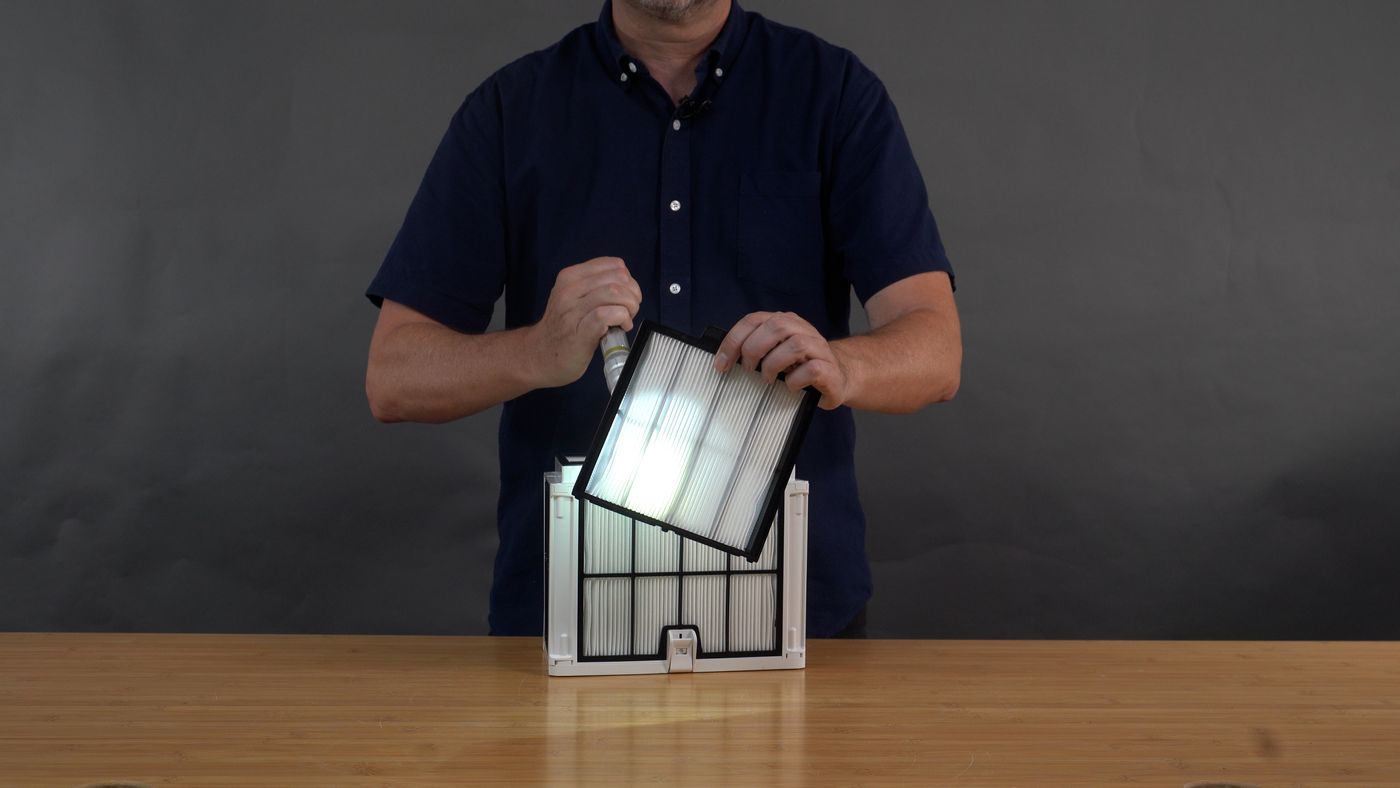
Use the standard mesh panels when the pool is dirty or full of leaves, and the pleated NanoFilter panels for dust, sand, pollen and algae dust. Starting a dirty pool on the NanoFilters clogs them fast, and a clogged basket causes circling, poor pickup and weak wall climbing.
How do I clean the Dolphin Quantum Pro filter basket?
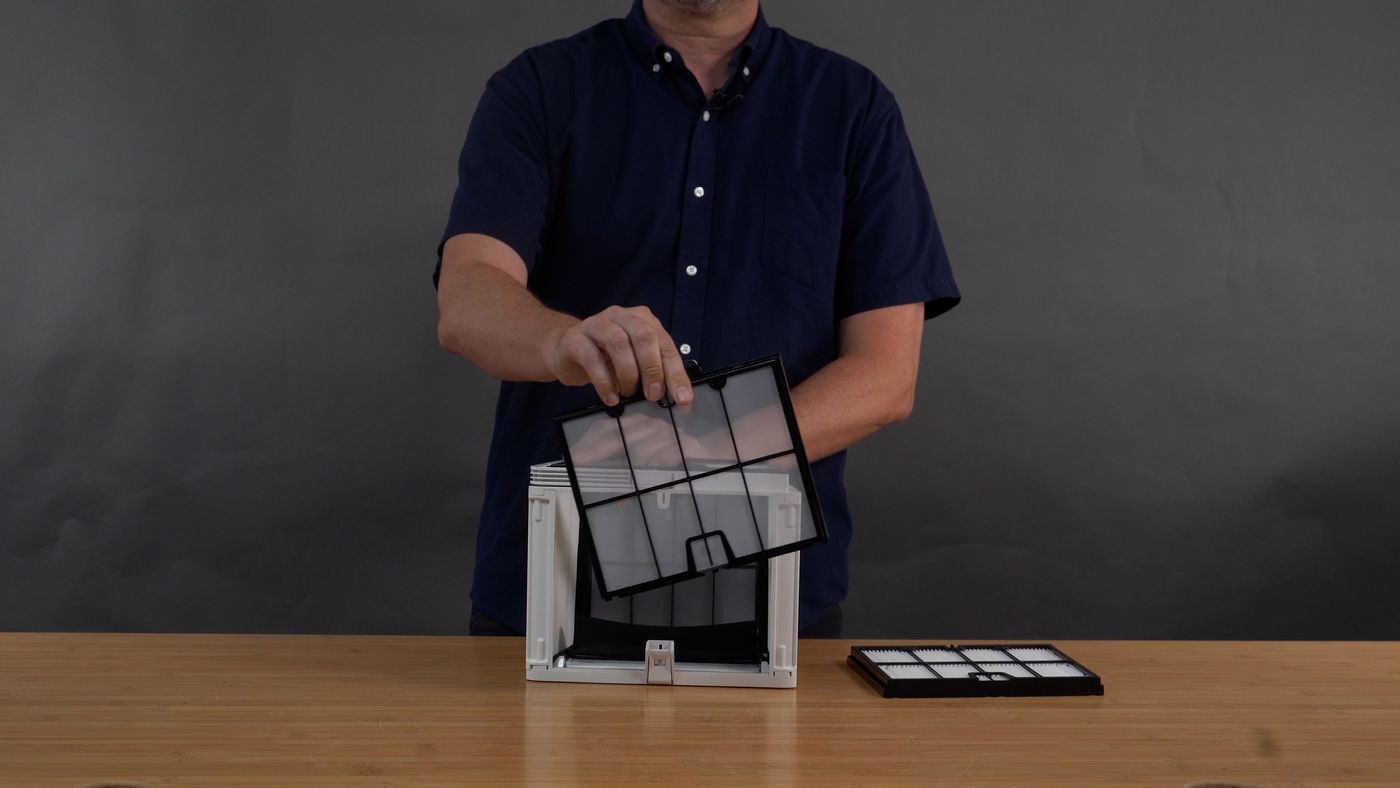
Unplug the power supply, pop the lid on top of the robot, lift the basket by its handle, open the latch on the bottom and hose it out before the debris dries. About once a month, pull out the inner net basket, press the four panels out in number order, rinse them and snap them back in reverse order.
Why does my Dolphin Quantum Pro keep cleaning only part of the pool?
Check the cable and the power supply position first. Put the power supply near the middle of the long side, give the robot enough floating cable to reach the far end, and clean the basket. A robot that runs out of cable or has a clogged filter will keep working the same area.
Still stuck after every check?
Go back to our review for how the Quantum Pro is supposed to behave, or contact Maytronics with your serial number and a short video of the problem.