
The short answer
Most Dolphin Wave 90i problems trace back to three things: a filter sealed with fine debris, something caught in the impeller, or a cable and power supply problem. Rinse the filter until the water runs clear, check the impeller, and reseat the cable before you assume a part has failed.
This is the troubleshooting home for the Dolphin Wave 90i. It is a corded robot with a 75-foot floating cable and an anti-tangle swivel, a top-load filter basket, and Wi-Fi app control, run from a weekly-timer power supply. Below are the 17 problems owners run into most, each with the checks we would make first and the point where it stops being a do-it-yourself fix.
Safety first: unplug the power supply from the outlet before you lift, open, or reach into the Wave 90i. Keep the power supply dry and well back from the pool edge, and never run the robot out of the water.
Wave 90i Quick Checks First
Run through these before you chase a specific symptom. Between them they clear up most of what goes wrong with a Dolphin Wave 90i.
- Clean the filter until the water runs clear. A filter that looks clean can still be sealed with fine dust. Most pickup, climbing, and steering complaints end here.
- Restart the power supply. Unplug it from the wall, wait 30 seconds, reseat the cable connector, and plug it back in. Start the cycle only after the Wave 90i is on the floor.
- Check the impeller. With the power unplugged, look into the impeller opening (the fan that pulls water through the filter) for hair, string, or a twig. One small piece is enough to stall it.
- Put the right amount of cable in the water. Use about as much cable as the longest dimension of your pool. Too little holds the robot back. Too much tangles.
- Check the water. Algae, very cold water, and chemistry far out of range all make a robot slip. Fix the water before you blame the machine.
Dolphin Wave 90i at a glance
- Type
- Corded, runs from a power supply
- Cleans
- Floor and walls
- Filter
- One top-load multi-layer filter basket: an outer basket with four swappable panels and an inner net basket
- Cable
- 75 ft blue floating cable with anti-tangle swivel
- App
- MyDolphin Plus over Wi-Fi and Bluetooth
- Built for
- Commercial and in-ground pools up to 65 ft long
- Weight
- 24 lb
- Warranty
- 2 years
Wave 90i Power Supply Won’t Turn On
- No light on the power supply when you press the button
- The power supply turns on, then shuts off within seconds
- The GFCI outlet trips as soon as the Wave 90i is plugged in
- A dead or tripped outlet, or an extension cord in the chain
- A cut, kinked, or corroded cord or blue cable
- A failed power supply (the unit itself is sealed and not repairable)
- Prove the outlet. Plug something else into the same outlet, reset the GFCI, then plug the power supply straight into the wall. Skip the extension cord and the surge strip for this test. They are a common reason a Dolphin power supply drops out.
- Look over both cords. Check the black power cord and the full length of the blue floating cable for cuts, crushed spots, and green or white corrosion on the connector pins. A damaged cable gets replaced, not taped.
- Run the isolation test. Unplug the blue cable from the power supply. Plug the power supply into the working outlet and switch it on with nothing attached. This one test tells you which half of the system is at fault.
- Read the result. If the power supply now turns on and stays on, it is fine and the problem is in the blue cable or the motor unit. If it stays dark or shuts off again with nothing connected, the power supply has failed and needs to be replaced.
- Give it a better home. Keep the power supply in the shade, off the ground, and well back from the pool edge. Heat and standing water are what shorten its life. Unplug it before a thunderstorm.
Stop and call support if: the power supply will not stay on by itself, or it stays on alone but shuts down the moment the blue cable is connected. The first is a power supply replacement; the second is a cable or motor repair.
Wave 90i Won’t Start
- The power supply light is on but the Wave 90i never moves
- It twitches once at the start and then sits still
- The main LED on the power supply turns red right after you start a cycle
- The blue cable is not fully seated in the power supply
- Debris is jamming the impeller
- Something is wedged in a track or brush
- The robot was started out of the water
- Do a full restart. Unplug the power supply from the wall. Disconnect the blue cable from it and inspect the cable end. Wait 30 seconds, plug the power supply into a different outlet, reconnect the blue cable, and switch it on.
- Reseat the blue cable properly. Line up the notch on the cable connector with the socket on the power supply, push it all the way in, and turn the collar clockwise until it stops. A connector that is only half-seated lights the power supply but never powers the robot.
- Start it underwater. The Wave 90i has to be fully submerged before you press start. Run dry, it shuts itself down to protect the motor. Let it sink to the floor first, then turn it on.
- Check the impeller. With the power supply unplugged, look down into the impeller opening on top of the robot. Hair, a twig, or a single acorn cap is enough to stall it. If you see anything, follow the impeller steps further down this page.
- Turn the brushes by hand. Flip the robot over and rotate each brush. You should feel light, even resistance and no grinding. If one side is locked, look for a pebble or pool toy piece wedged in the track.
Stop and call support if: the power supply stays on, the impeller and tracks are clear, and the Wave 90i still will not move. That points at the cable or motor unit, which a service center has to test.
Wave 90i Stops Mid-Cycle
- The Wave 90i runs for a few minutes and stops
- It stops in a different spot each time
- A red light shows on the power supply
- A packed filter making the motor work too hard
- Debris in the impeller or the drive system
- The robot was lifted or started out of the water
- Nothing at all: the cycle simply finished (2, 3 or 4 hours; 3 hours default)
- Watch the power supply when it stops. If the power supply goes dark at the same moment the robot stops, treat it as a power supply problem and use the section above. If the power supply stays lit while the robot sits still, keep going here.
- Unplug it and pull the robot. Disconnect the power supply from the outlet, bring the Wave 90i up by the cable, and lift it out by the handle.
- Clean the filter basket. Open the top lid and lift out the filter basket. Rinse it with a hose until the water runs clear. A filter that looks clean can still be sealed with fine dust, so rinse both sides.
- Check the drive. With the robot on its back, turn the brushes by hand. A little resistance is normal. Look along both tracks and around the brush ends for string, hair ties, or stones.
- Clear the impeller. Remove the impeller cover with a hand screwdriver (never a drill), pull out anything wrapped around the blades, and refit the cover.
- Rule out a normal stop. The Wave 90i runs a set cycle (2, 3 or 4 hours; 3 hours default) and then parks wherever it happens to be. If it ran that long, it is not a fault.
Stop and call support if: the filter, impeller, and tracks are all clear and it still quits early with the power supply lit. Take a short video of the stop and the light on the power supply before you call.
Wave 90i Moves in Circles
- The Wave 90i turns tight circles in one area
- It only drives forward or only backward
- One track moves while the other drags
- A clogged filter basket
- Debris in the impeller housing or cover
- Something jammed in one track
- The power supply is in a spot that keeps the cable tight
- Algae or water that is far out of balance
- Clean the filter basket first. A Dolphin steers partly with water flow. When the filter is packed, flow drops and the robot loses its ability to turn. Rinse it until the water runs clear.
- Clear the impeller housing. Unplug the power supply, open the impeller cover, and remove anything inside the housing or stuck to the underside of the cover.
- Check each track. Turn the robot over. Spin both tracks by hand and compare them. They should move with the same effort. Pull out anything wedged between the track and the body.
- Move the power supply. Set the power supply near the middle of the long side of the pool so the cable is not pulling the robot back toward one corner.
- Fix the water. Slick algae on the floor makes the tracks slip. Brush, shock, and balance the pool before you blame the robot. Maytronics’ target range is pH 7.2 to 7.6 with 1 to 3 ppm chlorine.
Stop and call support if: one track will not turn by hand, or one track stays dead in the water after everything is clean. That is a drive motor or gear problem.
Wave 90i Won’t Climb Walls
- The Wave 90i touches the wall and reverses
- It gets partway up and slides back down
- It climbs but never reaches the waterline
- A clogged or worn-out filter (the number one cause)
- Debris in the impeller
- Cold water, below about 59°F
- Slippery walls from algae or unbalanced water
- Worn brushes or flattened foam climbing rings
- Not enough cable in the pool
- Wash the filter basket until it rinses clear. Climbing depends on suction holding the robot to the wall. An ultra-fine filter should wash out white. If it stays brown or green after a hard rinse, it is done and needs to be replaced.
- Try the coarser filter. If your Wave 90i has a fine (net) filter option, run one cycle with it instead of the ultra-fine. If the robot climbs again, the ultra-fine filter is clogged past saving.
- Clear the impeller. Unplug the power supply, open the impeller cover with a hand screwdriver, remove any debris, and close it back up.
- Check water temperature and chemistry. Dolphins climb poorly in water under about 59°F. Balance pH and chlorine too. A thin algae film you cannot see yet is enough to make the walls slick.
- Feed out enough cable. The robot needs slack to reach the top of the wall. Put in roughly as much cable as the longest dimension of your pool. Too little and the cable drags it back down.
- Inspect the brushes. Look for torn or rounded-off PVC fins and foam rings that have gone flat or brown. Leave the rings on. They are what grip the wall.
- Check the cleaning mode. Open the app and confirm the Wave 90i is not set to a floor-only or quick mode. Those modes skip the walls on purpose.
Stop and call support if: the filter is new or freshly cleaned, the impeller is clear, the water is warm and balanced, and it still will not climb. Record a wall attempt on video for the service center.
Wave 90i Not Picking Up Debris
- Debris is still on the floor after a full cycle
- The robot pushes leaves around instead of taking them in
- A cloud of fine dust follows it
- A full or clogged filter basket
- The wrong filter for the debris in your pool
- A blocked impeller
- A missing or stuck debris flap on the filter intake
- Worn brushes
- Empty and rinse the filter basket after every cycle. Open the top lid and lift out the filter basket. Hose it from the outside in, then the inside out. You do not need to let it dry before the next run.
- Match the filter to the mess. Use the fine (net) filter for leaves, acorns, and bugs. Use the ultra-fine filter for sand, dust, and pollen. Running ultra-fine in a pool full of leaves clogs it in minutes.
- Check the intake flap. Look at the opening on the bottom of the filter basket. The small flap or pouch there is a one-way door that keeps debris in. Make sure it is present, seated, and not held open by a stick.
- Clear the impeller. No flow, no pickup. Unplug the power supply, open the impeller cover, and remove anything wrapped around the blades.
- Look at the brushes. The brushes sweep debris toward the intake. Torn, rounded, or stiff brushes miss it. Replace them when the fins are visibly worn down.
- Run back-to-back cycles for a heavy cleanup. After a storm or at pool opening, run two or three cycles in a row and rinse the filter between each one. One pass will not hold all of it.
Stop and call support if: a clean robot with a clear impeller moves normally but pulls in almost nothing. That suggests a weak pump motor.
Wave 90i Clogged Impeller
- Little or no water pushing out of the top of the Wave 90i
- A rattle, buzz, or grinding sound
- The robot stalls, will not climb, or will not turn
- Hair, string, or pine needles wrapped around the impeller
- A twig, stone, or acorn cap lodged in the housing
- Unplug the power supply. Pull the plug from the wall, not just the button. The impeller can start without warning if the unit has power.
- Find the impeller cover. On the Wave 90i it sits under the grille on top of the robot, next to the filter compartment. Take the filter basket out first so you can see what you are doing.
- Remove the cover by hand. Use a Phillips screwdriver. Do not use a power drill. The screws thread into plastic and strip easily.
- Pull out the debris. Unwind anything wrapped around the blades and shake out loose grit. Spin the impeller with a finger. It should turn freely with no scraping.
- Refit and test. Put the cover back, snug the screws, reinstall the filter basket, and run a cycle. You should see a steady stream of water from the top of the robot.
Stop and call support if: the impeller is clear but will not spin under power, or a blade is chipped or missing.
Wave 90i Floats or Won’t Sink
- The Wave 90i floats when you set it in the pool
- It sinks, but one end keeps lifting off the floor
- Air trapped inside the body
- Dry foam climbing rings on the brushes
- Salt level above about 5,000 ppm, which makes the robot more buoyant
- Let the air out. Lower the robot into the water and rock it side to side, or roll it onto its back just under the surface, until the bubbles stop. Then let it sink on its own.
- Soak the brushes. The white foam climbing rings float until they are saturated. Squeeze them underwater a few times, or leave the robot submerged for several minutes before the first cycle.
- Check the salt level. In a saltwater pool, test the salinity. Maytronics lists 5,000 ppm as the upper limit. Above that the Wave 90i rides light and loses traction.
- Make sure the filter basket is locked in. A filter that is not seated leaves a pocket of air. Reseat it and close the lid until it clicks.
Stop and call support if: it still floats after the air is out and the brushes are soaked. Water inside the motor unit can change the balance and needs service.
Wave 90i Gets Stuck
- The Wave 90i stops on the main drain with its tracks still turning
- It stays in the deep end and never comes back up the slope
- It wedges under a ladder or against a step
- A raised drain cover lifting the tracks off the floor
- Suction from the pool pump holding it on the drain
- A clogged filter leaving it too weak to climb the slope
- Ladders, toys, or other obstacles in the water
- Turn the pool pump off for the cycle. Suction from the main drain can pin a robot in place. Run the Wave 90i with the circulation pump off and see if it crosses the drain. Leave the drain cover alone.
- Test the filter. A robot stuck in the deep end is often just underpowered. Clean the filter basket, then, in a pool with no loose debris, run it for 10 to 15 minutes with the filter removed. If it climbs out of the deep end without it, the filter needs replacing.
- Clear the pool. Pull ladders if you can, and take out toys, thermometers, and floating dispensers before the cycle.
- Consider a drain ramp. Clip-on ramps help a robot roll over some raised covers. Fit matters, and the clip must not loosen or block an anti-entrapment cover. Our guide to robots stuck on main drains covers when they make sense.
- Balance the water. Algae on the floor of the deep end takes away traction right where the robot needs it most.
Stop and call support if: it stalls on open, flat floor with nothing near it. That is a drive problem, not a pool-shape problem.
Wave 90i Misses Spots
- One end of the pool is always dirty
- It cleans the same area over and over
- Steps, benches, or a tanning ledge never get cleaned
- Not enough cable to reach, or a twisted cable holding it back
- The power supply is at the wrong end of the pool
- A partly clogged filter or impeller
- The area is one the Wave 90i is not built to clean
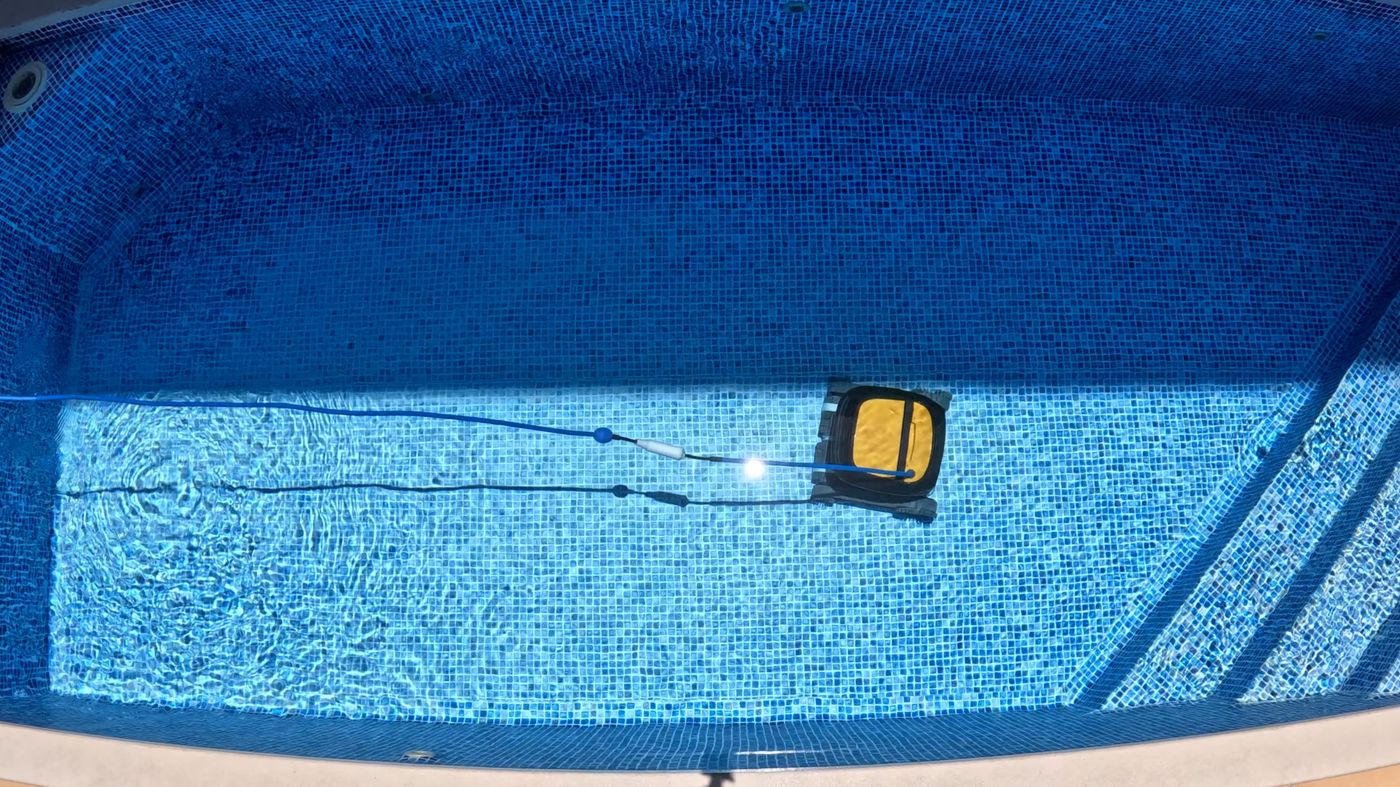
- Start it where it has been missing. Drop the Wave 90i in the dirty area at the start of the cycle. A different starting point changes the route it takes.
- Reposition the power supply. Put it near the middle of the long side so the 75-foot cable can reach both ends evenly.
- Give it enough cable. Measure the longest run in your pool, corner to corner, and put that much cable in the water. Keep the rest coiled on the deck.
- Clean the filter, impeller, and tracks. A robot that is low on flow or dragging a track covers less ground per cycle.
- Know what it skips. A corded Dolphin has to stay fully underwater to run, so it does not clean steps, benches, or shallow ledges. Brush those onto the floor before the cycle.
Stop and call support if: it repeats one short path and ignores the rest of the pool even after a clean and a new starting point.
Wave 90i Cable Tangles
- The blue cable looks like a phone cord after a few cycles
- The robot gets pulled sideways or stops short of the far wall
- You have to untwist the cable every time you take it out
- Too much cable in the water
- The power supply sitting at one end of the pool
- A swivel that is not free to turn
- A track problem making the robot spin in circles
- Cold water, which stiffens the cable
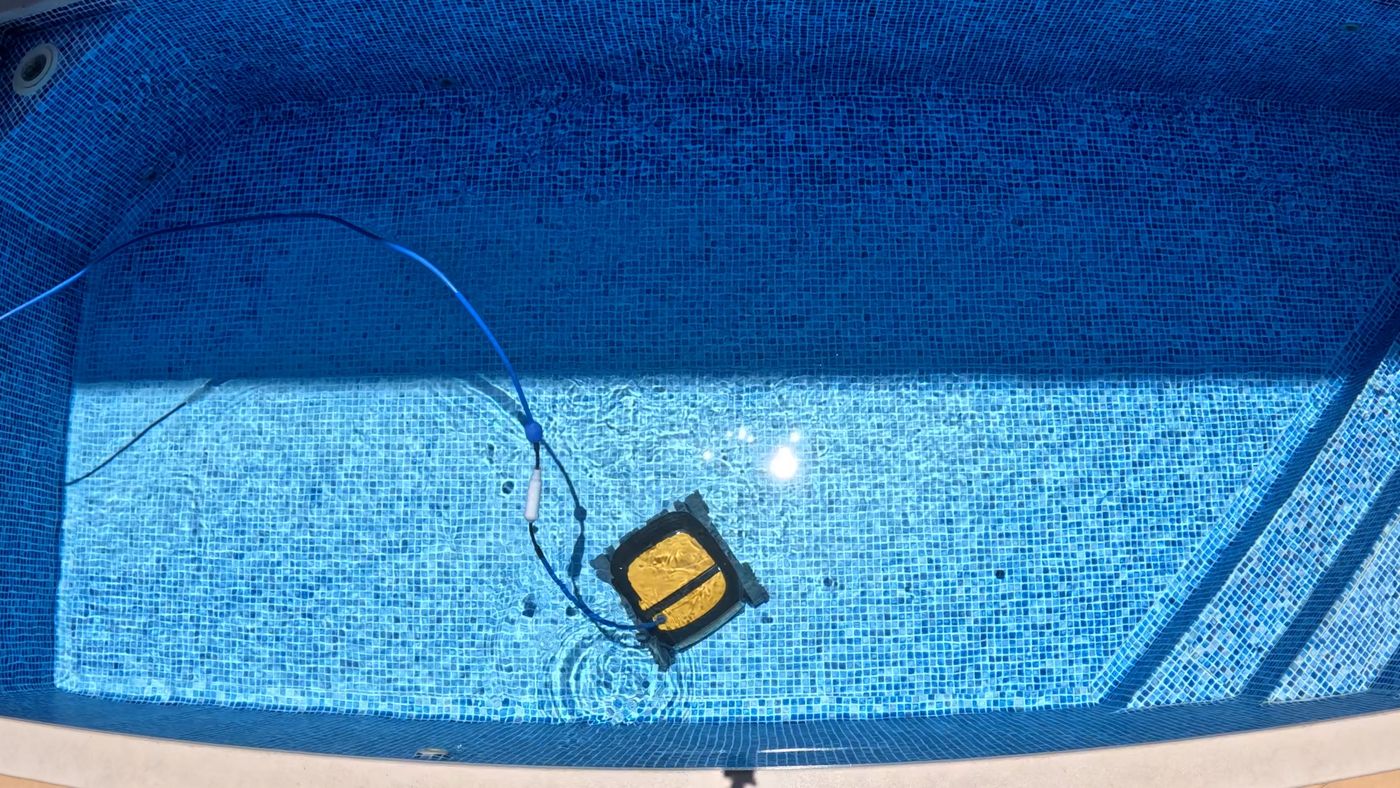
- Lay the cable out in the sun. Unplug it, stretch the full 75-foot cable out straight on the deck or lawn, and leave it in direct sun for at least three hours. Heat relaxes the memory out of the jacket.
- Use only the cable you need. Feed in about as much cable as the longest dimension of your pool. This matters even with a swivel. Extra cable in the water is what knots.
- Center the power supply. Put it near the midpoint of the long side and a few feet back from the edge, so the cable enters the water in a straight, relaxed line.
- Check the swivel. Find the swivel joint on the cable and turn it by hand. It should rotate freely. Rinse out any grit and make sure it is not sitting on the deck where it cannot spin.
- Coil it loosely. Coil the cable in large, loose loops on the caddy. Never wrap it tight around the robot or your arm.
- Check the tracks. A robot that spins in place winds the cable. If the Wave 90i is circling, fix that first using the section above.
Stop and call support if: the cable jacket is cut, the copper is showing, or the cable stays badly kinked after sunning. A damaged floating cable has to be replaced.
Wave 90i Loose Tracks or Worn Brushes
- A track walks off its wheels during a cycle
- The tracks look faded, shiny, or stretched
- Brush fins are torn or the foam rings are flat
- Tracks shifted in shipping (common on a brand-new robot)
- Stretch and wear from age
- Water chemistry that is hard on rubber: low pH or high chlorine
- Debris packed inside the track
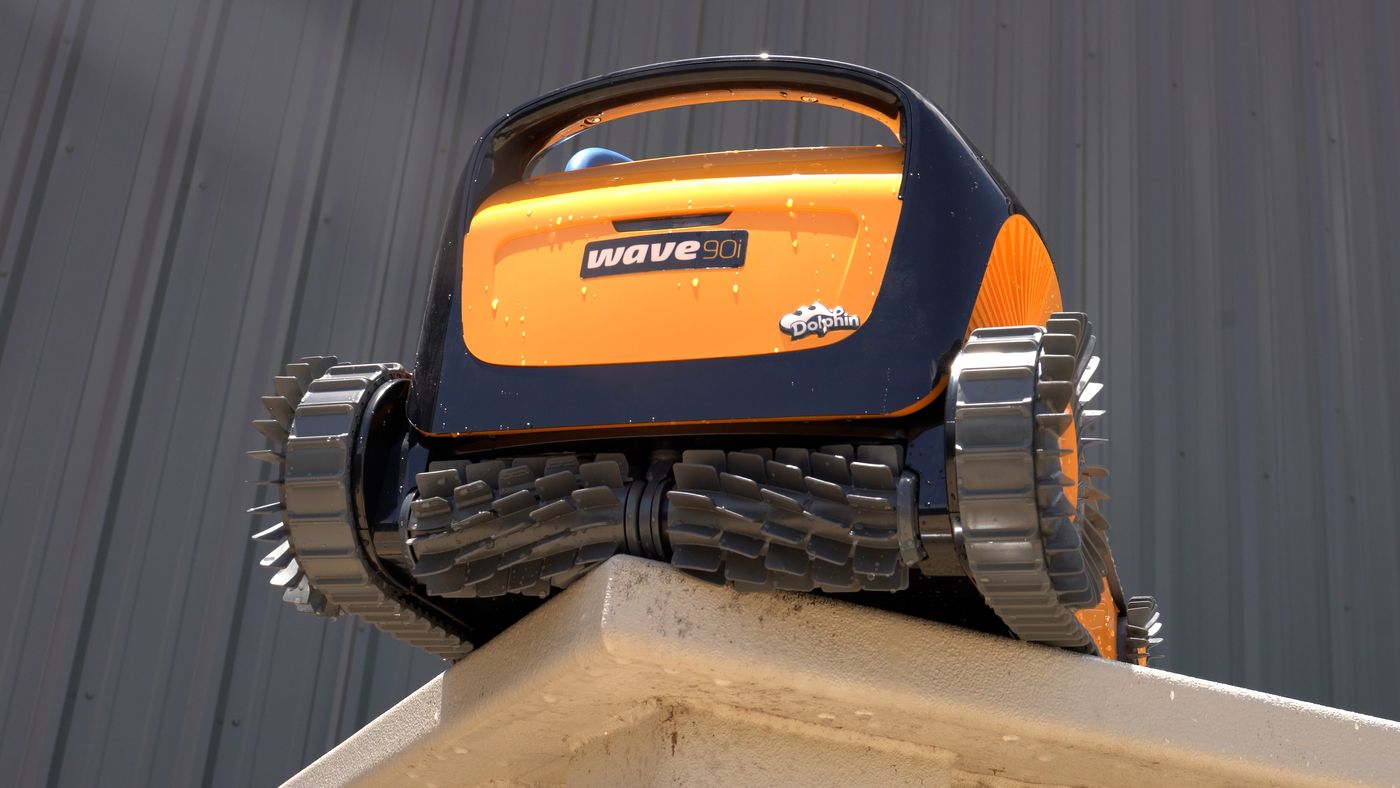
- Refit the track. Unplug the power supply and turn the robot over. Seat the track on the drive wheel first, then roll it onto the remaining wheels, making sure the ribs sit in the grooves all the way around.
- Clean inside the tracks. Pull each track off, rinse the wheels and the inner face of the track, and remove sand and grit. Packed debris pushes a track off its guides.
- Check for wear. Compare both tracks. If one is loose, faded, or slips off again after you refit it, replace both as a pair.
- Inspect the brushes. Replace brushes with torn or rounded fins. Replace the foam climbing rings when they are flattened or no longer white.
- Test your water. Rubber that fades and stretches early is usually a chemistry problem. Keep pH between 7.2 and 7.6 and take the robot out of the pool when you shock.
Stop and call support if: new tracks still come off, or a wheel or track guide is cracked.
Wave 90i Does Wheelies
- The front of the Wave 90i lifts while it is driving forward or backward
- It tips back and loses contact with the floor
- Air trapped in the body
- The cable pulling tight
- A clogged filter
- Water out of balance
- Know what is normal. A Dolphin lifts its nose briefly to help itself turn. That is by design. A wheelie while it is driving in a straight line is the problem.
- Bleed the air. Turn the robot over underwater before the cycle and let the bubbles escape.
- Give the cable slack. A tight cable lifts the end it is attached to. Feed in enough cable to match the longest side of the pool.
- Clean the filter basket. Restricted flow changes how the robot sits on the floor. Rinse it clear and retest.
Stop and call support if: it flips onto its back or cannot keep both tracks down with a clean filter and a slack cable.
Wave 90i Debris Falls Out
- A cloud of dirt leaves the robot as it breaks the surface
- Leaves drop out of the bottom on the way to the deck
- Lifting it too fast or by the cable
- A debris flap that is missing or not seated
- An overfull filter
- Very fine debris passing through the fine (net) filter
- Bring it up slowly. Pull the Wave 90i to the wall by the cable, then lift it by the handle. Never lift it out by the cable. Pause at the surface and let the water drain before you swing it onto the deck.
- Check the flap. The one-way flap or pouch on the bottom of the filter basket has to be in place and closing fully. Clear anything holding it open.
- Empty it more often. A filter packed to the top has nowhere to hold the last load. Clean it after every cycle.
- Switch to ultra-fine for dust. If what escapes is a fine cloud rather than leaves, the fine (net) filter is letting it through. Use the ultra-fine filter if your Wave 90i has one.
- Check under the basket. Lift out the basket and look at the springs and the opening underneath. Grit packed in there keeps the basket from sealing.
Stop and call support if: the flap is torn or missing. It is a small, inexpensive part, and the robot will keep dumping debris without it.
Wave 90i Filter Light Stays On
- The filter indicator on the power supply stays lit after you clean the filter
- It comes back on within minutes of starting a cycle
- Fine particles dried into the filter material
- A blocked impeller reading as a full filter
- The indicator was never reset
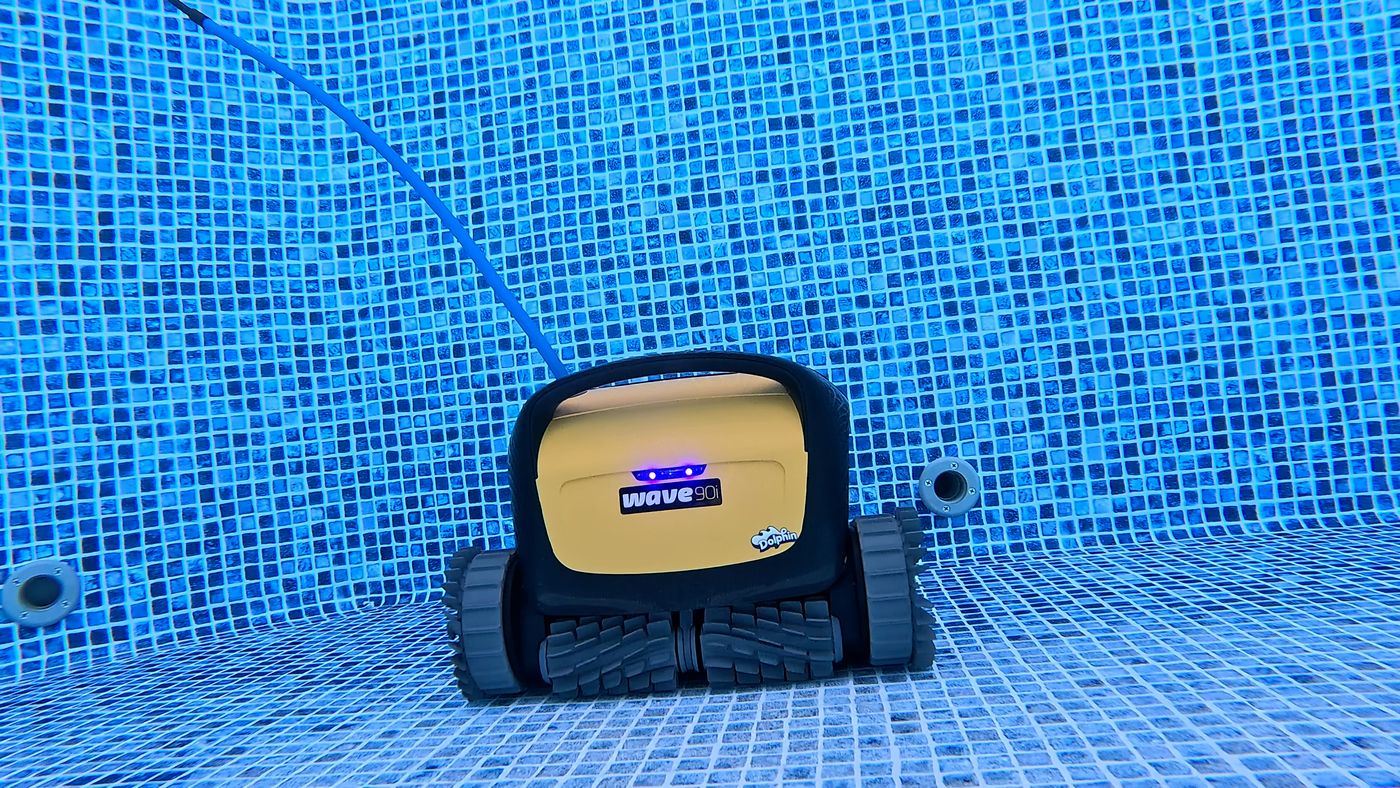
- Deep-clean the filter basket. A quick rinse is not enough here. Wash it hard with a hose from both sides. Fine dust that has dried in the mesh restricts flow even when the filter looks clean.
- Clear the impeller. The robot senses a full filter by load. Debris in the impeller produces the same signal.
- Reset the indicator. If your power supply has a reset button, hold it until the light goes out, which takes between 5 and 20 seconds. If it has no reset button, unplug the power supply, wait a few moments, and plug it back in.
- Replace an old filter. If the light returns right away with a clear impeller, the filter media is clogged for good.
Stop and call support if: the light stays on with a brand-new filter and a clear impeller.
Wave 90i App Won’t Connect
- The app cannot find the Wave 90i
- Pairing stalls partway through the progress bar
- It connects, then shows offline
- A 5 GHz or combined-band Wi-Fi network
- A Wi-Fi password that is too long or has special characters
- Weak signal where the power supply sits
- App permissions that were denied
- Check your Wi-Fi band. The power supply connects on 2.4 GHz only. If your router combines 2.4 and 5 GHz under one name, split them or turn on a 2.4 GHz guest network for setup.
- Check the password. The Wi-Fi password has to be under 32 characters with no spaces or special symbols. A long passphrase is the most common reason pairing fails halfway.
- Check signal at the power supply. Stand where the power supply sits and look at your phone. You need at least two of three Wi-Fi bars there. If it is weak, move the power supply closer to the house or add an extender.
- Read the progress bar. Stuck under 10 percent means the phone lost Bluetooth contact, so stand next to the power supply and retry. Stuck between 10 and 50 percent is a Wi-Fi band or password problem. Stuck past 50 percent is a cloud problem, so restart the router.
- Power-cycle the power supply. Unplug it from the wall for a full 60 seconds, then plug it back in. With the robot in the pool, start a cycle from the power supply button and let it run for about five minutes before you open the app.
- Reinstall the app. Delete it, reinstall it, and accept every permission prompt. If the power supply or motor unit was ever replaced, this step is what lets the app find the new hardware.
- If the app says the robot is not responding: That message means the power supply cannot talk to the robot through the blue cable. Reseat the cable connector and try manual drive or a different mode. If the error comes back, the cable or robot needs service.
Stop and call support if: the robot runs fine from the power supply button but the app reports a communication error every time.
Wave 90i Remote Not Working
- Pressing buttons on the remote does not change what the Wave 90i is doing
- Dead batteries
- Standing too far from the power supply
- Replace the batteries. Start here. It fixes most remote problems.
- Get closer to the power supply. The remote talks to the power supply, not the robot. Use it within about 10 feet of the power supply.
- Restart the power supply. Turn it off, wait 30 seconds, turn it back on, and try the remote again.
Stop and call support if: fresh batteries and a short distance make no difference. The remote itself needs replacing.
Wave 90i Lights and What They Mean
These are the indicator states listed in the official Maytronics material for the Dolphin Wave 90i. If what you see is not here, check the manual for your exact production run before acting on it.
Normal. Wait for it to finish, then press the power button or open the app.
Nothing to fix. Continue to the Wi-Fi step in the app if you want remote control.
Stay near the power supply and let the app finish.
Nothing to fix.
Unplug the power supply for a minute, check the signal with your phone while standing at the supply, move the supply closer to the router or add a 2.4 GHz extender. If the router is dual-band, give the 2.4 and 5 GHz networks separate names. You can connect by Bluetooth in the meantime.
Toggle Bluetooth off and on, move closer with a clear line to the power supply, then turn the power supply off and on. If it still fails, contact the dealer.
Pull the basket and clean it. Maytronics recommends rinsing it after every cycle, before the debris dries on.
Nothing to fix. Press Start Later again to cancel; the blinking stops when the delay is cancelled.
Nothing to fix.
Nothing to fix.
Unplug the power supply and work through the basics: clear the impeller, check that nothing is jamming the tracks, clean the filter. If the red light comes back, the manual says to have your dealer check the robot.
Wave 90i Symptom Quick Reference
The short version, matched to the troubleshooting table in the Dolphin Wave 90i user manual. Use it to confirm you are in the right section above.
Confirm the outlet is live and the GFCI is reset, confirm the supply is plugged in and on, seat the power cord fully, then turn the supply off, wait 30 seconds and turn it on.
Unplug the supply for a minute to reset it. Stand at the supply and check your phone's Wi-Fi by streaming a video. Check the router, move the supply as close to it as you can, or fit a 2.4 GHz extender. If it still blinks green, connect by Bluetooth instead.
Turn the phone's Bluetooth off and on, move closer, remove anything between you and the supply, and turn the supply off and on. If none of that helps, contact the dealer.
Clean the filter. Rinse the basket after every cycle; the robot works better with a clean filter and dried-on debris is hard to remove.
Move the supply closer to the Wi-Fi source. Restart both the supply and the router by unplugging them for a few seconds. On a dual-band router, separate the 2.4 and 5 GHz networks and give them different names.
Tap 'What else can I do', choose to continue with Bluetooth and follow the prompts. When Wi-Fi is back, open the app, go to the settings tab, open Wi-Fi settings and follow the prompts to reconnect.
Stand close to the supply. Plug it in, connect the robot, install MyDolphin Plus, register and grant all permissions, find the robot and connect. When the Wi-Fi setup step appears, tap Skip to go straight to Bluetooth.
Turn on Bluetooth and Wi-Fi on the phone, connect to the robot over Bluetooth in the app, open Settings, choose Wi-Fi Settings and follow the prompts to go online.
Open the app; at the 'Connection error' screen tap 'What else can I do', choose 'Change Wi-Fi' and follow the prompts.
Connect the new supply to the robot and run the robot for 30 seconds. Open the app; at 'Connection error' or 'Can't connect to robot' tap 'What else can I do', choose the option for a new robot or power supply, search for your robot and follow the prompts.
Open the app, tap 'What else can I do' at the connection error, then under the new robot or power supply option tap Disconnect and search for robots. Tap 'Let's get started', grant the permissions and let it pair. Keep Bluetooth on, the supply on and the robot in the water while pairing; out of the water it throws an out-of-water error that breaks the pairing. The serial number is printed inside the robot behind the filter.
Unplug the supply, open the impeller cover and clear the impeller, then check that nothing is blocking the tracks or wheels.
Clean the filter, clear the impeller housing and cover, move the supply so the robot can reach the whole pool, and correct the water.
Clear the impeller housing and cover.
Clean the filter and clear the impeller housing and cover.
Put the supply where the robot can reach the whole pool, still at least 12 ft from the water and 4 in off the ground. Leave enough slack in the blue cable to reach the far end. Clean the filter.
Stretch the cable out fully, let it dry, then wind it carefully so no twists go back in.
Clean the filter, check the water chemistry and scrub algae off the walls, clear the impeller housing and cover, and ask your distributor about swapping the rear brush for a Wonder brush to suit a smooth wall.
What We Saw Testing the Wave 90i
We ran the Dolphin Wave 90i in our own test pool for our Dolphin Wave 90i review. These are the things we ran into ourselves, so you can tell a quirk of the model from a real fault.
- No waterline scrubbing: It is not built to travel sideways along the tile line, so the waterline band is left for you.
- Missed spots and the remote: When it skips an area, the remote lets you drive it there instead of running another full cycle.
- Cable management: Even with the swivel, only put in as much cable as the pool needs.
- Leaving it in on the weekly schedule: The manual itself warns that leaving the robot in treated water all week speeds up wear and cuts cleaning efficiency if the filter is not rinsed.
- Brushes: The side brushes get into corners and edges that the main rollers miss.
- Steady power through the cycle: Power stayed consistent from start to finish, as we expect from a corded Dolphin.
- Floor coverage and traction: Floor coverage was even and the tracks kept their grip through direction changes.
- Wall climbing: It climbs walls and made the floor-to-wall transition cleanly in our pool.
Wave 90i Replacement Parts
These are the genuine Maytronics part numbers listed for the Dolphin Wave 90i. Order by part number, not by photo. Dolphin filters, tracks, and brushes look alike across models and are not interchangeable.
Filters
- Fine debris filter panels (4)
9991463-R4 - Ultra-fine filter, front & rear panels kit
9991479-ASSY - Super ultra-fine filter kit S2
9991496-ASSY
Tracks and wheels
- Track, S1/S2, c.gray 11C
99831524
Brushes and climbing rings
- Wonder brush kit wave 90I
99955314-ASSY - Brush kit rear wave 90i
9995556-ASSY
Impeller and flaps
- Black impeller & screw
9995266-R1
Power, cable, and charging
- Power supply 180W, (Wi-Fi) V10
99956083-ASV10
Other
- Remote control, Bluetooth
99954230-ASSY - Bluetooth remote control
99954230-R1
When to Call Maytronics Support
Stop troubleshooting and get the Wave 90i looked at if any of these are true:
- The same fault comes back right after a full clean and a restart
- You see water inside a sealed compartment, or the robot has become noticeably heavier
- There is a burning smell, a melted connector, or visible corrosion on the electrical contacts
- The floating cable is cut, crushed, or showing copper
- The power supply will not stay on with nothing plugged into it
- One track or the impeller will not turn under power with nothing blocking it
Before you call, write down the serial number, find your proof of purchase, and record a 20 to 30 second video of the problem. A clip of the robot failing, plus a clear shot of any light on the power supply, gets a warranty claim moving faster than any description.
- Support: Maytronics support
- Phone: US 1-888-365-7446, Canada 1-855-634-8572 (Monday-Friday 8:00 am-5:00 pm EST)
- Manual: Dolphin Wave 90i user manual
- Warranty: 2 years
2-year warranty. The manual directs owners to their dealer or distributor when the troubleshooting steps do not work. Maytronics' self-service tool opens warranty claims (RMA) for repairs and replacement power supplies; power supplies are replaced, not repaired.
Dolphin Wave 90i Troubleshooting FAQ
What do the lights on the Dolphin Wave 90i power supply mean?
Steady blue is a Bluetooth connection, steady green is Wi-Fi, and alternating green and blue is pairing in progress. Blinking green or blinking blue with no connection means the Wi-Fi or Bluetooth link is failing. A steady orange light means the filter is clogged.
Why is there a red light on my Dolphin Wave 90i?
A constant red light on the robot is its error signal; blinking blue is normal running and blinking green means the remote or app is talking to it. Unplug the power supply, clear the impeller and tracks, clean the filter and try again. If red returns, the manual sends you to your dealer.
Why doesn't my Dolphin Wave 90i clean the waterline?
It is not designed to. Maytronics lists the 90i for floors and walls only, and in our testing it climbed walls well but did not travel along the tile line. If it will not climb at all, clean the filter first: a clogged basket stops the rear jet that presses the robot against the wall.
Why won't my Dolphin Wave 90i connect to Wi-Fi?
The power supply needs a 2.4 GHz signal where it sits. Move it closer to the router, restart both, and on a dual-band router give the 2.4 and 5 GHz networks different names. Until that is sorted you can run it over Bluetooth from beside the power supply, or just press the power button.
How do I get the Dolphin Wave 90i out of the pool?
Use Pick-up mode in MyDolphin Plus or on the remote. The robot heads for the nearest wall and climbs to the surface so you can take the handle. Without the app, turn the power supply off, draw the robot in with the cable, then lift by the handle and let it drain on the edge.
Can I schedule the Dolphin Wave 90i without the app?
Partly. Holding the power button on the power supply for more than five seconds sets it to run every second day, and the remote can set every second or third day for a week. A repeating weekly schedule needs the app. Maytronics still advises pulling and rinsing the robot after each run.
Still stuck after every check?
Go back to our review for how the Wave 90i is supposed to behave, or contact Maytronics with your serial number and a short video of the problem.