
The short answer
Most Wybot C2 problems trace back to three things: a filter sealed with fine debris, a battery that is not fully charged, or air trapped in the body. Rinse the filter until the water runs clear, charge until the light shows full, and let the air out before the next run.
This is the troubleshooting home for the Wybot C2. It is a cordless, battery-powered robot that cleans the floor, walls and waterline. Below are the 12 problems owners run into most, each with the checks we would make first and the point where it stops being a do-it-yourself fix.
Safety first: take the C2 out of the water and switch it off before you open the filter, touch the brushes, or reach near the impeller. Never charge it while it is wet at the charging contacts, and never open the sealed battery or motor housing.
C2 Quick Checks First
Run through these before you chase a specific symptom. Between them they clear up most of what goes wrong with a Wybot C2.
- Charge it all the way. Leave the C2 on charge until the light shows full, not just until it turns on. A partial charge causes short runs, weak climbing, and robots that stop in the middle of the pool.
- Rinse the filter until the water runs clear. A filter that looks clean can still be sealed with fine dust. Most pickup, climbing, and early-shutoff complaints end here.
- Let the air out. Hold the robot under the surface and rock it until the bubbles stop before you let go. Trapped air makes it float, tip, and lose grip.
- Rinse and dry the charging contacts. Pool water left on the charging port or contacts corrodes them. Rinse with fresh water and dry them before every charge.
- Check the water. Algae, very cold water, and chemistry far out of range all make a robot slip. Fix the water before you blame the machine.
Wybot C2 at a glance
- Type
- Cordless, battery powered
- Cleans
- Floor, walls and waterline
- Filter
- One top-loading 180-micron filter basket plus a removable ultra-fine filter panel that slides in beside it
- Battery
- Rated 3 hours in Eco Floor mode, about 3 hours to recharge
- App
- WYBOT app over Bluetooth
- Built for
- In-ground pools, rectangular, oval or freeform, on vinyl, gunite and tile
- Weight
- 17.6 lb
- Warranty
- Length not printed in the C2 manual
C2 Won’t Turn On
- No lights when you press the on/off button
- Yellow flashing instead of blue
- It powers up on the deck, then shuts off before you launch it
- Red flashing after sitting on the deck
- Battery too low to start a cycle
- Left on the deck for more than 3 minutes after power-on
- Switched on but not put in water
- Battery deep-discharged in storage
- Press the button and watch the light bar. The on/off button is on the top deck. A healthy start is solid green for the battery level, then solid blue. If you get flashing yellow instead, the battery is too low to begin.
- Charge until the bar is solid green. Unscrew the protective cap, check the port is dry, and plug in the adapter. The light bar flashes green while charging and goes solid green when full, which takes about 3 hours.
- Launch within 3 minutes. After power-on the C2 gives you 3 minutes to get it into the pool, then switches off. Do your app settings first, then turn it on at the pool edge.
- Clear a flashing red. The manual lists flashing red for a robot that was started and not put in the water. Restart it and lower it in right away, into more than 0.5 m of water.
- Consider storage. Wybot asks for a top-up charge every three months when the robot is not in use. If yours sat flat over winter and will not wake, the manual says to contact support and not to open it.
Stop and call support if: there is no light at all after 3 hours on a working charger, or it will not start after long storage.
C2 Won’t Charge
- Light bar never turns green on the charger
- Charger light flashes
- No blue light on the adapter
- Still yellow after hours plugged in
- Plug not making good contact in the port
- Water or dirt in the charging port
- Robot still switched on
- Dead outlet or failed adapter
- Charging in heat or direct sun
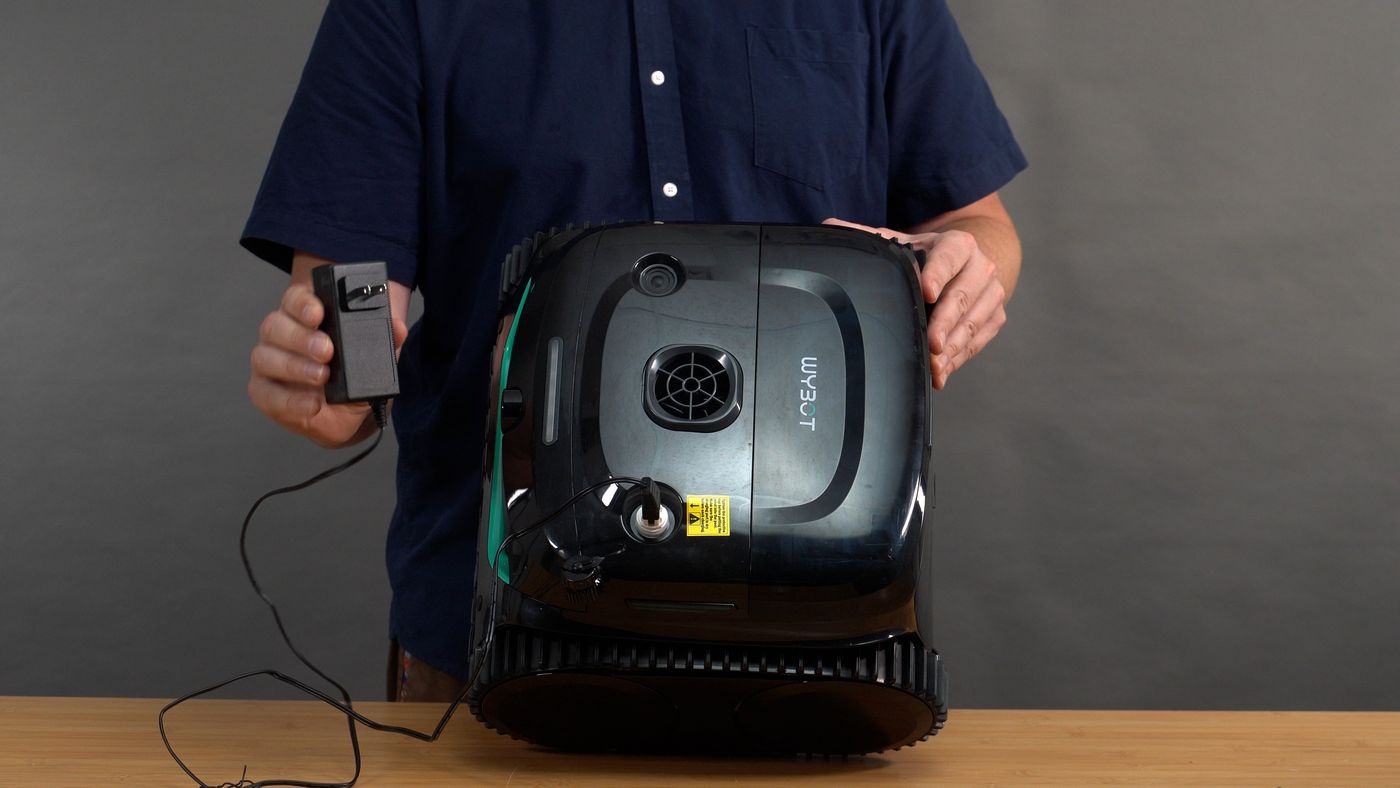
- Re-plug the charger. The manual's one listed cause for a flashing charger light is poor contact. Pull the plug out of the robot, check both ends, and push it firmly back in.
- Dry and inspect the port. The charging port is on the top deck under a screw-on cap. Unscrew it and make sure the port is completely dry and clean before connecting. Put the cap back on after every charge.
- Power the robot off. The manual says to confirm the device is off before charging. Press the on/off button and wait for the light bar to go out.
- Check the adapter light. The adapter has its own indicator that shows blue when it has power. No blue means the outlet or the adapter is the problem. Try another outlet.
- Move it somewhere cool. Charge at least 3 m (about 10 ft) from the pool, out of the sun, between 32 and 95 degrees F. Wybot's FAQ specifically advises against charging out on a sunny deck.
Stop and call support if: the adapter shows power but the robot never shows flashing green, the charger light keeps flashing after reseating, or the port is corroded.
C2 Short Battery Life
- Runs far less than the advertised 3 hours
- Parks with yellow flashing before the pool is finished
- Weekly timer runs are only 30-60 minutes
- The 3-hour figure applies to Eco Floor mode only
- Wall and waterline modes use the battery faster
- Turbo Floor is a much shorter run
- Weekly timer divides one charge across several days
- Blocked filter basket
- Battery wear

- Check the mode in the app. With the robot out of the water, open the WYBOT app and see which mode is set. Three hours is the Eco Floor rating only. Turbo Floor gave us about a 60-minute cycle, and Wybot does not publish a run time for the wall and waterline modes.
- Expect less on walls. In our testing run time was noticeably shorter whenever it was climbing. If you need the floor finished, run a floor-only mode and do walls on a separate charge.
- Understand the weekly timer. The schedule does not recharge the robot. It spreads one battery across two, three or four runs in the week, which in our app meant 60, 40 or 30 minutes each. Short scheduled runs are the feature working as designed.
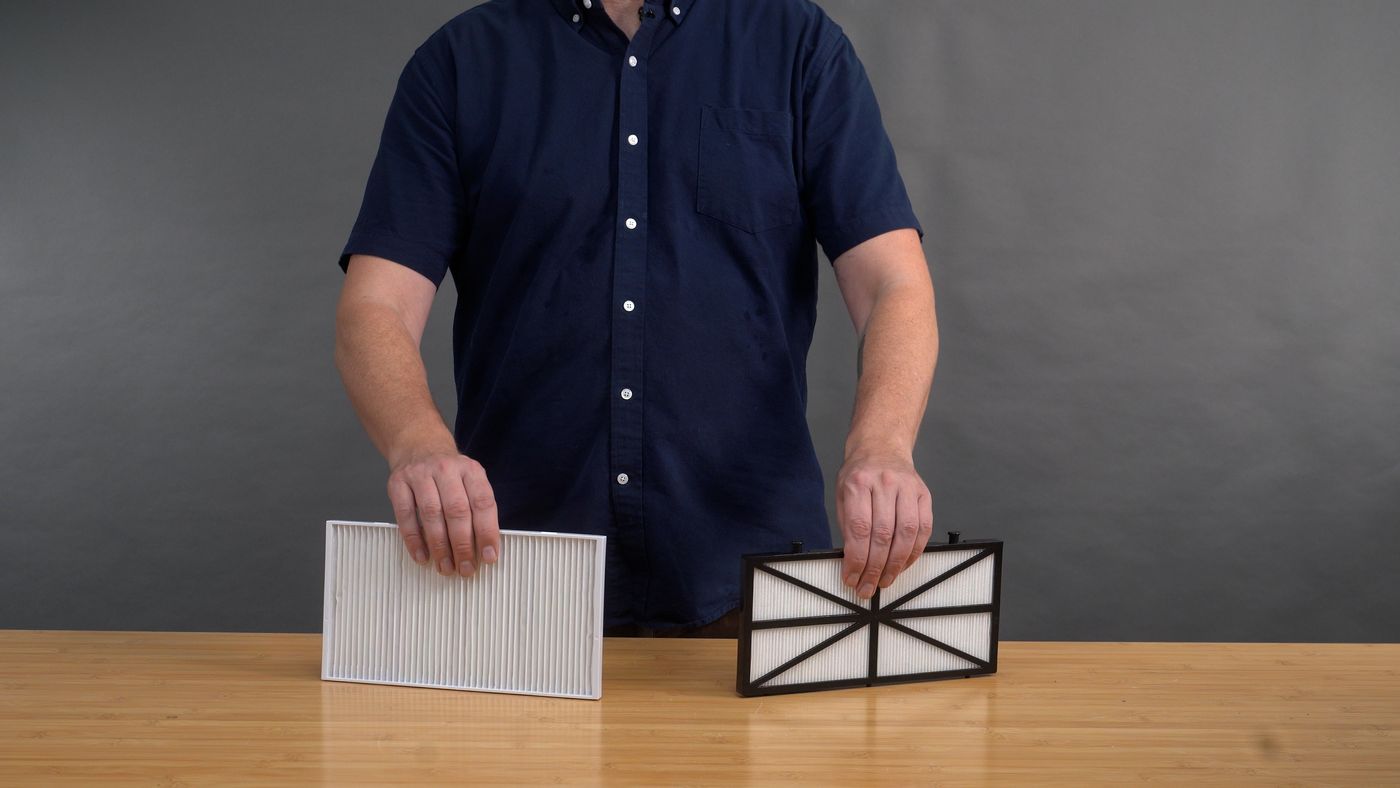
- Clean the basket and the ultra-fine filter. Push the lid-open button up, open the top cover, and lift out the filter basket and the ultra-fine panel. Empty and rinse both. A blocked basket slows the robot and wastes battery.
- Start from solid green. Charge until the light bar is solid green before each cycle, about 3 hours from empty.
Stop and call support if: eco Floor runtime from a full charge with a clean basket has dropped sharply compared with when the robot was new.
C2 Stops Mid-Cycle
- Parks at the wall before the pool is clean
- Stops on the floor with a red light
- Stops and floats or tips nose-up
- Low battery (yellow)
- Scheduled or eco run reached its time limit
- Motor protection tripped (flashing red)
- Impeller jammed (solid red)
- Filter basket blocked
- Read the light before you touch it. Yellow at the wall is a normal low-battery park. Flashing red is motor protection. Solid red is a stuck impeller. Each has a different fix.
- Yellow: charge it. Hook it out, dry the port, and charge to solid green. Then restart.
- Flashing red: restart it. The manual's fix for motor protection is a restart. Take the robot out, switch it off and on, and put it back in the pool immediately.
- Solid red: clear the impeller. Switch the robot off. Look into the pump opening in the middle of the top deck, where water is pushed out, and remove hair, string or leaf stems you can reach. Do not remove screws to get at it.
- Empty the filter basket. A blocked basket is the manual's answer for slow climbing, sinking off the wall and sitting nose-up on the floor. Open the top cover, clean the basket and ultra-fine panel, and try again.
Stop and call support if: solid red returns after you have cleared the impeller, or flashing red keeps coming back in deep water on a full charge.
C2 Won’t Climb Walls
- Stays on the floor the whole cycle
- Starts up the wall and slides back
- Climbs very slowly
- Peels away from the wall partway up
- A floor-only mode is selected (Floor only, Turbo Floor or Eco Floor)
- Filter basket blocked
- Slick wall surface such as tile, mosaic or acrylic
- Dirty or algae-coated walls
- Air being drawn in near the surface
- Confirm the mode. Take the robot out and connect the app. Floor only, Turbo Floor and Eco Floor never climb. Pick Standard full pool, Wall only, Waterline only, or the default Wall then floor.
- Clean the filter basket. The manual gives a blocked basket as the cause of slow climbing and of dropping off the wall. Push the lid-open button up, pull the basket and ultra-fine panel, and rinse them.
- Take the ultra-fine filter out for wall work. Wybot recommends the ultra-fine panel for Turbo Floor mode only. Leave it out for wall and waterline cycles so the pump keeps its full flow.
- Deal with slick walls. For slippery surfaces the manual's answer is the adhesive floating blocks that come in the box. It tells you to contact Wybot's after-sale team for placement instructions, and Wybot's support page lists a how-to video for installing the floating parts on the C2.
- Brush slimy walls first. The manual links poor climbing to dirty water. If the walls feel slick with algae, brush them and balance the water, then run the robot.
Stop and call support if: it will not climb a clean, non-slick wall in a wall mode with a clean basket, or you need guidance on where to stick the floating blocks.
C2 Floats or Won’t Sink
- Bobs at the surface after launch
- Drifts off the wall and floats during a wall cycle
- Rests on the floor with its front end up
- Air trapped inside at launch
- Air drawn in at the waterline
- Filter basket blocked
- Water too shallow
- Lower it in on end. Hold the handle and put the robot into the water vertically so the air can escape, then let it sink to the floor. Give it about 20 seconds to calibrate before it moves.
- Check the top cover is shut. Make sure the top cover clicked closed after you last cleaned the basket. A cover that is ajar holds an air pocket.
- Clean the filter basket. The manual lists a blocked basket for both floating during wall climbs and sitting front-up on the floor. Empty and rinse it and the ultra-fine panel.
- Fit the floating blocks if it sucks air. When it sinks off the wall or floats because it is taking in air, the manual points to the adhesive blocks and asks you to get placement instructions from Wybot support.
- Check the depth. The C2 needs at least 19.5 in (50 cm) of water over the top of the robot. On a shallow ledge it will not stay down.
Stop and call support if: it floats on every launch after a careful air purge with a clean basket and a closed cover.
C2 Not Picking Up Debris
- Debris is pushed around instead of collected
- Basket is nearly empty after a cycle
- Fine dust is still on the floor
- Filter basket full or blocked
- Ultra-fine filter fitted in a heavily soiled pool
- Basket not reinstalled
- Low-power mode for a heavy job
- Debris wrapped around the scrubbing brush

- Empty the basket. Push the lid-open button on the back of the top cover upward, open the cover, and lift out the filter basket. Open the basket, dump it, and hose it clean. Wybot says to wash it after every use.
- Use the ultra-fine filter only when it helps. The ultra-fine panel is an add-on for fine dust in Turbo Floor mode. The manual says not to install it when the floor is heavily soiled because it gets in the way of the robot's operation.
- Make sure the basket is back in. It sounds obvious, but the manual reminds owners to install the basket before starting. Seat it fully and close the cover until it latches.
- Pick Turbo Floor for heavy debris. Eco Floor trades power for run time. For a dirty floor, set Turbo Floor in the app before launch and accept the shorter cycle.
- Check the front brush. With the robot off, turn it over and pull hair, string and leaf stems off the scrubbing brush so it can sweep debris toward the intake.
Stop and call support if: there is no noticeable water flow from the top pump outlet with a clean basket and a full charge.
C2 Misses Spots
- Cleans only part of the pool
- Does walls and skips the floor, or the other way round
- Follows an odd path
- Wrong cleaning mode
- Pool not defined or not selected in the app
- Outdated firmware
- Battery ran out before the cycle finished
- Blocked basket or obstacles altering the path
- Re-select the mode. The manual's first fix for partial cleaning is to connect to the app and choose a mode that matches what you want. Standard full pool covers walls, floor and waterline. Remember the robot keeps the last mode you set.
- Set up your pool in the app. Wybot's FAQ says path problems often come from skipping the pool definition. Add your pool under My Pool, select it, then send the mode and path to the robot.
- Update the firmware. The manual lists out-of-date firmware as a cause. In the app, open the device info screen, turn on automatic upgrades, and install any update with the robot out of the water.
- Clean the basket. A blocked basket changes how the robot sits and climbs, which changes its path. Empty it before blaming navigation.
- Match the mode to the battery. A large pool will not be finished on a 30-minute scheduled run or a 60-minute turbo run. Use a full manual cycle when you need complete coverage.
Stop and call support if: coverage is still poor after updating firmware, defining the pool and running a full cycle from a full charge.
C2 Gets Stuck
- Parks on a raised main drain
- Hangs up at steps, a ladder or a shallow ledge
- Stops in the same place each cycle
- Drain cover taller than about 3 cm
- Obstacles in the path
- Water too shallow over a ledge
- Blocked filter basket reducing traction
- Check the drain height. The manual says the C2 gets stuck on drains that stand more than 3 cm (a little over an inch) off the floor, and its only fix is to move the robot off by hand. Use the hook and pole to nudge it clear.
- Never modify the drain cover. Raised anti-entrapment covers are safety equipment. Do not remove, flatten or swap one to suit a cleaner. Ask a pool professional if the cover looks loose or damaged.
- Clear the pool before the run. Take out ladders, toys and floating lines. The manual says steps, drains and shallow areas can change the robot's path even when they do not stop it.
- Keep it out of very shallow water. The robot needs about 19.5 in of water over its top. On a tanning ledge it can lose suction grip and flash red.
- Clean the basket and retest. Empty the filter basket so the robot has full suction and track grip, then watch one cycle to see whether it still stops in the same spot.
Stop and call support if: it stalls on open, flat floor with nothing in its way.
C2 App Won’t Connect
- App cannot find the C2
- Pairing fails or the purple light never clears
- Login error in the app
- App shows the robot offline while it is cleaning
- Robot is in the water (no connection is possible under water)
- Robot is powered off or timed out
- Phone Bluetooth is off
- Phone or app version problem
- Account login failure
- Take the robot out of the pool. This is by design. Wybot says its cordless robots lose Bluetooth and Wi-Fi once they are submerged, and the manual's fix is to connect on the deck. All settings have to be sent before launch.
- Wake the robot. The manual lists a powered-off robot as the cause of a failed connection. Press the on/off button and restart it. It only stays on for 3 minutes out of the water, so have the app open first.
- Turn Bluetooth on and stand close. Enable Bluetooth on the phone and keep it near the robot. Wybot's FAQ also suggests joining Wi-Fi before you search for the device. The light bar shows solid purple while it is connecting.
- Check the phone's software. The app needs iOS 15 or later, or Android 8 or later. Update the app from the App Store or Google Play and restart the phone.
- Try another phone if login fails. On our Android test phone the app returned a 405 code at login and never connected, while an iPhone worked straight away. If you hit a login error, try a second device before you assume the robot is faulty.
- Follow Wybot's setup order. Turn on the robot, enable Bluetooth, define your pool, tap + to add the robot, tap its picture to set the mode and path, then close the app and put the robot in the pool.
Stop and call support if: the robot never shows purple and no phone can find it, or a login error persists across devices. Send Wybot the error code and your phone model.
C2 Hard to Retrieve
- Finishes in the deep end or on the far wall
- Heavy and awkward to lift
- Hook will not catch
- It parks at the nearest wall, not at a chosen spot
- Battery died before it reached a wall
- Robot is full of water when lifted flat
- Let it park. At the end of the cycle or on low battery the C2 drives to a wall and stops, with the light bar flashing yellow. Wait for it to settle.
- Use the hook on a pole. Push the included hook into a pool pole, reach down, and catch the carry handle on the robot. Bring it up slowly to the wall.
- Lift it on end and let it drain. Once you have the handle in your hand, hold the robot vertically at the surface for a few seconds. Water runs out of the outlet at the back, which takes real weight off the lift. It weighs about 17 lb before the water.
- Dry the cap area before charging. Carry it at least 3 m from the pool, then dry around the charging cap before you unscrew it so water does not run into the port.
Stop and call support if: it routinely dies in open water without attempting to park, even on short cycles from a full charge.
C2 Red or Yellow Light
- Solid red light bar
- Flashing red light bar
- Flashing or slowly pulsing yellow
- Solid red: impeller stuck
- Flashing red: motor protection, or the robot is out of water or in water that is too shallow
- Yellow: low battery or self-parking
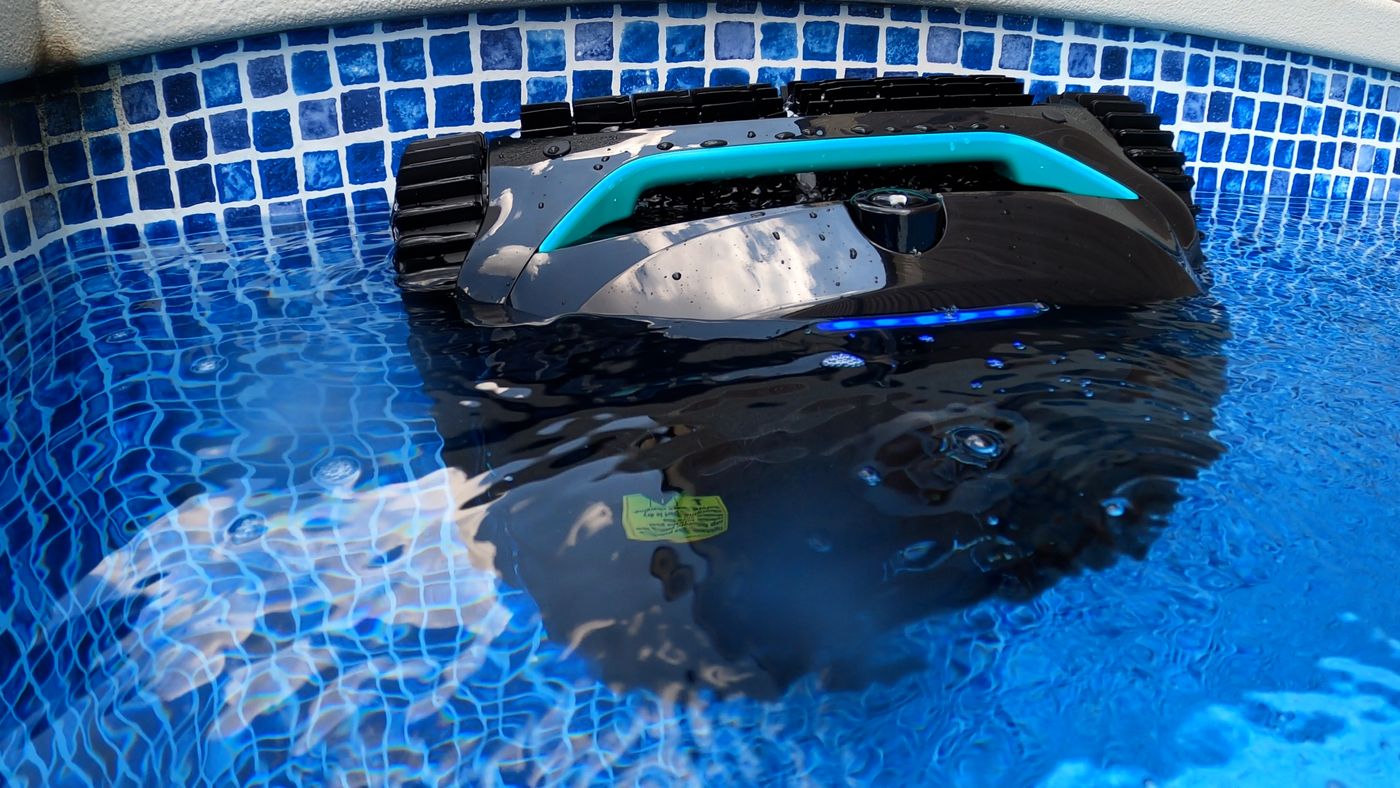
- Note whether red is solid or flashing. The C2 manual separates the two. Solid red points at the impeller. Flashing red points at motor protection or at the robot not being in deep enough water.
- Solid red: check the impeller. Switch the robot off. Look into the pump opening on the top deck and clear anything caught there. Restart once it is clear.
- Flashing red: restart in deeper water. Switch it off and on, then put it straight into water more than 0.5 m deep. If it was left running on the deck or wandered onto a shallow shelf, this clears it.
- Yellow: charge fully. Yellow is a battery message, not a fault. Charge to solid green and restart.
- Clean the basket before relaunching. A packed basket makes the pump and drive work harder. Empty it so you are not chasing the same light twice.
Stop and call support if: solid red persists with a clear impeller, or flashing red keeps returning in deep water. The manual says not to disassemble the robot yourself.
C2 Lights and What They Mean
These are the indicator states listed in the official Wybot material for the Wybot C2. If what you see is not here, check the manual for your exact production run before acting on it.
Put it in the pool within 3 minutes. If you wait longer it switches itself off.
Nothing to do. Leave it until it parks at the wall.
Keep the robot out of the water and within Bluetooth range of your phone until pairing finishes.
Take it out and charge it fully, then restart.
Leave it on the charger.
Unplug it and screw the protective cap back over the charging port before it goes in the pool.
Switch it off, check the impeller for debris and clear it, then restart.
Restart it and put it straight into the pool. The manual wants more than 0.5 m (about 20 in) of water.
If it is dark, try another outlet. If the charger light flashes, the manual says the connection is poor: unplug and re-plug it.
What We Saw Testing the C2
We ran the Wybot C2 in our own test pool for our Wybot C2 review. These are the things we ran into ourselves, so you can tell a quirk of the model from a real fault.
- Android app login error 405: We could not log in to the Wybot app on our Android phone. It returned a 405 code and we never got the robot connected from that device.
- App only works out of the water: The app cannot reach the robot once it is submerged, so every setting has to be made on the deck first.
- Shorter runtime on walls: Run time was clearly shorter when it was climbing walls and working the waterline than on floor-only cleaning.
- Suction felt weak: In our 8x20 test pool the C2 did not seem to pull as hard as the corded robot we ran next to it.
- Heavy to pull out: Getting it out means hooking a waterlogged 17 lb robot and hauling it to the charger every time.
- Weekly timer splits one charge: The weekly timer does not give a full cycle each day. It divides one battery across the week, and our app showed 60, 40 or 30 minutes per run depending on how many days we picked.
- Path options in the app: The app lets you choose the pattern the robot runs, which we have not seen on many robots.
- iOS connected fine: The same robot paired without trouble once we switched to an iPhone.
When to Call Wybot Support
Stop troubleshooting and get the C2 looked at if any of these are true:
- The same fault comes back right after a full clean and a restart
- You see water inside a sealed compartment, or the robot has become noticeably heavier
- There is a burning smell, a melted connector, or visible corrosion on the electrical contacts
- The battery will not take a charge, or the runtime has dropped to a fraction of what it was
- A motor is silent or grinding with nothing blocking it
Before you call, write down the serial number, find your proof of purchase, and record a 20 to 30 second video of the problem. A clip of the robot failing, plus a clear shot of any light on the robot or charger, gets a warranty claim moving faster than any description.
- Support: Wybot support
- Phone: 1-866-777-6655 (Monday-Friday, 9:00 AM-5:00 PM Pacific)
- Email: support@wybotpool.com
- Manual: Wybot C2 user manual
- Warranty: Length not printed in the C2 manual
Warranty applies to the original buyer only and Wybot requires the order number (website or Amazon) for any claim. Damage from unauthorized repair or disassembly is excluded. The C2 manual does not print the warranty length; it refers to Wybot's online warranty policy. Wybot says replies can take 1-3 business days in….
Wybot C2 Troubleshooting FAQ
Why won't the Wybot C2 app connect while the robot is in the pool?
Bluetooth does not carry through water, and Wybot confirms the C2 cannot be reached once it is submerged. Take it out, power it on, connect on the deck, send your settings, then put it back in.
What does a red light on the Wybot C2 mean?
Solid red means the impeller is stuck and needs clearing. Flashing red means motor protection has tripped or the robot was started out of the water or in water under about 0.5 m deep. Restart it and put it straight into the pool.
Why is my Wybot C2 not climbing the walls?
First check the mode: Floor only, Turbo Floor and Eco Floor never climb. After that, clean the filter basket and take out the ultra-fine filter. On slick tile or acrylic, Wybot's fix is the adhesive floating blocks supplied in the box.
How long does the Wybot C2 take to charge?
About 3 hours from empty. The light bar flashes green while charging and turns solid green when it is full. Always dry the port and make sure the robot is off before you plug in.
Why does the Wybot C2 weekly timer only run 30 minutes?
The weekly timer does not recharge the robot between runs. It splits one charge across two, three or four days, which in our app worked out to 60, 40 or 30 minutes per run. For a full clean, run a manual cycle on a full battery.
When should I use the ultra-fine filter on the Wybot C2?
Wybot recommends it only in Turbo Floor mode, for fine dust on a floor that is already fairly clean. Leave it out when the pool is heavily soiled and for wall cycles.
Still stuck after every check?
Go back to our review for how the C2 is supposed to behave, or contact Wybot with your serial number and a short video of the problem.